This page has been machine-translated from the original page.
In this chapter, we will identify the second Flag by dynamically analyzing DoPDriver using Windows kernel debugging.
As confirmed in Chapter 5, to identify the second Flag, you need to launch a process whose image file name can pass the validation performed by the checkImageFileName function (the function at address 0x140001000).
In this chapter, we will dynamically analyze DoPDriver with kernel debugging while identifying the correct image file name through a brute-force attack.
For instructions on loading a Windows kernel driver into a virtual machine and setting up an environment for kernel debugging, please refer to Chapter 1.
Table of Contents
- Dynamically Analyze the DriverEntry Function
- Dynamically Analyze the Callback Function Registered with PsSetCreateProcessNotifyRoutine
- Identify the Flag with a Brute-Force Attack Using Breakpoint Settings
- Dynamically Analyze the checkImageFileName Function
- Identify the Image File Name with a JavaScript-Based Debugger Script
- Inspect the Paged Pool Information
- Identify the Memory Block Address from the Pool Tag
- Identify the Memory Allocation Address Using PoolHitTag
- Summary of Chapter 6
- Afterword
- Links to Each Chapter
Dynamically Analyze the DriverEntry Function
As described in Chapter 5, a kernel driver module such as DoPDriver executes the DriverEntry function when it starts.
However, unlike a user-mode program, a kernel driver cannot be launched from the debugger.
Also, debugging the DriverEntry function by setting a breakpoint on it requires a slightly special approach.
This is because you cannot use DoPDriver’s routine names until the driver has been loaded, so you cannot use the bp command to set a breakpoint on the DriverEntry function.
Therefore, to debug the DriverEntry function, you must either use the bu command to set a deferred breakpoint on an unresolved routine name, or enable debugging when the module is loaded by using a WinDbg feature.
If you want to set a deferred breakpoint on the DriverEntry function with the bu command, use bu DoPDriver+0x11cc.
After executing bu DoPDriver+0x11cc, once DoPDriver is loaded, the routine name is resolved automatically and the system stops in the DriverEntry function.
The easiest way to debug the DriverEntry function is probably to set a deferred breakpoint with the bu command, but in this book I will intentionally use the method of enabling debugging when a module is loaded.
To enable debugging when a module is loaded, attach WinDbg to the virtual machine as a kernel debugger, open [File] > [Settings] in WinDbg, and change [Events & Exception] > [Load module on all modules] to [Break].
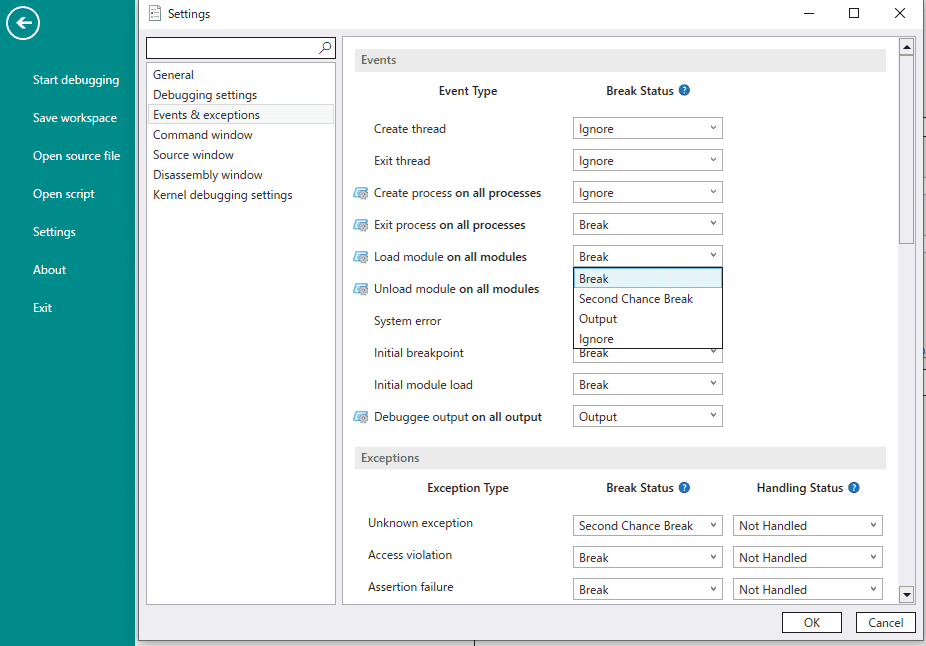
After changing [Load module on all modules] to [Break], resume system execution with the g command and have DoPClient load DoPDriver into the system.
If the setting has been applied correctly, the virtual machine’s system will temporarily stop at this point, and you will be able to use kernel debugger commands.
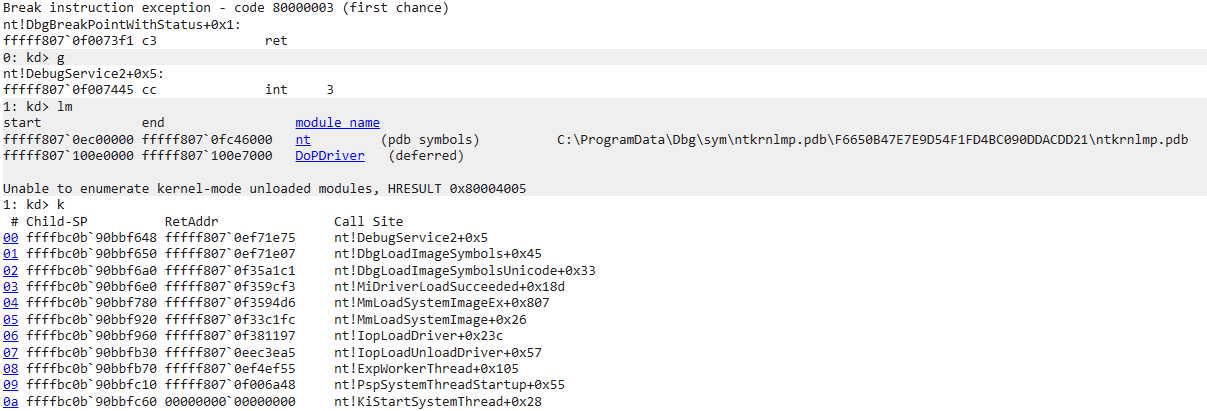
By using the [Load module on all modules] debugger setting to stop the system when DoPDriver is loaded, you can set breakpoints using DoPDriver symbols.
So, to analyze the DriverEntry function, set a breakpoint at DoPDriver+0x11cc, which Chapter 5 identified as the address of the DriverEntry function.
Even when WinDbg is used as a kernel debugger, many commands are the same as those used when debugging a user-mode program.
Therefore, execute bp DoPDriver+0x11cc ; g to set a breakpoint on the DriverEntry function and then resume system execution.
Once the breakpoint is set and system execution resumes, the system almost immediately stops at DoPDriver+0x11cc.
At this point, issuing a command such as uf @rip lets you inspect the disassembly of the DriverEntry function.
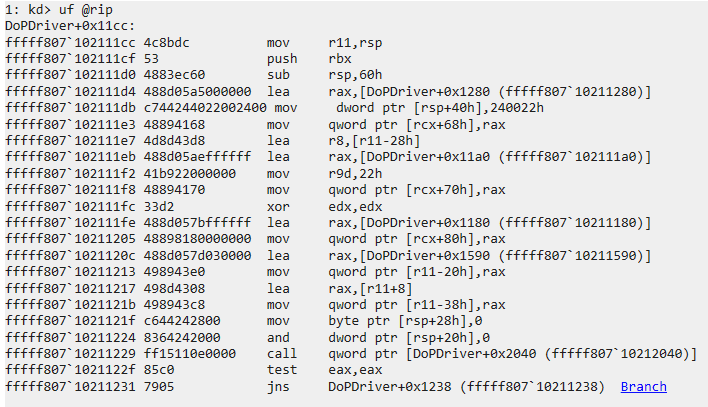
As confirmed in Chapter 5, the DriverEntry function first creates a device object by calling IoCreateDevice with arguments such as DeviceName.
Here, we will first use the debugger to identify the value of DeviceName, which is passed as a UNICODE_STRING object to the IoCreateDevice function, and the addresses of the functions assigned as dispatch routines in the driver object.
To do this, continue execution until DoPDriver+0x1229, which executes the call qword [rel IoCreateDevice] instruction.
There are several ways to continue execution to a specific address, but here I used pa DoPDriver+0x1229 to step all the way to DoPDriver+0x1229 at once.
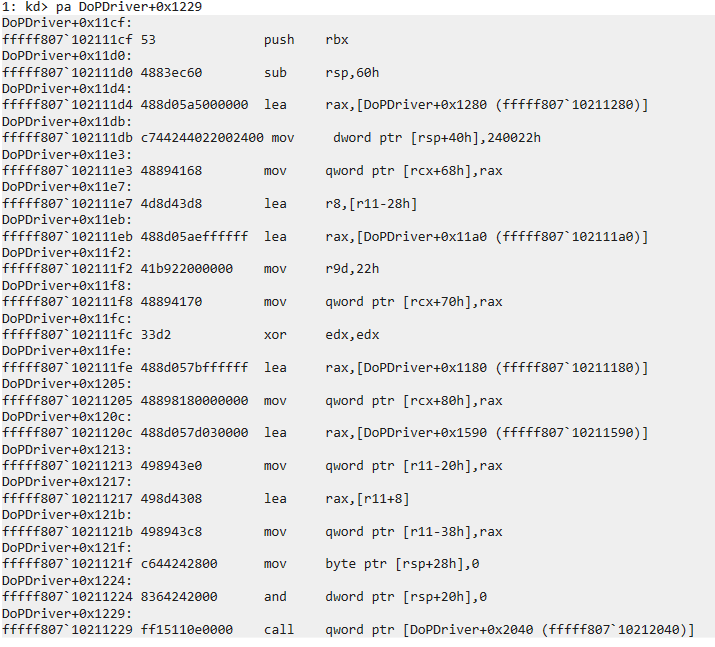
The pa command 1 is a type of step command, but because it can perform step execution all the way to the specified address, it is convenient when you want to advance execution to a given address without setting a breakpoint.
However, because the pa command executes the program step by step, the runtime overhead is large.
Therefore, if the number of steps to the specified address is high, it is better to use the g command or something similar.
After using the pa command to reach the address immediately before the call to IoCreateDevice (DoPDriver+0x1229), next inspect the register and stack information with r rcx,rdx,r8,r9 ; dps rsp L3.
1: kd> r rcx,rdx,r8,r9 ; dps rsp L3
rcx=ffff818bb49eaa70 rdx=0000000000000000 r8=ffffbc0b8ff338a0 r9=0000000000000022
ffffbc0b`8ff33860  00000000`00000000
ffffbc0b`8ff33868  00000000`00000000
ffffbc0b`8ff33870  ffff818b`b71e83d0
Under the Windows x64 calling convention, when all arguments are integer values, the first argument is stored in the RCX register and the third argument is stored in the R8 register.
In other words, the pointer to the driver object passed as the first argument to the IoCreateDevice function is in RCX, and DeviceName passed as the third argument is stored at the address held in the R8 register.
In fact, even if you output the data at the address pointed to by the R8 register with db @R8 L0x10, you can confirm that DeviceName is not stored as a plain string.
However, if you interpret the address pointed to by the R8 register as a UNICODE_STRING structure with the dt nt!_UNICODE_STRING @R8 command, you can confirm in the debugger that a DeviceName of \Device\DoPDriver is defined.
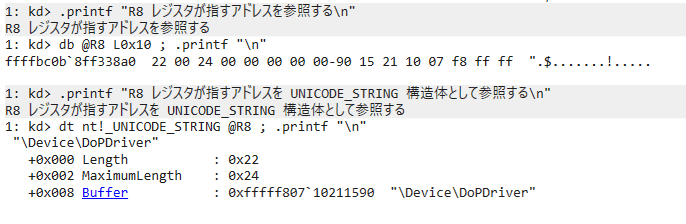
Now that we have confirmed DeviceName, next inspect the driver object and check the values assigned to its dispatch routines.
The pointer to the driver object is held in the RCX register, which is the first argument to the IoCreateDevice function.
If you run the dt nt!_DRIVER_OBJECT @RCX command against this address, you can inspect the driver object information whose DriverName is set to \Device\DoPDriver.
Furthermore, if you click MajorFunction, you can confirm—just as in Chapter 5—that two dispatch routines are registered: DriverObject->MajorFunction[0(IRP_MJ_CREATE)] and DriverObject->MajorFunction[2(IRP_MJ_CLOSE)], and you can inspect the addresses of the functions registered for each.
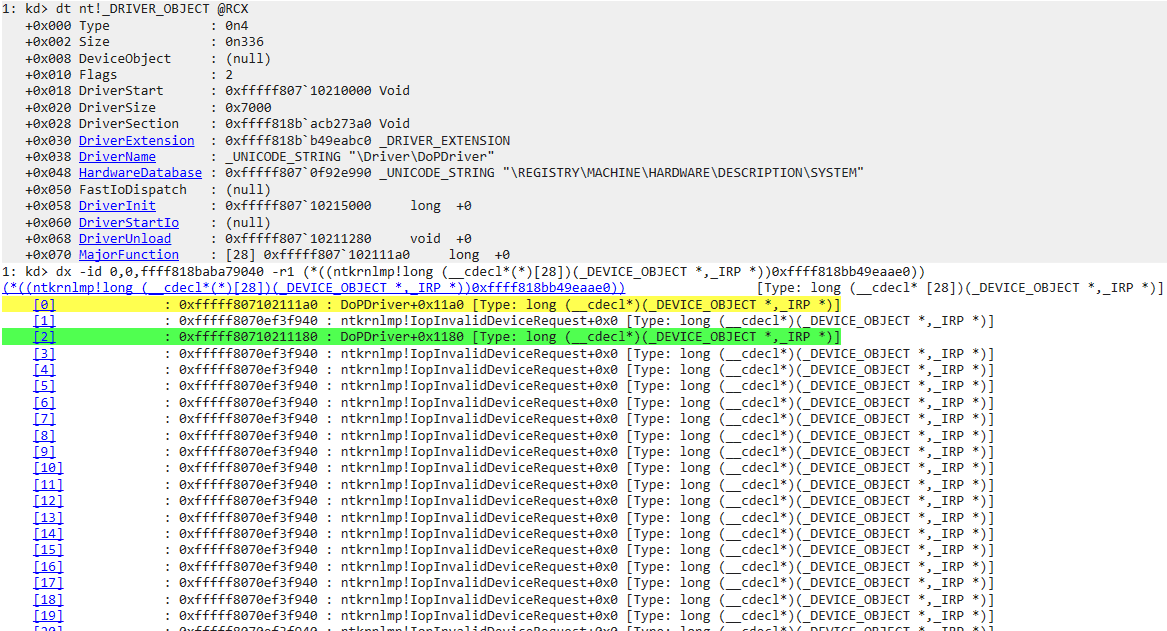
Dynamically Analyze the Callback Function Registered with PsSetCreateProcessNotifyRoutine
Next, let’s use the debugger to inspect the behavior of the callback function registered with PsSetCreateProcessNotifyRoutine.
First, set a breakpoint with bp DoPDriver+0x12E0 ; g and resume system execution.
You can then confirm that the system will not break and debugger commands will be unavailable until some process is created or deleted on the system.
After that, clear all breakpoint settings with the bc * command, then set a new breakpoint with an associated command using bp DoPDriver+0x131C "da @RAX ; g", and resume system execution with the g command.
The address DoPDriver+0x131C is the instruction immediately after the PsGetProcessImageFileName function executes, which Chapter 5 showed returns a process’s image file name.
Because the PsGetProcessImageFileName function returns the process image file name as its return value, executing da @RAX prints the retrieved image file name to the console.
In fact, after setting this breakpoint, you can confirm that every time some process is created in the system, the da @RAX command runs and the image file name is printed to the console.
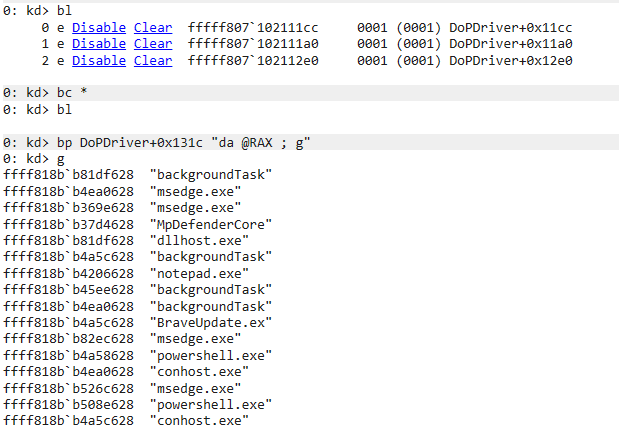
Identify the Flag with a Brute-Force Attack Using Breakpoint Settings
Now let’s use WinDbg to identify the image file name that can pass the validation performed by the checkImageFileName function (the function at address 0x140001000).
First, we will try to obtain the Flag using the simplest possible method: breakpoints.
For example, if you set the following two breakpoints, every time some process is started you can print its image file name to the console and then output whether it passed validation in the checkImageFileName function.
bp DoPDriver+0x131C "da @RAX ; g"
bp DoPDriver+0x1333 ".if (@zf == 1) { .printf \"======> Correct\\n \" } .else { .printf \"======> Failed\\n \" ; g }"
At the second breakpoint, processing branches depending on whether the zero flag is 1 after the return value of the checkImageFileName function is compared.
If the image file name passes validation in the checkImageFileName function, it prints the string Correct and temporarily stops system execution.
On the other hand, if the image file name does not pass validation, it prints the string Failed and then resumes program execution with the g command.
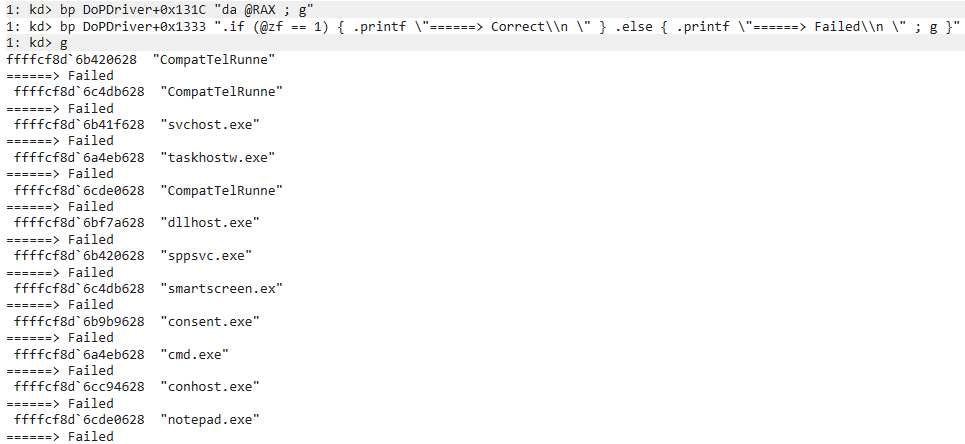
After setting the above breakpoints, it is theoretically possible to identify the Flag by brute-forcing processes whose image file names are 13 characters long using a Python script or something similar.
However, breakpoint evaluation by the debugger has a large overhead, and especially in kernel debugging—where the system being debugged is itself interrupted—repeating the above cycle of stopping and resuming the system takes a very long time.
Therefore, in a case like this, brute-forcing a 13-character image file name using printable ASCII characters would require an enormous number of attempts, so you would not be able to identify the correct image file name even after spending tens of hours on it.
So, we will dynamically analyze the validation process of the checkImageFileName function to look for a more efficient way to identify the Flag.
Dynamically Analyze the checkImageFileName Function
To dynamically analyze the checkImageFileName function (the function at address 0x140001000), let’s revisit the analysis results from Chapter 5.
As confirmed in Chapter 5, checkImageFileName extracts the image file name string passed as an argument one character at a time, performs some complex calculation on it, and compares the result with hard-coded integer values.
We also know that when a loop counter with an initial value of 0 becomes 13 (0xd) or greater, the loop exits, which means the correct image file name is 13 characters long.
So first, let’s use dynamic analysis to check whether the above analysis result is correct.
After clearing existing breakpoints with bc *, first set a breakpoint with the bp DoPDriver+0x1050 command.
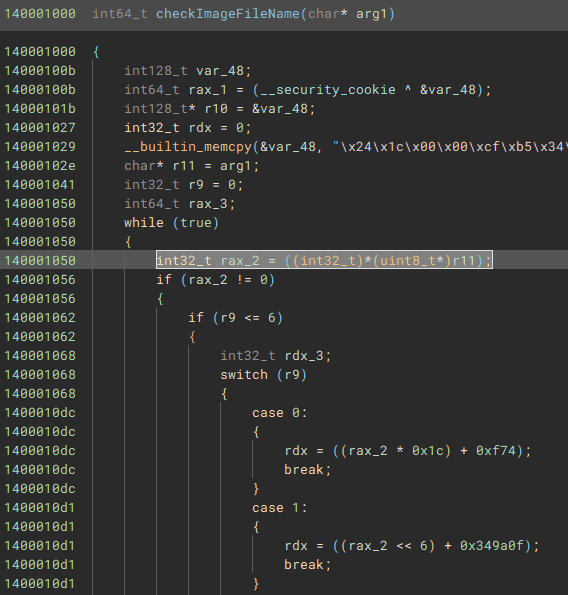
At this address, the movsx eax,byte ptr [r11] instruction is executed.
As confirmed in Chapter 5, the image file name that checkImageFileName receives as an argument is stored at the pointer address held in the R11 register.
The code executed at DoPDriver+0x1050 corresponds to extracting that string one character at a time inside the loop.
After setting the breakpoint and resuming system execution with the g command, run any program inside the virtual machine.
In this book, I ran HelloWorld.exe, which can be downloaded from the following repository, as a test.
HelloWorld.exe:
https://github.com/kash1064/ctf-and-windows-debug/
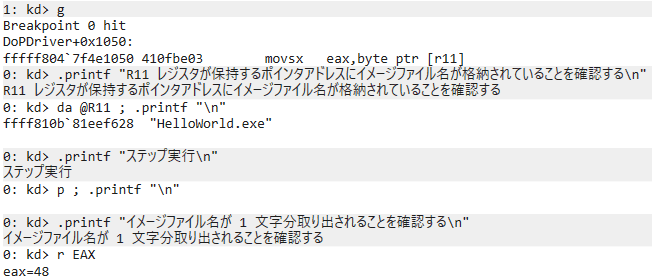
When you run this program, the breakpoint at DoPDriver+0x1050 is hit and execution temporarily stops.
At this point, running the da @R11 command confirms that the string HelloWorld.exe is stored at the pointer address held in the R11 register.
Furthermore, after stepping through the movsx eax,byte ptr [r11] instruction, you can confirm that the EAX register contains 0x48 (H), the first character of the image file name.
The code that compares a hard-coded integer value with the result of performing some calculation on the character extracted at DoPDriver+0x1050 is at DoPDriver+0x114a.
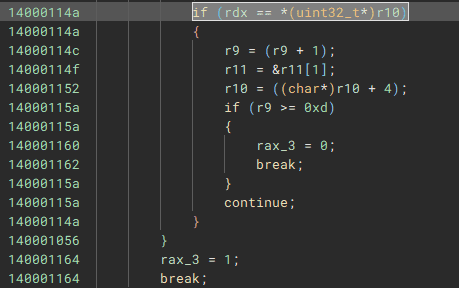
So next, set a breakpoint at this address and see whether the above validation can be bypassed by tampering with the zero flag.
After setting a breakpoint with the bp DoPDriver+0x114a command, resume execution with the g command.
If you run the r zf command immediately after the integer value is checked, you can confirm that the zero flag is 0, which tells you that the character H is not the first character of the image file name that yields the correct Flag.
If you resume program execution as is, the validation will fail and the loop processing will end, so before resuming execution, overwrite the zero flag to 1 with r zf=1.
When you enter the g command and resume system execution with the zero flag tampered, the loop continues and the breakpoint at DoPDriver+0x1050 is hit again.
At this point, the loop is on its second iteration, and you can confirm that the pointer address in the R11 register has shifted to point to the second character of the image file name.
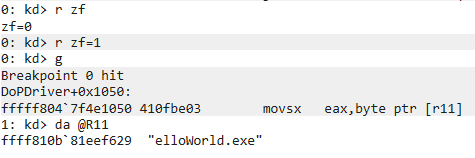
This confirms that the checkImageFileName function validates the image file name one character at a time, and that tampering with the zero flag at address DoPDriver+0x114a lets you bypass the validation result.
In other words, just like DoPClient, all characters in the image file name can be validated in a single attempt, which means the correct image file name can be identified with at most 95 brute-force attempts from 0x20 to 0x7E.
Identify the Image File Name with a JavaScript-Based Debugger Script
In Chapter 4, we used cdb.exe and a debugger command script to identify the correct Flag.
This time, unlike DoPClient, the loaded debugger script is not reinitialized every time a brute-force attempt is made, so we can perform the brute-force attack with a powerful JavaScript-based debugger script.
To identify the correct image file name, we will use the following JavaScript file loaded into the kernel debugger and a Python script file that runs in the virtual machine and brute-forces the image file name.
The JavaScript loaded into the kernel debugger is as follows.
// .scriptrun C:\CTF\Autorun2.js
"use strict";

let word = "";
let correctImageFileName = new Array(13).fill("*");

function RunCommands(cmd) {
let ctl = host.namespace.Debugger.Utility.Control;
let output = ctl.ExecuteCommand(cmd);

for (let line of output) {
host.diagnostics.debugLog("  ", line, "\n");
}

return output;
}

function SetBreakPoints() {
let ctl = host.namespace.Debugger.Utility.Control;
let breakpoint;

breakpoint = ctl.SetBreakpointAtOffset("DoPDriver", 0x1054);
breakpoint.Command = "dx -r1 @$autoRun2.CheckPoint1() ; g";

breakpoint = ctl.SetBreakpointAtOffset("DoPDriver", 0x114a);
breakpoint.Command = "dx -r1 @$autoRun2.CheckPoint2() ; r zf = 1 ; g";

return;
}

function Result() {
host.diagnostics.debugLog("correctImageFileName is: ");

for (let w of correctImageFileName ) {
host.diagnostics.debugLog(w);
}

host.diagnostics.debugLog("\n");
return;
}

function CheckPoint1() {
// Get one character from the image file name from the EAX register
let context = host.namespace.Debugger.State.DebuggerVariables.curthread.Registers.User;
let eaxValue = context.eax;
word = String.fromCodePoint(eaxValue);

return;
}

function CheckPoint2() {
let context = host.namespace.Debugger.State.DebuggerVariables.curthread.Registers.User;
let r9Value = context.r9d;
let r11Value = context.r11;
let zeroFlagValue = context.zf;

// Determine whether validation succeeded from the zero flag value
if (zeroFlagValue == 1) {
correctImageFileName[parseInt(r9Value, 16)] = word;
}

return;
}

function initializeScript() {
return [
new host.apiVersionSupport(1, 7),
];
}

function invokeScript() {
RunCommands("dx @$autoRun2 = Debugger.State.Scripts.Autorun2.Contents");
RunCommands("dx @$autoRun2.SetBreakPoints()");
RunCommands("g");
return;
}
The Python script executed on the virtual machine side is as follows.
import os
import subprocess

exe_path = "C:\\CTF\\HelloWorld.exe"
for i in range(0x20,0x7F):
if chr(i) in ["\\","?","<",">",":","*","|","\"",".","/"]:
continue

new_exe_path = "C:\\CTF\\{}.exe".format(chr(i)*9)
os.rename(exe_path,new_exe_path)
exe_path = new_exe_path
proc = subprocess.Popen([exe_path])
proc.kill()
This script can be downloaded from the following repository as Autorun2.js and Stage2_Solver.py, respectively.
Autorun2.js and Stage2_Solver.py:
https://github.com/kash1064/ctf-and-windows-debug/
The structure of the JavaScript loaded into the kernel debugger is almost the same as Autorun.js used in Chapter 4.
In this script, a breakpoint is set at DoPDriver+0x1054, the address immediately after extracting one character of the image file name from the address held in the R11 register, and the CheckPoint1 function stores the character being evaluated in the variable word.
Then, at the breakpoint set at DoPDriver+0x114a, where the evaluation result can be checked, the CheckPoint2 function runs and uses the zero flag value to determine whether the character saved in word matches the corresponding character in the correct image file name.
With this script, you can brute-force each character of the correct image file name by running processes such as AAAAAAAAA.exe and ZZZZZZZZZ.exe.
And the script used to brute-force the file name is Stage2_Solver.py.
This script brute-forces the image file name by renaming and running C:\CTF\HelloWorld.exe, a program that only outputs the string Hello World.
By using these two scripts, you can identify the correct image file name in 95 attempts from 0x20 to 0x7E.
The program used here can be replaced with any EXE file, but you can also use HelloWorld.exe by downloading it from the following repository and renaming it. HelloWorld.exe is simply a program that prints the string “Hello World” to the console.
Place the downloaded HelloWorld.exe directly under the C:\CTF folder in the virtual machine.
HelloWorld.exe:
https://github.com/kash1064/ctf-and-windows-debug/blob/main/HelloWorld.exe
Once everything is ready, run the following commands in order in the kernel debugger to perform the brute-force attack.
This flushes the existing breakpoints and then loads the Autorun2.js script.
bc *
.scriptrun <full path to Autorun2.js>
After loading Autorun2.js into the debugger, run Stage2_Solver.py on the virtual machine side.
Although the number of attempts is only 95, if a breakpoint is hit in the kernel debugger, the system itself may temporarily stop, so it can take more than 10 minutes for all processing to finish.
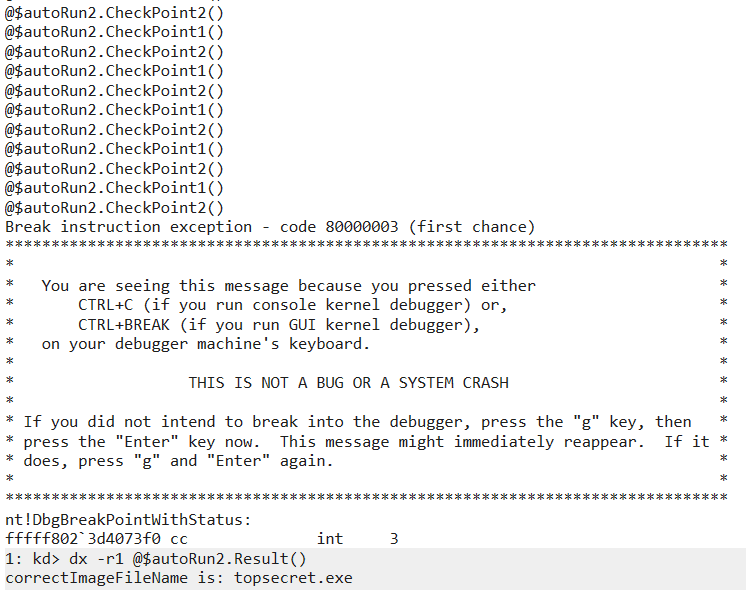
After Stage2_Solver.py finishes running, the correct image file name should be recorded in the correctImageFileName array in Autorun2.js, so run the dx -r1 @$autoRun2.Result() command in the debugger.
This lets us identify the correct image file name as topsecret.exe.
Inspect the Paged Pool Information
Now that we have identified the correct image file name as topsecret.exe with a brute-force attack, let’s check whether the Flag is really stored in the region allocated by ExAllocatePoolWithTag.
Before checking, reboot the virtual machine once to clear the existing paged pool.
After rebooting the virtual machine, attach the kernel debugger before launching DoPClient and execute the !poolused command 2.
If you run this extension command without options, it outputs a list of the pool tags and memory usage for the paged pool and nonpaged pool.
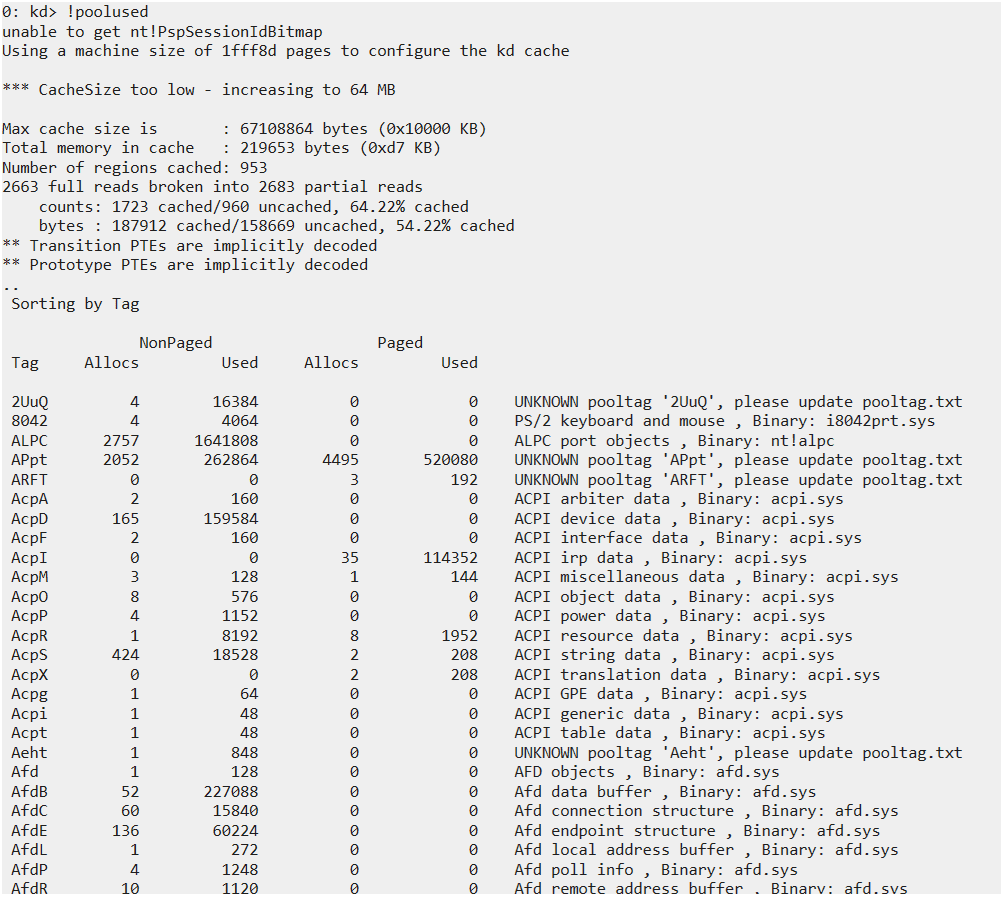
Because the pool tag of the paged pool created by DoPDriver was flag, run the !poolused 0 flag command using the tag name as the option argument.
However, because DoPDriver has not yet been used at this point, a paged pool with the tag flag does not yet exist, so no information is displayed.
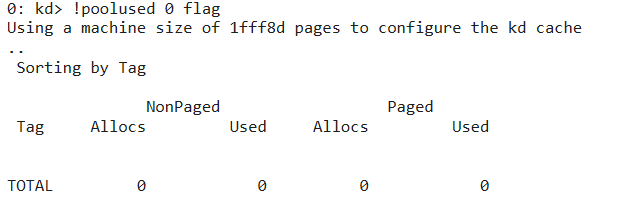
Now that we have confirmed that no paged pool with the tag flag currently exists in the system, next launch DoPClient, enter the password FLAG{You_can_use_debug_script_in_WinDbg_Next}, and load DoPDriver into the system again.
Then run the bp DoPDriver+0x135e command in WinDbg to set a breakpoint at DoPDriver+0x135e.
This address is where the ExAllocatePoolWithTag function is called via call qword [rel ExAllocatePoolWithTag].
If topsecret.exe, which we identified earlier, is indeed the correct image file name, it should pass the validation in the checkImageFileName function and this code should execute.
When you launch any executable renamed to topsecret.exe in the virtual machine, execution temporarily stops at the address DoPDriver+0x135e.
Here, inspect the arguments to the ExAllocatePoolWithTag function with the r ECX,EDX,R8d command.
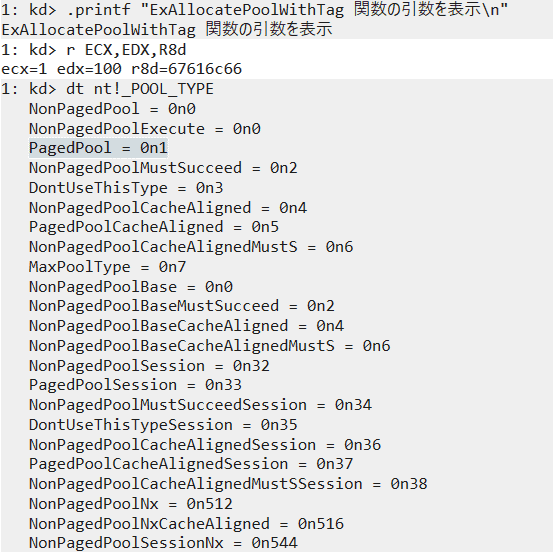
As confirmed in Chapter 5, the ExAllocatePoolWithTag function takes the following three arguments and returns a pointer to the allocated memory as its return value.
PVOID ExAllocatePoolWithTag(
  [in] __drv_strictTypeMatch(__drv_typeExpr)POOL_TYPE PoolType,
  [in] SIZE_T                                         NumberOfBytes,
  [in] ULONG                                          Tag
);
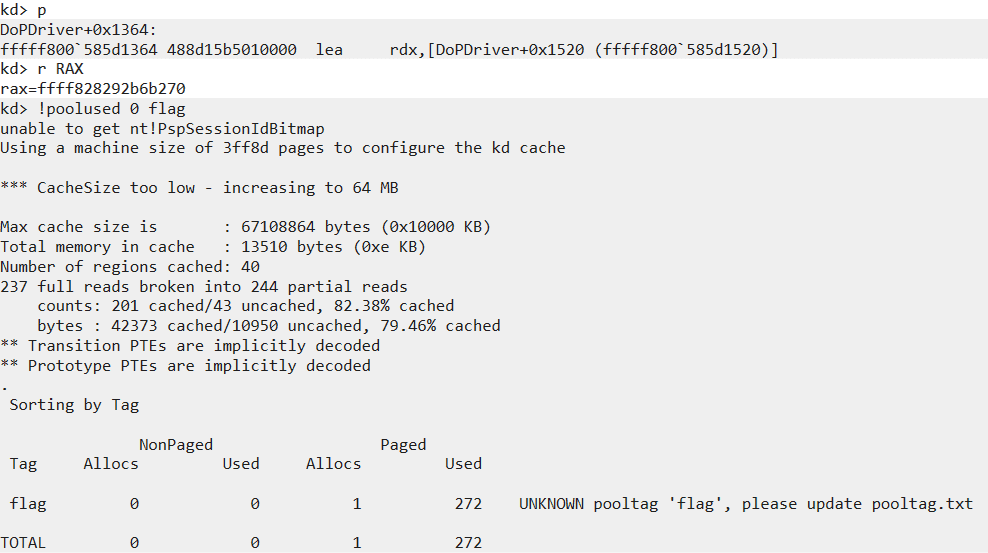
The value stored in ECX was 1, which specifies PagedPool as PoolType.
Also, 0x67616c66, which is stored in R8d, is the hexadecimal representation of the string galf, which is the pool tag flag arranged in reverse order. (When specifying a pool tag in the ExAllocatePoolWithTag function, you use the value obtained by reversing a tag name of up to four characters.)
Next, step through with the p command to complete the paged pool allocation performed by the ExAllocatePoolWithTag function.
If the ExAllocatePoolWithTag function successfully allocates paged pool memory, the RAX register, which stores the return value, holds the pointer address of the allocated memory region.
Also, if you run the !poolused 0 flag command again, you can confirm that one paged pool with the tag flag, which did not exist earlier, has now been allocated.
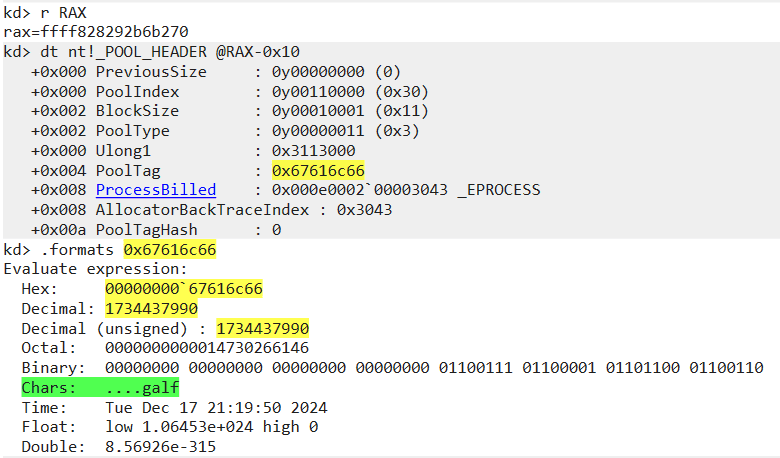
The ExAllocatePoolWithTag function allocates pool memory and returns a pointer to the allocated block.
In this case, on a 64-bit OS, the allocated block is prefixed with a 16-byte POOL_HEADER structure.
Therefore, if you access the address 16 bytes before the block address allocated by the ExAllocatePoolWithTag function with the dt nt!_POOL_HEADER @RAX-0x10 command, you can confirm that header information including the pool tag flag exists there.
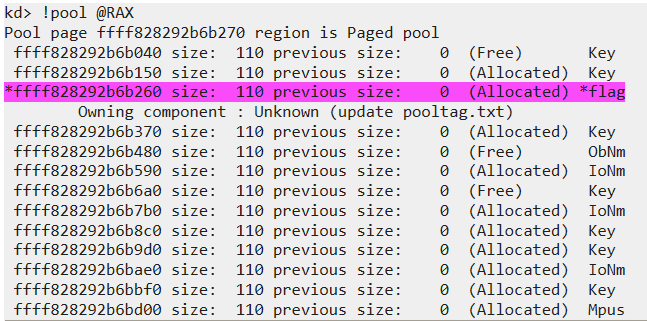
You can also inspect this memory block with the !pool command 3, which displays information about a specific pool allocation, and confirm the pool header address and pool tag that way as well.
This command checks whether the address received as an argument exists within a pool block, and if it does, it can display the pool header address, pool tag, and the contents stored in that pool.
Now that we have confirmed the creation of paged pool memory by the ExAllocatePoolWithTag function, just to be safe, record the pointer address of the memory block held in the RAX register (0xffff828292b6b270 in this case), then resume system execution with the g command.
Once system execution resumes, DoPDriver should store the second Flag string in the paged pool region it created.
In fact, after resuming execution with the g command, temporarily stopping the system again, and then running the !pool 0xffff828292b6b270 1 command against the memory block address we identified earlier, you can display the data written into the region allocated with the pool tag flag.
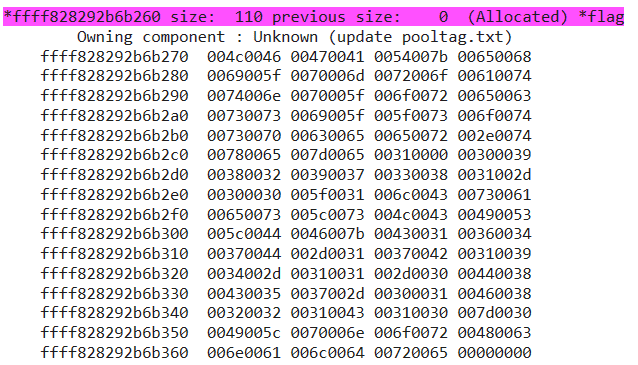
However, in this state it is difficult to tell whether the second Flag string has really been written there, so by using the du command to display the Unicode string at the target address and executing du ffff828292b6b270, we were able to confirm that the correct Flag, FLAG{The_important_process_is_topsecret.exe}, had been written into the memory block.

This identifies the second correct Flag.
Identify the Memory Block Address from the Pool Tag
We were able to identify the second correct Flag by inspecting the address of the memory block allocated by the ExAllocatePoolWithTag function, but static analysis will not always let you identify the code that allocates the pool associated with a specific pool tag the way it did this time.
So from here, besides identifying the executing code that performs the memory allocation through static analysis, we will try a different approach to identify the address of the memory block associated with a specific pool tag.
One way to identify a paged pool address from a pool tag is the !poolfind command 4.
The !poolfind command can search all paged and nonpaged pool regions for instances with a specific pool tag.
For example, running !poolfind -tag "Proc" as shown below lets you search paged pool for the addresses of instances whose tag name is Proc.
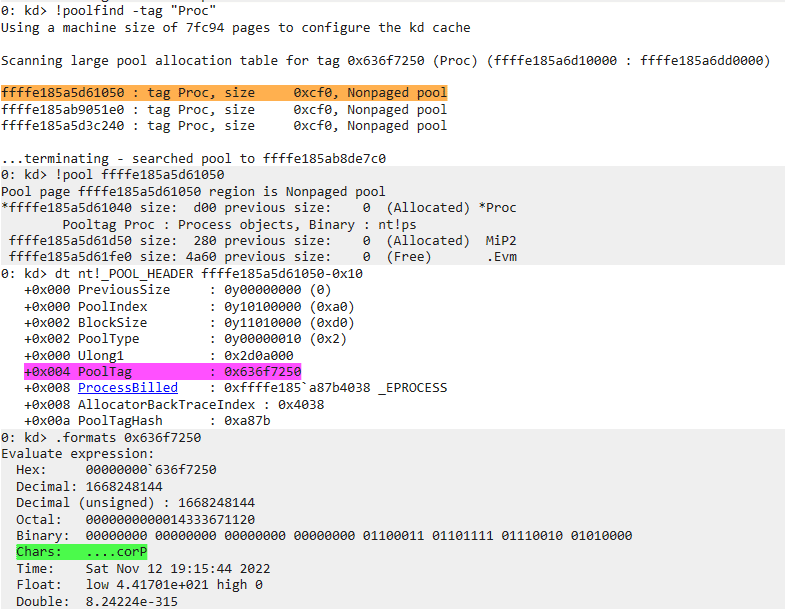
However, in many cases, searching for a pool tag with !poolfind takes an extremely long time.
Also, although the details are unclear, I have seen scattered reports of debugger hangs and missed pool-tag detections, so searching for pool tags with !poolfind is not very efficient.
Therefore, rather than searching for the pool tag, we will use PoolHitTag to detect a memory allocation that uses a specific pool tag, and identify the memory block address from the return value of the ExAllocatePoolWithTag function.
Identify the Memory Allocation Address Using PoolHitTag
When performing live debugging, one way to identify the memory address associated with a specific pool tag name is to use PoolHitTag.5
PoolHitTag can be configured with the ed nt!poolhittag command.
For example, if you want to specify the pool tag name flag, use the four-character tag name reversed to match little-endian format, as in ed nt!poolhittag 'galf'.
If the setting has been applied correctly, you can confirm that the specified pool tag name has been set by running the db nt!poolhittag L4 command.

Incidentally, to clear the PoolHitTag setting, use the ed nt!poolhittag 0 command.
After setting PoolHitTag, running topsecret.exe in the virtual machine causes the system to temporarily stop in the middle of the ExAllocateHeapPool function as shown below.
At this time, you can confirm that the RAX register contains flag, which is the pool tag name you specified.
Also, if you inspect the stack backtrace at the point where PoolHitTag is hit, you can confirm that DoPDriver is requesting the memory allocation associated with this pool tag.
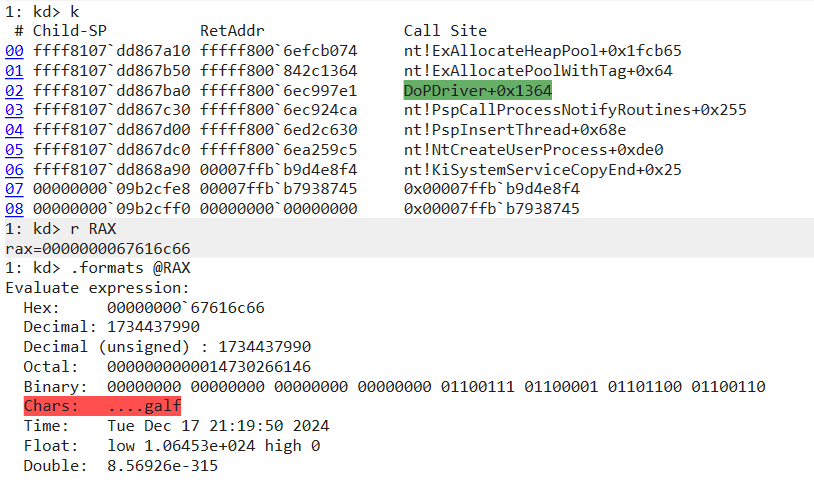
Therefore, by issuing the gu command twice to execute until the function completes, you can inspect the registers immediately after DoPDriver executes the ExAllocatePoolWithTag function.
From here, following the same steps as in the previous section, we were able to use the RAX register—which stores the return value—to identify the address of the memory block allocated with the pool tag flag.
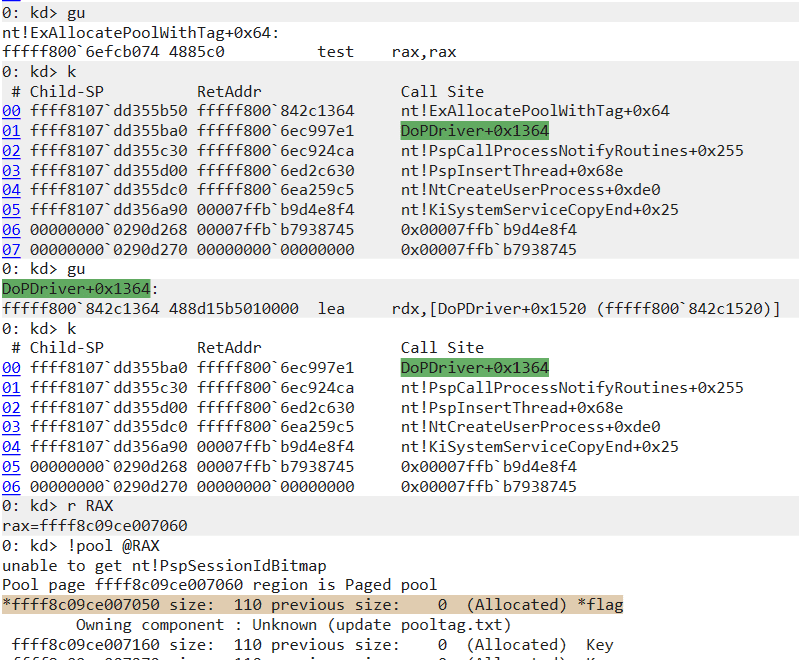
Identifying the allocation source of memory using PoolHitTag in this way is also useful when troubleshooting issues such as memory leaks in kernel space.
Summary of Chapter 6
In this chapter, by using a kernel debugger for dynamic analysis, we were able to identify the correct image file name through brute force and determine the second Flag.
Kernel debugging is a fairly high-barrier technique, because the memory space being debugged is enormous and it also requires a certain understanding of a difficult OS architecture.
However, even simply using the minimum knowledge and basic commands introduced in this chapter can help you understand how the OS and drivers behave, and can also be applied to troubleshooting issues such as memory leaks in pool regions.
Of course, real-world kernel debugging requires consideration of many factors not covered in this chapter, such as the context of processes and user sessions, the object manager, and the I/O manager, but I hope the contents of this book can serve as one stepping stone toward mastering those more advanced techniques.
Afterword
Thank you very much for reading this book all the way to the end.
In this book, following my previous work, “Magical WinDbg - Enjoying Windows Dump Analysis and Troubleshooting by Feel -,” I introduced techniques for live debugging of user-mode software and kernel drivers with WinDbg.
There is a relatively rich body of knowledge about Windows user-mode debugging, but there is far less information about kernel debugging and the powerful scripting features available in the latest WinDbg.
For that reason, I wrote this book with a particular focus on introducing analysis automation with JavaScript-based debugger scripts and information that can help readers get started with kernel debugging.
I hope this book will be of some help to anyone who is becoming interested in WinDbg and Windows kernel debugging and wants to get started.
Once again, thank you for reading this book.
Links to Each Chapter
- Preface
- Chapter 1: Environment Setup
- Chapter 2: Surface Analysis of DoPClient and DoPDriver
- Chapter 3: Static Analysis of DoPClient
- Chapter 4: Dynamic Analysis of DoPClient
- Chapter 5: Static Analysis of DoPDriver
- Chapter 6: Dynamic Analysis of DoPDriver
-
pa (step to address) https://learn.microsoft.com/ja-jp/windows-hardware/drivers/debuggercmds/pa—step-to-address-
↩ -
!poolused https://learn.microsoft.com/ja-jp/windows-hardware/drivers/debuggercmds/-poolused
↩ -
!pool https://learn.microsoft.com/ja-jp/windows-hardware/drivers/debuggercmds/-pool
↩ -
!poolfind https://learn.microsoft.com/ja-jp/windows-hardware/drivers/debuggercmds/-poolfind
↩ -
Finding a Kernel-Mode Memory Leak with the Kernel Debugger https://learn.microsoft.com/ja-jp/windows-hardware/drivers/debugger/using-the-kernel-debugger-to-find-a-kernel-mode-memory-leak
↩