This page has been machine-translated from the original page.
In this chapter, I introduce the setup procedure for the environment used in this book.
This book assumes readers are using Windows Home edition machines, so the setup procedure introduced in Chapter 1 does not use virtual machines. However, when applying the settings and installing the tools introduced in this book, I recommend using a virtual machine whenever possible. (Even if you use Windows 10 / 11 Home edition, you can still use third-party virtualization applications such as VirtualBox or VMware.)
Table of contents
- Environment used in this book
- Installing the latest redistributable package
- Installing Debugging Tools for Windows
- Installing the Sysinternals utilities
- Installing Ghidra 2.3
- Downloading D4C
- Configuring dump collection and keyboard crash
- Trying a full memory dump on the machine
- Configuring symbol servers for WinDbg and Procmon
- Summary of Chapter 1
- Links to each chapter
Environment used in this book
The content of this book has been verified in the following environment.
First, the environment used in this book is as follows.
- Machine: ThinkPad X280 (CPU: Intel i7-8550U / RAM: 16 GB / SSD: 256 GB)
- OS: Windows 10 Pro 22H2
The environment used in this book is shown above, but there is no need to match the hardware and OS exactly.
However, to work comfortably, I recommend using a machine with at least an Intel Core i3 CPU and 8 GB of RAM.
There are no specific requirements for the Windows OS version or edition.
Installing the latest redistributable package
First, run vc_redist.x64.exe, which can be downloaded from the URL below, to install the latest redistributable package on the virtual machine.
vc_redist.x64.exe:
https://aka.ms/vs/17/release/vc_redist.x64.exe
Installing this redistributable package is necessary to run the D4C.exe program used in this book.
Installing Debugging Tools for Windows
Next, install Debugging Tools for Windows on the machine that will be used for Windows dump analysis.
Debugging Tools for Windows includes debuggers such as WinDbg1 and tools such as GFlags2 that are useful for troubleshooting in Windows environments.
There are several ways to install Debugging Tools for Windows, but in this book I use Windows SDK (10.0.22621) to install it.
First, access the Windows SDK download page at the URL below and download winsdksetup.exe from [Download the installer].
Windows SDK:
https://developer.microsoft.com/ja-jp/windows/downloads/windows-sdk/ 3
Next, double-click the downloaded winsdksetup.exe to run it.
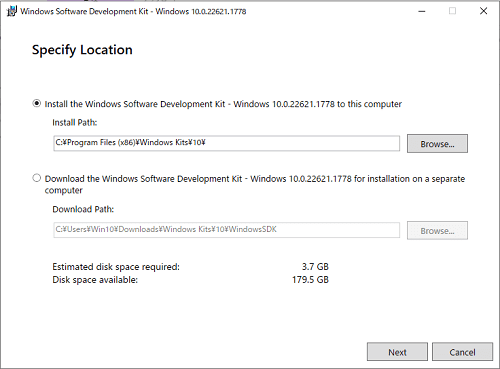
If you proceed through the installer with the default settings, a screen for selecting packages to install appears near the end.
You can choose any items to download here, but make sure that [Debugging Tools for Windows] is checked.
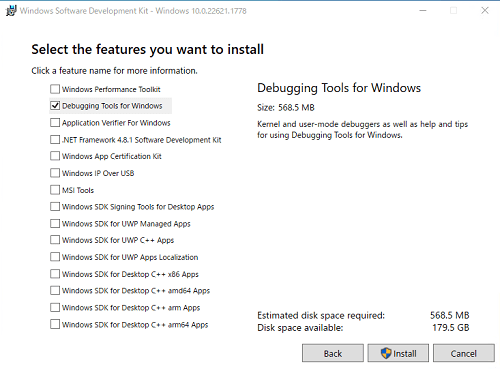
Run the installer with [Debugging Tools for Windows] checked.
After the installer finishes, confirm that windbg.exe and gflags.exe exist under C:\Program Files (x86)\Windows Kits\10\Debuggers\x64. (Although this book does not use it, the x86 version of windbg.exe exists under C:\Program Files (x86)\Windows Kits\10\Debuggers\x86.)
Because these programs are used frequently, it is a good idea to create shortcuts for them if needed.
By the way, there is also a newer Windows app version of WinDbg.
Compared with WinDbg (Classic), which is used in this book, the Windows app version of WinDbg offers a more modern UI and powerful features such as Time Travel Debugging (TTD).
This book does not use the Windows app version of WinDbg, but the features and commands used for dump analysis are the same as in WinDbg (Classic).
Therefore, there is no problem if you use the Windows app version of WinDbg for dump analysis.
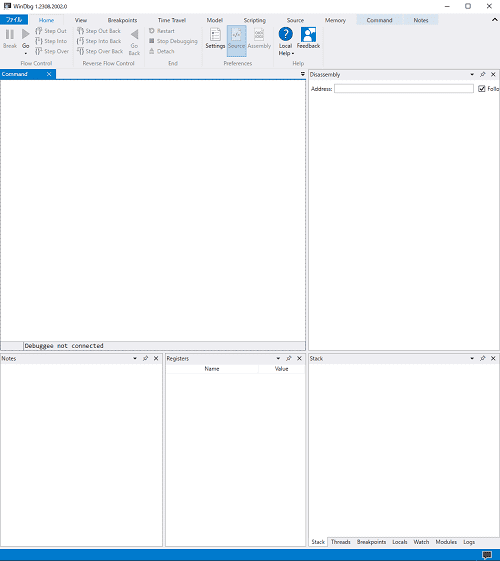
As noted in the documentation below, however, “WinDbg Preview,” available from the Microsoft Store, is already no longer being updated.
Install the Windows debugger:
https://learn.microsoft.com/ja-jp/windows-hardware/drivers/debugger/
To obtain the latest Windows app version of WinDbg, use the installer downloadable from the link in the documentation above.
Installing the Sysinternals utilities
Next, obtain Sysinternals6, which includes useful tools such as Process Monitor4 and Process Explorer5.
I will not explain these tools in detail in this book.
If you want to learn more, the official documentation or books such as the one below may be helpful.7
To install these tools all at once, access the URL below and click [Sysinternals Suite].
Sysinternals utilities:
https://learn.microsoft.com/ja-jp/sysinternals/downloads/
After extracting the ZIP file downloaded from there, you will be able to use tools such as Process Monitor and Process Explorer.
Installing Ghidra 2.3
Next, set up Ghidra 2.38, the reverse engineering tool.
This book does not explain Ghidra itself or its detailed usage, but the Help bundled with Ghidra and books such as the ones below may be helpful.910
To set up Ghidra, download the Ghidra 10.2.3 package (ghidra_10.2.3_PUBLIC_20230208.zip) from the GitHub release page below and extract it.
Ghidra Release Page:
https://github.com/NationalSecurityAgency/ghidra/releases
Next, to install the JDK 17 required to run Ghidra, download the MSI Installer for Windows x64 from the download page below.
Java Downloads:
https://www.oracle.com/jp/java/technologies/downloads/#jdk17-windows
Run the downloaded JDK 17 MSI installer to complete the JDK 17 installation.
After the installation is complete, double-click ghidraRun.bat inside the extracted ghidra_10.2.3_PUBLIC_20230208.zip to start Ghidra.
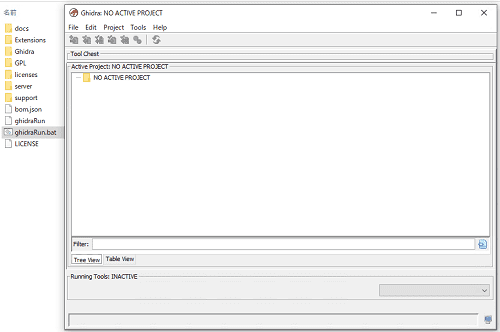
After Ghidra starts, create a project with any name from [File] > [New Project].
Downloading D4C
Next, download D4C.exe (v0.1), the tool used in this book to generate dump files for analysis, from the repository below.
D4C Release Page:
https://github.com/kash1064/garyu-windbg/releases/tag/v0.111
Because this book does not use symbol files for analyzing binaries or dumps, I recommend not downloading D4C.pdb at first.
Configuring dump collection and keyboard crash
Next, on the machine where you will collect dump files, configure full memory dump collection and enable keyboard crash.
The configuration is simple: copy D4C.exe, which you placed in the shared folder earlier, to a local folder on the virtual machine, run it, type 0 at the first menu, and press Enter.
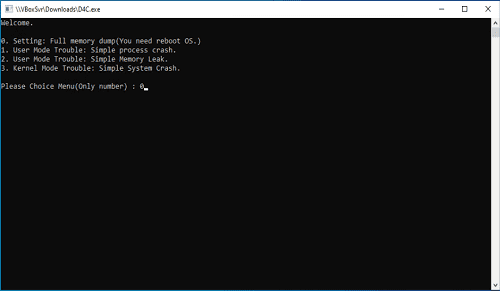
After that, once the OS is restarted, full memory dump collection and the keyboard crash setting will be enabled.
For reference, D4C.exe applies settings equivalent to running the following PowerShell script.
# Settings of Full memory dump
$crashControlRegPath = "HKLM:System\CurrentControlSet\Control\CrashControl"
$isExistKey = Test-Path -LiteralPath $crashControlRegPath
if ($isExistKey -eq $False) {
New-Item -Path $crashControlRegPath
}
New-ItemProperty -LiteralPath $CrashControlRegPath -Name "CrashDumpEnabled" -PropertyType "DWord" -Value "1" -Force
New-ItemProperty -LiteralPath $CrashControlRegPath -Name "AutoReboot" -PropertyType "DWord" -Value "1" -Force
New-ItemProperty -LiteralPath $CrashControlRegPath -Name "DumpFile" -PropertyType "ExpandString" -Value "%SystemRoot%\FULL_MEMORY.DMP" -Force
New-ItemProperty -LiteralPath $CrashControlRegPath -Name "LogEvent" -PropertyType "DWord" -Value "1" -Force

# Settings of Full application dump
$localDumpsRegPath = "HKLM:SOFTWARE\Microsoft\Windows\Windows Error Reporting\LocalDumps"
$isExistKey = Test-Path -LiteralPath $localDumpsRegPath
if ($isExistKey -eq $False) {
New-Item -Path $localDumpsRegPath
}
New-ItemProperty -LiteralPath $localDumpsRegPath -Name "DumpFolder" -PropertyType "ExpandString" -Value "%LOCALAPPDATA%\CrashDumps" -Force
New-ItemProperty -LiteralPath $localDumpsRegPath -Name "DumpCount" -PropertyType "DWord" -Value "2" -Force
New-ItemProperty -LiteralPath $localDumpsRegPath -Name "DumpType" -PropertyType "DWord" -Value "2" -Force

# Disable CrashOnCtrlScroll
$parameterRegPaths = @("HKLM:System\CurrentControlSet\Services\i8042prt\Parameters",
  "HKLM:System\CurrentControlSet\Services\kbdhid\Parameters",
  "HKLM:System\CurrentControlSet\Services\hyperkbd\Parameters"
)
foreach ($parameterRegPath in $parameterRegPaths) {
$isExistKey = Test-Path -LiteralPath $parameterRegPath
if ($isExistKey -eq $False) {
New-Item -Path $parameterRegPath
}
New-ItemProperty -LiteralPath $parameterRegPath -Name "CrashOnCtrlScroll" -PropertyType "DWord" -Value "0" -Force
}

# Setting alt dump key
$parameterRegPaths = @("HKLM:System\CurrentControlSet\Services\i8042prt\crashdump",
  "HKLM:System\CurrentControlSet\Services\kbdhid\crashdump",
  "HKLM:System\CurrentControlSet\Services\hyperkbd\crashdump"
)
foreach ($parameterRegPath in $parameterRegPaths) {
$isExistKey = Test-Path -LiteralPath $parameterRegPath
if ($isExistKey -eq $False) {
New-Item -Path $parameterRegPath
}
New-ItemProperty -LiteralPath $parameterRegPath -Name "Dump1Keys" -PropertyType "DWord" -Value "0x2" -Force
New-ItemProperty -LiteralPath $parameterRegPath -Name "Dump2Key" -PropertyType "DWord" -Value "0x3d" -Force
}

# Change PageFileSize
$totalPhysicalMemSize = $([Math]::Round((Get-WmiObject Win32_OperatingSystem).TotalVisibleMemorySize / 1024))
$freeStorageSizeofC = $([Math]::Round(((Get-PSDrive C).Free / 1024 / 1024)))
$pageFileSize = $totalPhysicalMemSize + 400
$pageFileSetting = "c:\pagefile.sys $pageFileSize $pageFileSize"
if (($freeStorageSizeofC -gt $pageFileSize) -eq $True) {
New-ItemProperty -LiteralPath "HKLM:System\CurrentControlSet\Control\Session Manager\Memory Management" -Name "PagingFiles" -PropertyType "MultiString" -Value $pageFileSetting -Force
} else {
Write-Warning "C drive space is too small."
}
The configuration procedure above mainly applies the following four settings.
- Change the type of dump generated on system crash to a full memory dump
- Change the page file size to “physical memory size + 400 MB”
- Change the type of process dump generated on application crash to a full dump
- Enable system crash with the operation “press Right Ctrl + Space twice”
On current Windows systems, when collecting a process dump for an application crash, a minidump collected with options that gather all information can contain more information than a full dump.12
However, the full dump setting is generally sufficient to collect enough information, so in this book I choose full dumps as the type of process dump generated on application crashes because that choice is easier to understand intuitively.
Also, a full memory dump collected during a system crash includes all page information in the physical memory accessible to the Windows system running on that machine.
However, to collect a full memory dump, you must configure a page file that is at least “physical memory size + 1 MB.”
This is the setting required to write out all information in physical memory as a dump file.
To safely collect a full memory dump, it is also recommended to add another 256 MB or more of page file size beyond “physical memory size + 1 MB” so crash data from device drivers can be included.13
I also introduce an overview of this script in the public blog post below, so if you want to configure the settings manually by running a PowerShell script instead of D4C.exe, please refer to the following link.
Configuring Windows full memory dump collection and keyboard crash with a PowerShell script (Kaeru no Himitsukichi):
https://kashiwaba-yuki.com/windows-setting-fulldump
Trying a full memory dump on the machine
To confirm that the settings are working correctly, collect a full memory dump.
After carrying out the steps in the “Configuring dump collection and keyboard crash” section, sign in to the machine after rebooting.
Then, while holding down the right Ctrl key on the keyboard, press the Space key twice in quick succession.
If the keyboard crash setting has been applied, performing those key operations will crash the system and display a blue screen.
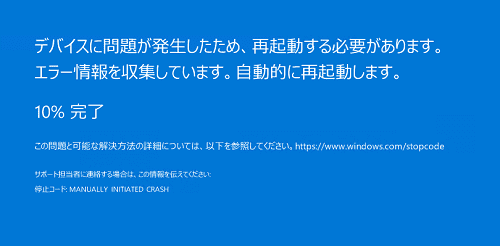
After the system restarts, if a FULL_MEMORY.DMP file roughly the same size as the virtual machine’s physical memory has been created directly under C:\Windows, you can judge that the full dump setting is working correctly.
Incidentally, the keyboard crash configured by the procedure in this book does not work when you are connected over RDP.
If you can use a physical keyboard, you can trigger a system crash by signing in directly to the local machine and pressing the right Ctrl key while pressing the Space key twice.
If you are using a Hyper-V virtual machine, you can also trigger a keyboard crash by signing in to the machine with Enhanced Session disabled and pressing the right Ctrl key while pressing the Space key twice.
If you are using another virtual machine platform such as VirtualBox, try seeing whether you can trigger a keyboard crash with a software keyboard.
If you are in an environment where keyboard crash cannot be used, you can also intentionally reproduce a system crash with notmyfault.exe, included in the SysinternalsSuite downloaded when installing the Sysinternals utilities.
Configuring symbol servers for WinDbg and Procmon
When you troubleshoot with tools such as WinDbg or Process Monitor (Procmon), obtaining the proper symbols is extremely important.
Symbols14 are information such as function names and variable names that are not included in executable files such as EXEs and DLLs.
When you use tools such as WinDbg, obtaining and referencing the appropriate symbols allows you to analyze things more smoothly.
In general, the symbol information used for dump file analysis can be obtained from the symbol server15 published by Microsoft.
However, symbol information for some non-public modules, or symbol information for software independently developed by third parties, cannot be downloaded from Microsoft’s public symbol server.
If the program being analyzed was developed by the user, you can also load pdb or dbg files generated when building the program into the debugger and use them as symbol information.
In this section, I configure WinDbg and Process Monitor so they can obtain symbols from the symbol server published by Microsoft.
This book does not require it, but if necessary, it is also a good idea to apply the same settings to Process Explorer.
First, start WinDbg x64 as administrator and press [Ctrl + S] to open the Symbol Scratch Path window.
Enter the following value in the Symbol Scratch Path window and click [OK].
srv*https://msdl.microsoft.com/download/symbols
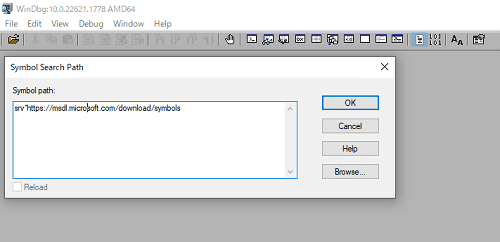
After the setting is complete, click [Save Workspace] under [File] in the upper-left corner.
This saves the setting to the default workspace, so the symbol path configuration will remain in place the next time you start WinDbg.
Next, run Procmon64.exe as administrator from the SysinternalsSuite obtained in the earlier “Installing the Sysinternals utilities” section.
From the menu at the top of the Procmon window, click [Options] > [Configure Symbols…].
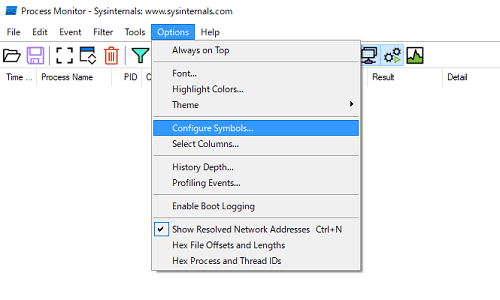
By default, C:\WINDOWS\SYSTEM32\dbghelp.dll is registered in [DbgHelp.dll path(version 6.0 or later)].
However, C:\WINDOWS\SYSTEM32\dbghelp.dll usually does not satisfy the requirement of version 6.0 or later, so you need to specify the path to a dbghelp.dll that does satisfy that requirement.
A dbghelp.dll that meets this requirement is located directly under C:\Program Files (x86)\Windows Kits\10\Debuggers\x64, along with WinDbg x64 installed in the earlier “Installing Debugging Tools for Windows” section.
Therefore, specify the following path in [DbgHelp.dll path(version 6.0 or later)].
C:\Program Files (x86)\Windows Kits\10\Debuggers\x64\dbghelp.dllAlso, in [Symbol paths:], specify the address of Microsoft’s symbol server, just as you did for WinDbg.
srv*https://msdl.microsoft.com/download/symbols
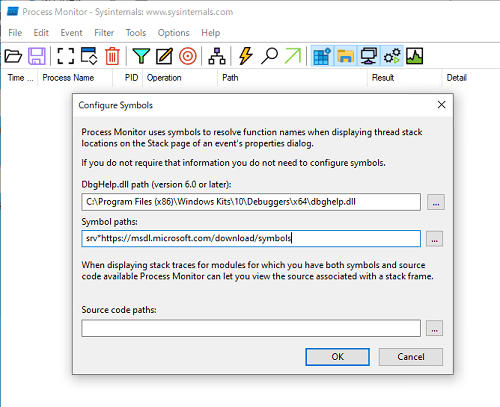
This completes symbol server configuration.
Summary of Chapter 1
In this chapter, I set up the tools needed for analyzing Windows dump files and for troubleshooting.
When you analyze dump files for troubleshooting, it is important to understand in advance what kind of information is included in the dump files you collect and roughly how large those files will be.
Also, while dump files certainly contain a great deal of information, the information you can inspect from a dump file is only a snapshot of memory at the instant the dump was collected.
So, to troubleshoot more efficiently, you also need to use various investigation tools to trace system behavior before and after the problem occurs, and to investigate OS and application log files.
I do not believe there is a single fixed formula for troubleshooting.
Although this book focuses on analyzing Windows dump files, when you actually troubleshoot I hope you will use a variety of tools and features and enjoy analyzing the issue from every angle.
Links to each chapter
- Preface
- Chapter 1: Environment Setup
- Chapter 2: Basic WinDbg Operations
- Chapter 3: Prerequisites for Analysis
- Chapter 4: Analyzing Application Crash Dumps
- Chapter 5: Analyzing Full Memory Dumps from System Crashes
- Chapter 6: Investigating User-Mode Application Memory Leaks from Process Dumps
- Chapter 7: Investigating User-Mode Memory Leaks from Full Memory Dumps
- Appendix A: WinDbg Tips
- Appendix B: Analyzing Crash Dumps with Volatility 3
-
What is WinDbg https://learn.microsoft.com/ja-jp/windows-hardware/drivers/debugger/windbg-overview?source=recommendations
↩ -
GFlags https://learn.microsoft.com/ja-jp/windows-hardware/drivers/debugger/gflags
↩ -
Windows SDK - Windows app development https://developer.microsoft.com/ja-jp/windows/downloads/windows-sdk/
↩ -
Process Monitor https://learn.microsoft.com/ja-jp/sysinternals/downloads/procmon
↩ -
Process Explorer https://learn.microsoft.com/ja-jp/sysinternals/downloads/process-explorer
↩ -
Sysinternals https://learn.microsoft.com/ja-jp/sysinternals
↩ -
Windows Sysinternals徹底解説 : 無償ツールで極めるトラブルシューティングテクニック (by Mark E. Russinovich, Aaron Margosis / translated by 山内 和朗 / 日経BP社 / 2017)
↩ -
Ghidra https://github.com/NationalSecurityAgency/ghidra
↩ -
マスタリング Ghidra 基礎から学ぶリバースエンジニアリング完全マニュアル (by Chris Eagle, Kara Nance / technical supervision by 石川 朝久 / translated by 中島 将太, 小竹 泰一, 原 弘明 / オライリー・ジャパン / 2022)
↩ -
リバースエンジニアリングツール Ghidra 実践ガイド セキュリティコンテスト入門からマルウェア解析まで (by 中島 将太, 小竹 泰一, 原 弘明, 川畑 公平 / マイナビ出版 / 2020)
↩ -
garyu-windbg https://github.com/kash1064/garyu-windbg/releases/tag/v0.1
↩ -
User-mode dump files https://learn.microsoft.com/ja-jp/windows-hardware/drivers/debugger/user-mode-dump-files
↩ -
Windows Internals, 7th Edition, Part 2, p.571 (by Andrea Allievi, Mark E. Russinovich, Alex Ionescu, David A. Solomon / translated by 山内和朗 / 日系 BP 社 / 2022)
↩ -
Symbols and symbol files https://learn.microsoft.com/ja-jp/windows-hardware/drivers/debugger/symbols-and-symbol-files
↩ -
Using a symbol server https://learn.microsoft.com/ja-jp/windows-hardware/drivers/debugger/using-a-symbol-server
↩