This page has been machine-translated from the original page.
In this appendix, I briefly introduce how to analyze a system crash dump (full memory dump) with Volatility 31 instead of WinDbg.
Volatility 3 is an open-source memory forensics framework that is often used for incident response and malware analysis.
Using Volatility 3, you can obtain various kinds of information from data inside dumped physical memory.
For example, retrieving files from dump files and checking a system’s runtime state can be done more easily by using Volatility 3’s features.
Table of contents
- Set Up Volatility 3
- Analyze Crash Dumps with Volatility 3
- Investigate Network Activity from a Crash Dump
- List Running Processes and Command Lines from a Crash Dump
- Dump Executables from Process Memory
- Collect File Objects from a Full Memory Dump
- Afterword
- Links to each chapter
Set Up Volatility 3
Set up Volatility 3 to analyze a full memory dump.
The easiest way to set up Volatility 3 is to follow the Quick Start instructions in the official repository below.
Volatility 3:
https://github.com/volatilityfoundation/volatility3
Because Volatility 3 is a tool written in Python, it can be used on any platform as long as Python3 is installed.
The following commands show how to use Volatility 3 from Command Prompt on a Windows system. (Git and Python3 must be installed in advance.)
$ git clone https://github.com/volatilityfoundation/volatility3.git

$ cd volatility3

$ pip3 install -r requirements.txt

$ python3.exe vol.py -h

Volatility 3 Framework 2.5.2
usage: volatility [-h] [-c CONFIG] [--parallelism [{processes,threads,off}]] [-e EXTEND] [-p PLUGIN_DIRS]
                  [-s SYMBOL_DIRS] [-v] [-l LOG] [-o OUTPUT_DIR] [-q] [-r RENDERER] [-f FILE] [--write-config]
                  [--save-config SAVE_CONFIG] [--clear-cache] [--cache-path CACHE_PATH] [--offline]
                  [--single-location SINGLE_LOCATION] [--stackers [STACKERS ...]]
                  [--single-swap-locations [SINGLE_SWAP_LOCATIONS ...]]
                  plugin ...
However, in this book, I use REMnux, a Linux distribution for malware analysis that I set up on WSL with Ubuntu 20.04, as the environment for using Volatility 3.
REMnux:
You do not need to set up REMnux specifically to use Volatility 3, so feel free to choose whatever environment you prefer.
Analyze Crash Dumps with Volatility 3
In this section, I will try analyzing with Volatility 3 the system full memory dump (SAMPLE_DUMP.DMP) used in Appendix A, “Read File Contents from a Full Memory Dump.”
First, run the xxd SAMPLE_DUMP.DMP | head command to inspect the first few bytes of the dump file.
$ xxd SAMPLE_DUMP.DMP | head
00000000: 5041 4745 4455 3634 0f00 0000 614a 0000  PAGEDU64....aJ..
00000010: 00a0 1a00 0000 0000 0000 0000 00bb ffff  ................
Files containing full memory dumps collected on 64-bit systems begin with the _DMP_HEADER64 structure. If the signature embedded at the start of that structure is PAGEDU64, analysis with Volatility 3 is possible. (The file to be analyzed must be a full system memory dump that includes both kernel-mode and user-mode information.)2
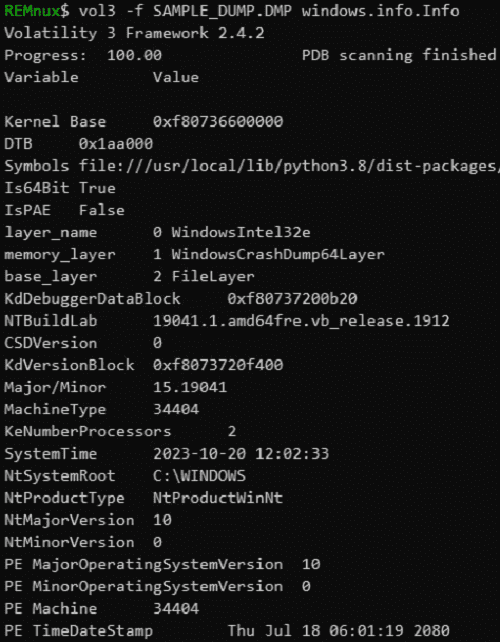
In fact, by running the vol3 -f SAMPLE_DUMP.DMP windows.info.Info command, I was able to obtain system information from the full memory dump as shown below.
Investigate Network Activity from a Crash Dump
Now that I know the system full memory dump used for analysis with WinDbg can also be analyzed with Volatility 3, I will investigate the network activity of the system at the time of the crash.
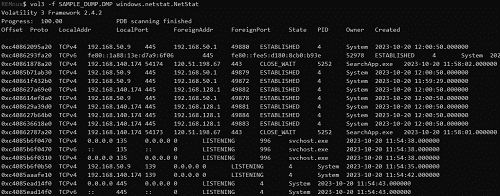
To trace network communications from a full memory dump, use the vol3 -f SAMPLE_DUMP.DMP windows.netstat.NetStat command.3
By using the NetStat module, you can identify information such as the addresses and port numbers of communication endpoints and the names of the processes performing the communication from data in the memory dump, as shown below.
Equivalent information can also be obtained by using the NetScan module and running the vol3 -f SAMPLE_DUMP.DMP windows.netscan.NetScan command.
Note that the NetScan module analyzes memory using a technique called Pool tag quick scanning, and it appears to have the advantage of being more likely than the NetStat module to collect information hidden by malware or similar techniques.
List Running Processes and Command Lines from a Crash Dump
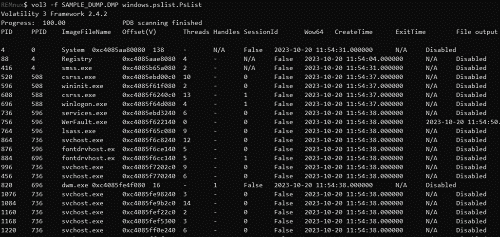
By using the PsList module5 and the PsScan module6, you can collect information about the list of processes running at the time of the crash.
The following is the output when running the vol3 -f SAMPLE_DUMP.DMP windows.pslist.PsList command.
You can obtain equivalent information when using the PsScan module with the vol3 -f SAMPLE_DUMP.DMP windows.psscan.PsScan command as well.
In addition, by running the vol3 -f SAMPLE_DUMP.DMP windows.pstree.PsTree command, you can use the PsTree module7, which outputs information in a process-tree format.
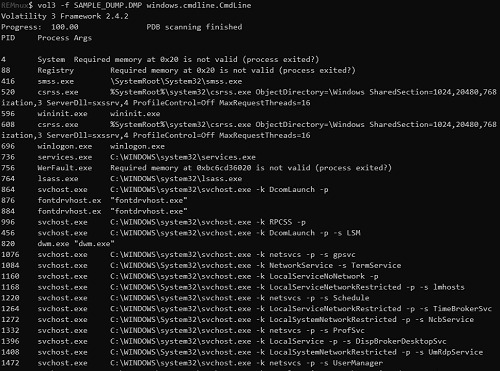
You can also dump process command-line information by using the CmdLine module.8
When I used the CmdLine module with the vol3 -f SAMPLE_DUMP.DMP windows.cmdline.CmdLine command, I obtained the following output.
Dump Executables from Process Memory
By using Volatility 3, it is possible to extract executables from process memory in the same way as in Appendix A, “Extract Executables from Dump Files with WinDbg.”
However, as described in “Extract Executables from Dump Files with WinDbg,” please note that the executable extracted with this method is not completely identical to the original file.
The PsList module can be used when dumping an executable from a process, just as in the previous section.
We have already identified that the PID of D4C.exe is 3392 by running the vol3 -f SAMPLE_DUMP.DMP windows.pslist.PsList command, so let’s use that information to dump D4C.exe.
REMnux$ vol3 -f SAMPLE_DUMP.DMP windows.pslist.PsList

Volatility 3 Framework 2.4.2
Progress:  100.00               PDB scanning finished
PID     PPID    ImageFileName   Offset(V)       Threads Handles SessionId       Wow64   CreateTime      ExitTime        File output

3392    14168   D4C.exe 0xcb0c950ea0c0  3       -       3       False   2023-10-05 12:01:45.000000      N/A     Disabled
When dumping an executable from process memory, use the vol3 -o /tmp -f SAMPLE_DUMP.DMP windows.pslist.PsList --pid 3392 --dump command.
In this command, -o /tmp specifies where the dumped executable file will be written.
Also, --pid 3392 specifies the PID of the D4C.exe process.
After running this command, a file named pid.3392.0x7ff6d3e40000.dmp was saved in the tmp directory as shown below.

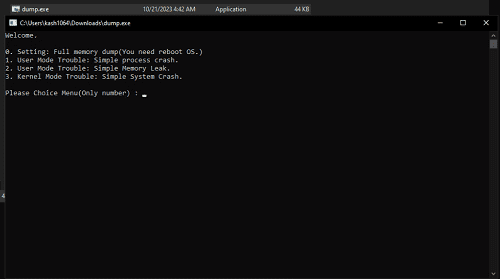
Because this file, pid.3392.0x7ff6d3e40000.dmp, is a Windows executable (PE file), rename it to dump.exe and run it on a Windows system.
As a result of running the dumped file, I confirmed that it launched a menu screen similar to the original D4C.exe.
Collect File Objects from a Full Memory Dump
By using Volatility 3’s FileScan module9, you can collect file objects from information in memory.
To enumerate file objects with the FileScan module, run the vol3 -f SAMPLE_DUMP.DMP windows.filescan.FileScan command.
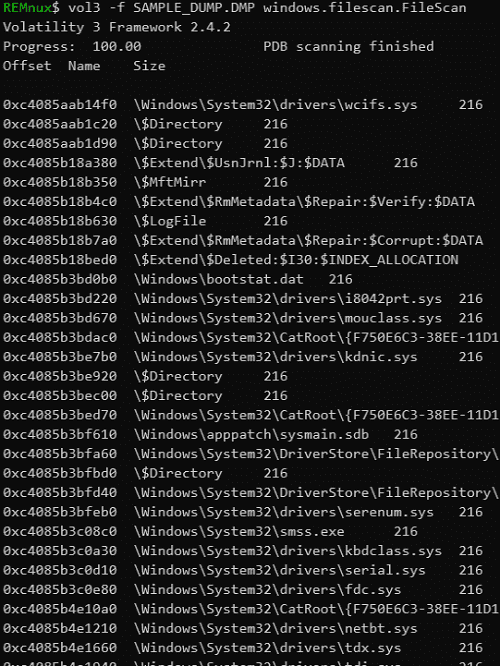
This time, I am analyzing with Volatility 3 the same system full memory dump (SAMPLE_DUMP.DMP) that was used in Appendix A, “Read File Contents from a Full Memory Dump.”
Therefore, you can confirm that the offsets where the file objects for no-cached-file.txt and the Microsoft Defender Antivirus event log exist match the file object addresses identified with WinDbg. (For example, when I investigated it in WinDbg, the address where the file object for no-cached-file.txt existed was shown as ffffc40861f5f720.)
REMnux$ vol3 -f SAMPLE_DUMP.DMP windows.filescan.FileScan

Volatility 3 Framework 2.4.2
Progress:  100.00               PDB scanning finished
Offset  Name    Size

0xc40861920440\Windows\System32\winevt\Logs\Microsoft-Windows-Windows Defender%4Operational.evtx216

0xc40861f5f720\Users\Vuln\Desktop\no-cached-file.txt216
Once the address of a file object has been identified, you can use Volatility 3 to dump the file from the memory dump in the same way as in Appendix A, “Read File Contents from a Full Memory Dump.”
To dump a file from a memory dump with Volatility 3, use the DumpFiles module.10
To use the DumpFiles module, run the vol3 -o /tmp -f SAMPLE_DUMP.DMP windows.dumpfiles.DumpFiles --virtaddr <offset of the file object> command.
Here, -o /tmp specifies the destination path where the extracted file will be saved.
The following is the output when specifying the offset of the file object for no-cached-file.txt.
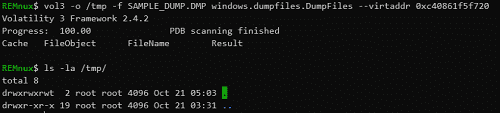
Although the command executed successfully, no file was output.
As you can see, even when using Volatility 3, it is not possible to dump every file in the system from a memory dump.
As confirmed in Appendix A, “Read File Contents from a Full Memory Dump,” Volatility 3 could not retrieve files such as no-cached-file.txt that are not cached by the cache manager.
Next, let’s try specifying the offset of the Microsoft Defender Antivirus event log file.
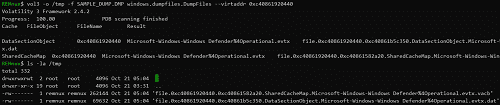
In this case, the DataSectionObject and SharedCacheMap addresses were displayed on the console when the command ran, and the file was dumped under the tmp directory.
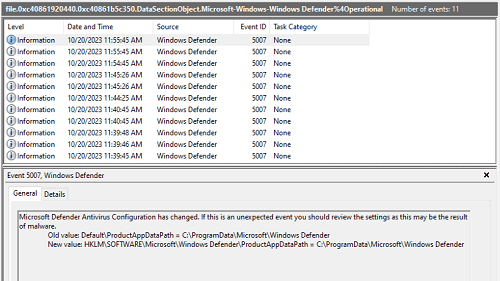
By renaming the dumped file file.0xc40861920440.0xc40861b5c350.DataSectionObject.Microsoft-Windows-Windows Defender%4Operational.evtx.dat and opening it in Event Viewer, I confirmed that the event log of the system from which the dump file was collected had been restored.
By the way, in Appendix A, “Read File Contents from a Full Memory Dump,” I explained that the size of the cache slot described by a single VACB entry is 256 KB.
The actual size of the Microsoft Defender Antivirus event log file obtained from the dump file this time was 68 KB, so the size of the VACB file file.0xc40861920440.0xc40861582a20.SharedCacheMap.Microsoft-Windows-Windows Defender%4Operational.evtx.vacb obtained with the DumpFiles module was 256 KB.
On the other hand, when I dumped the System event file, whose actual size was 2116 KB, with the DumpFiles module, the VACB file size was 2304 KB, corresponding to 9 entries.

Of course, this System event file could also be viewed in Event Viewer.
As shown above, if a file is cached by the cache manager in system memory, the DumpFiles module can trace multiple VACB entries and extract the original file.
Afterword
Thank you very much for reading this book all the way to the end.
This time, I introduced how to acquire full memory dumps of Windows systems and process dumps of applications, as well as how to identify the causes of application crashes, system crashes, and user-mode memory leaks from dump files.
In general, I suspect that among IT engineers as a whole, relatively few people try analyzing dump files for system or application troubleshooting.
One reason may be that to begin analyzing dump files, you need various kinds of knowledge that are generally considered difficult, such as registers and memory, virtual addresses (VA) and relative virtual addresses (RVA), and even low-level OS behavior and assembly language.
In fact, when I had just started learning program analysis and debugging, I remember struggling greatly because I did not yet understand enough of this prerequisite knowledge.
However, I believe an even bigger reason why so few people take on dump file analysis is the lack of opportunities to get started.
More specifically, I feel that the problem is that there is extremely little information available about dump file analysis.
As I mentioned in the preface, excluding out-of-print books, there is currently not a single Japanese-language book that explains Windows dump analysis in detail, as far as I know.
(The only exception is that the Windows Internals columns contain a great deal of useful information for dump file analysis, but the chapter on dump file analysis that existed through the 6th edition was removed in the 7th edition.)
Amid these circumstances, I wrote this book with the aim of giving people a reason to become interested in Windows dump file analysis and providing an initial foothold for those who want to start working on it.
The content I was able to introduce in this book remains very basic, but I hope you were able to feel that when the cause of a problem is simple, identifying it from a dump file is not necessarily difficult.
I hope this book will be of help, even in a small way, to those who are about to begin working on Windows dump analysis.
Once again, thank you very much for taking an interest in this book and for reading it all the way through.
Links to each chapter
- Preface
- Chapter 1: Environment Setup
- Chapter 2: Basic WinDbg Operations
- Chapter 3: Prerequisites for Analysis
- Chapter 4: Analyzing an Application Crash Dump
- Chapter 5: Analyzing a Full Memory Dump from a System Crash
- Chapter 6: Investigating a User-Mode Application Memory Leak from a Process Dump
- Chapter 7: Investigating a User-Mode Memory Leak from a Full Memory Dump
- Appendix A: WinDbg Tips
- Appendix B: Analyzing Crash Dumps with Volatility 3
-
Volatility 3 https://volatility3.readthedocs.io/en/latest/
↩ -
Volatility - Crash Address Space https://github.com/volatilityfoundation/volatility/wiki/Crash-Address-Space
↩ -
volatility3.plugins.windows.netstat module https://volatility3.readthedocs.io/en/latest/volatility3.plugins.windows.netstat.html#module-volatility3.plugins.windows.netstat
↩ -
volatility3.plugins.windows.netscan module https://volatility3.readthedocs.io/en/latest/volatility3.plugins.windows.netscan.html
↩ -
volatility3.plugins.windows.pslist module https://volatility3.readthedocs.io/en/latest/volatility3.plugins.windows.pslist.html
↩ -
volatility3.plugins.windows.psscan module https://volatility3.readthedocs.io/en/latest/volatility3.plugins.windows.psscan.html
↩ -
volatility3.plugins.windows.pstree module https://volatility3.readthedocs.io/en/latest/volatility3.plugins.windows.pstree.html
↩ -
volatility3.plugins.windows.cmdline module https://volatility3.readthedocs.io/en/latest/volatility3.plugins.windows.cmdline.html
↩ -
volatility3.plugins.windows.filescan module https://volatility3.readthedocs.io/en/latest/volatility3.plugins.windows.filescan.html
↩ -
volatility3.plugins.windows.dumpfiles module https://volatility3.readthedocs.io/en/latest/volatility3.plugins.windows.dumpfiles.html
↩