This page has been machine-translated from the original page.
In Chapters 4 and 5, we investigated the causes of process and system crashes using application crash dumps and full memory dumps.
As we have seen in the chapters so far, dump files normally contain information about the exception that caused the crash when the dump was created.
For that reason, by looking at the exception information recorded at dump creation with commands such as !analyze -v, it is relatively easy to identify the direct cause of a crash (the exception).
However, when you investigate the cause of a problem other than a crash from a dump file, the exception information collected when the dump was created is no longer helpful, so the analysis becomes a little more difficult.
In Chapters 6 and 7, we will use a user-mode application memory leak as an example of investigating a non-crash problem from a dump file.
In this chapter, we will analyze a process dump from an application that is causing a memory leak.
Table of contents
- Reproducing the memory leak issue
- Obtaining a process dump
- Examining the exception code in the process dump
- Preparation before investigating the memory leak in the dump file
- Investigating the Heap region in the process dump
- Identifying the code responsible for the memory leak
- Analyzing what each thread is doing
- Summary of Chapter 6
- Links to each chapter
Reproducing the memory leak issue
First, let’s trigger the memory leak so that we can obtain the process dump to analyze.
As in the previous chapters, we will use D4C.exe to reproduce the problem.
Start D4C.exe, then enter 2 at the first menu to begin reproducing the memory leak issue.
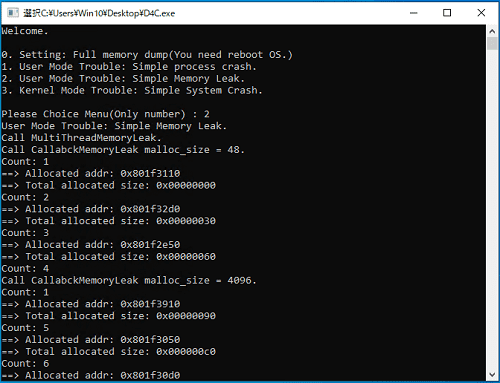
Once execution begins, private memory for the D4C.exe process is allocated one after another, causing the process’s virtual memory1 space to keep growing due to the leak.
If the application’s virtual memory region balloons, it can eventually lead to serious problems such as the RDP session blacking out and disconnecting, or delays in system operations and desktop GUI rendering.
Incidentally, after starting D4C.exe, you can use Process Explorer from Sysinternals to watch the process’s virtual memory keep growing.
You can also use Task Manager to confirm that the amount of virtual memory allocated across the whole system is increasing.
The following screenshot shows Process Explorer and Task Manager launched while a user-mode memory leak issue was actually being reproduced.
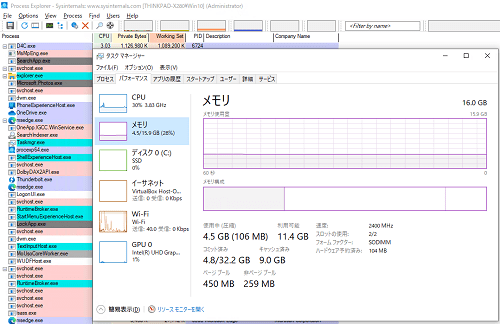
In Process Explorer, you can see the size in the [Private Bytes] column for the D4C.exe row steadily increasing over time.
On the [Performance] tab in Task Manager, you can also confirm that the amount of committed virtual memory is increasing.
You can investigate a process’s memory consumption with many tools besides Process Explorer and Task Manager, such as Resource Monitor, VMMap, and Process Hacker.
So when you suspect a memory leak, it is a good idea to use whichever tool fits your environment and preferences.
Obtaining a process dump
Now that we have reproduced the application’s memory leak issue with D4C.exe, the next step is to obtain a process dump for analysis.
For problems such as memory leaks that do not involve an application crash, an application crash dump is not generated automatically as in Chapter 4.
Therefore, you need to use a tool of your choice to capture a process dump file while the problem is occurring.
There are many tools that can capture process dump files, but in this book we will use Process Explorer and Procdump, both included in Sysinternals.
First, let’s obtain a dump file with Process Explorer.
Just as when we checked the process’s memory usage earlier, launch Process Explorer with administrator privileges.
Next, right-click the D4C.exe row in the process list and click [Create Dump] > [Create Full Dump...].
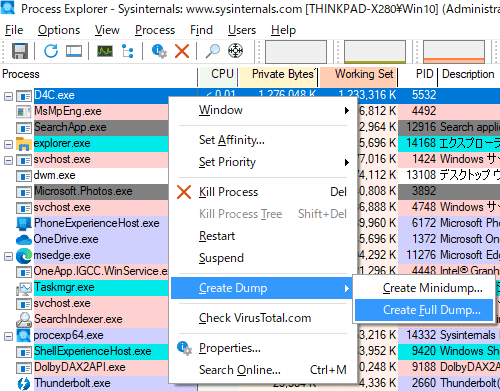
A File Explorer window will open, so save the dump file to any folder you like.
If the full process dump is captured successfully, a dump file will be created in the specified folder with nearly the same size as the process memory size you saw in Process Explorer’s [Private Bytes] column.
When you capture a dump with Process Explorer, the D4C.exe application is not terminated, so press [Ctrl+C] to stop the application manually.
Now we have obtained a process dump for analysis, but you can also capture an equivalent dump file with Procdump.
Using Procdump is very simple.
To capture a process dump of D4C.exe, run the following command in an elevated Command Prompt.
procdump.exe -ma -w D4C.exeWhen you run the command above, a process dump is created in the current folder.
The -ma option specifies that the dump type to capture is a full dump.
The -w option specifies the name of the process for which the dump file should be captured.
Although we will not use it in this book, when you capture an application process dump with Procdump, you can define dump collection conditions in detail, such as an application hang or thresholds for CPU usage and memory size.
So if the timing or reproduction conditions of the problem are unclear, you can use Procdump to capture a process dump under whatever conditions you need and smoothly obtain the dump file required for the investigation.
For a list of Procdump options, refer to the published documentation.
ProcDump:
https://learn.microsoft.com/ja-jp/sysinternals/downloads/procdump
Examining the exception code in the process dump
Now that we have the process dump for analysis, let’s start investigating the memory leak issue.
As in Chapter 4, we will begin by loading the process dump in WinDbg and examining the exception code.
It does not matter whether you use the dump file captured with Process Explorer or the one captured with Procdump.
As shown below, the exception information you can obtain from either kind of process dump with the .exr -1 command is the same.
# Exception code from a process dump captured with Process Explorer
0:000> .exr -1
ExceptionAddress: 0000000000000000
   ExceptionCode: 80000003 (Break instruction exception)
  ExceptionFlags: 00000000
NumberParameters: 0

# Exception code from a process dump captured with Procdump
0:000> .exr -1
ExceptionAddress: 0000000000000000
   ExceptionCode: 80000003 (Break instruction exception)
  ExceptionFlags: 00000000
NumberParameters: 0
From this, we can see that the exception code recorded in the captured process dump is 0x80000003.
If you refer to the official documentation2, you can see that this exception code relates to breakpoint detection.
Also, as the output of the .exr -1 command itself says, Break instruction exception, we can tell that this exception is related to a breakpoint.
Of course, D4C.exe does not have a hardcoded breakpoint.
In other words, we can conclude that this exception was forcibly raised by Process Explorer or Procdump in order to generate the dump file.
In this way, when you generate a dump file to investigate a problem that does not involve a crash, the tool intentionally raises an exception.
Therefore, when you analyze a dump file for a non-crash problem such as the memory leak issue in this chapter, you need to keep in mind that the exception information you can obtain with .exr -1 and !analyze -v is not useful.
Preparation before investigating the memory leak in the dump file
So if the exception information in the dump file is not useful, how should we proceed with the analysis?
In general, before analyzing a dump file, it is important to narrow down the likely source of the problem to some extent.
For example, in this case we assume that, before analyzing the dump file, we have already identified with Process Explorer, Task Manager, or Resource Monitor that D4C.exe is experiencing a memory leak.
Also, before analyzing the dump file, it is helpful to identify exactly which region of the memory allocated to the D4C.exe process is ballooning.
For each section allocated in a user-mode process’s virtual address space, Sysinternals VMMap lets you confirm that they are classified as follows.3
- Image
- Mapped File
- Shareable
- Heap
- Managed Heap
- Stack
- Private Data
The Image region is allocated to map executable images and similar content.
The Mapped File region is allocated for data files mapped into memory.
The Shareable region contains sharable memory that is not mapped into the Image or Mapped File regions.
The Heap region is the memory area used for heaps owned by the process. (Managed Heap is allocated by the CLR, so nothing is shown for processes that do not use .NET.)
In general, when a user-mode application suffers a memory leak, the size of this Heap region increases.
The Stack region is the area for the stack owned by each executing thread in the process, and the Private Data region is used for memory allocations other than stacks and heaps.
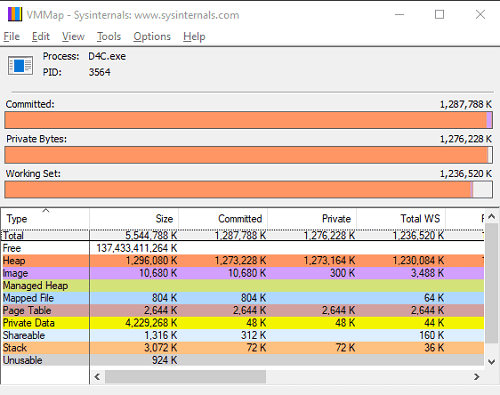
The following is the result of inspecting the D4C.exe process with VMMap before the application’s memory leak occurs.
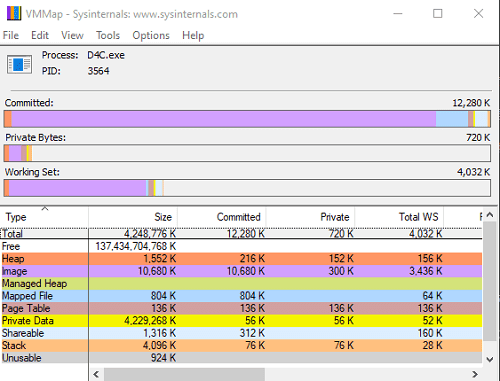
After selecting menu item 2 and reproducing the application’s memory leak issue, refresh the VMMap display and you can confirm that the Heap region (the orange region) has grown significantly within the process’s memory space, as shown below.
If you need to check the process’s memory usage from the dump file in WinDbg, you can use the !address extension.
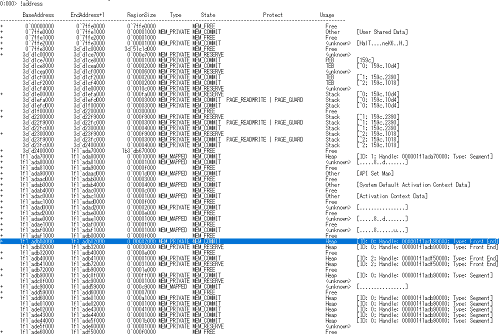
As shown above, the output of the !address command also tells us that a very large number of Heap regions have been allocated in the process.
Incidentally, the output of !address is very large, so it is often easier to investigate with the !address -summary command, which can collect statistical information.
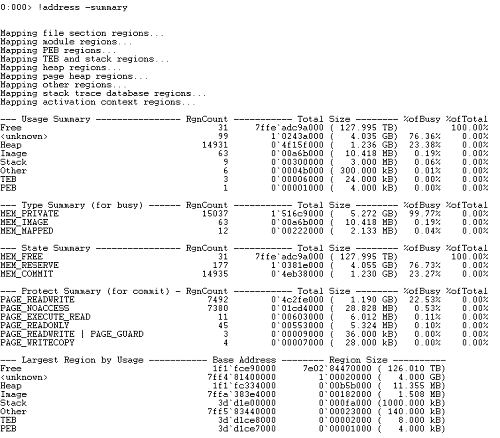
In this way, by running !address -summary in WinDbg after loading the process dump, we can also confirm that the Heap region allocated inside the process has ballooned.
At this point, we have identified that the D4C.exe memory leak issue is likely being caused by the growth of the Heap region.
Investigating the Heap region in the process dump
In the previous section, we confirmed that the cause of the D4C.exe memory leak issue is the ballooning of the Heap region inside the user-mode process.
Applications running on Windows are managed by a component called the heap manager, and generally create heaps and allocate memory by using Windows API functions such as HeapCreate4 and HeapAlloc5.6
When analyzing the Heap region of an application’s process dump in WinDbg, you can use the !heap extension.7
After loading the process dump captured during the memory leak issue into WinDbg and running the !heap command, we can confirm that three NT Heaps exist in the process, as shown below.
0:000> !heap
        Heap Address      NT/Segment Heap
         1f1adb90000              NT Heap
         1f1ada70000              NT Heap
         1f1adf50000              NT Heap
NT Heap is the default heap used by Windows applications.
In addition to NT Heap, heaps used by Windows applications include the segment heap added in Windows 10 / Windows Server 20168, but this book does not use the segment heap, so from here on all heaps refer to NT Heaps.
Now that the !heap command has shown us that three heaps exist in the process, next we will use the -S option to display summary information for each heap.
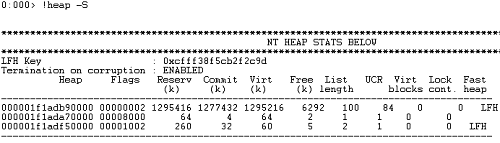
Looking at the output of the !heap -S command, we can see that among the three heaps, the heap at 0x1f1adb90000 is extremely large and is the one that has ballooned.
To gather information from a different angle, let’s also run the !heap -a command.
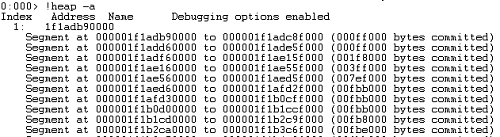
Running !heap -a confirms that the heap at 0x1f1adb90000 we identified with !heap -S contains 84 segments. (Each line beginning with Segment at corresponds to one segment.)
On Windows systems, NT Heap is managed by the ntdll!_HEAP structure.9
Let’s run dt ntdll!_HEAP in WinDbg after loading the process dump and inspect the structure information for ntdll!_HEAP.
0:000> dt ntdll!_HEAP
  +0x000 Segment          : _HEAP_SEGMENT
  +0x000 Entry            : _HEAP_ENTRY
  +0x010 SegmentSignature : Uint4B
  +0x014 SegmentFlags     : Uint4B
  +0x018 SegmentListEntry : _LIST_ENTRY
  +0x028 Heap             : Ptr64 _HEAP
  +0x030 BaseAddress      : Ptr64 Void
  +0x038 NumberOfPages    : Uint4B
  +0x040 FirstEntry       : Ptr64 _HEAP_ENTRY
  +0x048 LastValidEntry   : Ptr64 _HEAP_ENTRY
{{ omitted }}
As shown above, the ntdll!_HEAP structure starts with the ntdll!_HEAP_SEGMENT and ntdll!_HEAP_ENTRY structures.
Next, let’s inspect the information for the ntdll!_HEAP_SEGMENT and ntdll!_HEAP_ENTRY structures.
# Dump structure information for ntdll!_HEAP_SEGMENT
0:000> dt ntdll!_HEAP_SEGMENT
 +0x000 Entry            : _HEAP_ENTRY
 +0x010 SegmentSignature : Uint4B
 +0x014 SegmentFlags     : Uint4B
 +0x018 SegmentListEntry : _LIST_ENTRY
 +0x028 Heap             : Ptr64 _HEAP
 +0x030 BaseAddress      : Ptr64 Void
 +0x038 NumberOfPages    : Uint4B
 +0x040 FirstEntry       : Ptr64 _HEAP_ENTRY
 +0x048 LastValidEntry   : Ptr64 _HEAP_ENTRY
 +0x050 NumberOfUnCommittedPages : Uint4B
 +0x054 NumberOfUnCommittedRanges : Uint4B
 +0x058 SegmentAllocatorBackTraceIndex : Uint2B
 +0x05a Reserved         : Uint2B
 +0x060 UCRSegmentList   : _LIST_ENTRY

# Dump structure information for ntdll!_HEAP_ENTRY
0:000> dt ntdll!_HEAP_ENTRY
 +0x000 UnpackedEntry    : _HEAP_UNPACKED_ENTRY
 +0x000 PreviousBlockPrivateData : Ptr64 Void
 +0x008 Size             : Uint2B
 +0x00a Flags            : UChar
 +0x00b SmallTagIndex    : UChar
 +0x008 SubSegmentCode   : Uint4B
 +0x00c PreviousSize     : Uint2B
 +0x00e SegmentOffset    : UChar
 +0x00e LFHFlags         : UChar
 +0x00f UnusedBytes      : UChar
 +0x008 CompactHeader    : Uint8B
 +0x000 ExtendedEntry    : _HEAP_EXTENDED_ENTRY
 +0x000 Reserved         : Ptr64 Void
 +0x008 FunctionIndex    : Uint2B
 +0x00a ContextValue     : Uint2B
 +0x008 InterceptorValue : Uint4B
 +0x00c UnusedBytesLength : Uint2B
 +0x00e EntryOffset      : UChar
 +0x00f ExtendedBlockSignature : UChar
 +0x000 ReservedForAlignment : Ptr64 Void
 +0x008 Code1            : Uint4B
 +0x00c Code2            : Uint2B
 +0x00e Code3            : UChar
 +0x00f Code4            : UChar
 +0x00c Code234          : Uint4B
 +0x008 AgregateCode     : Uint8B
From the information above, we can see that the ntdll!_HEAP structure is composed of ntdll!_HEAP_SEGMENT structures that include ntdll!_HEAP_ENTRY structures.
On Windows XP and earlier, you can traverse the ntdll!_HEAP_ENTRY structures inside a specific heap segment in a process by repeatedly advancing by the Size value of ntdll!_HEAP_ENTRY multiplied by 8.10
However, this method cannot be used on Vista and later, because ASLR randomizes the process heap.11
Therefore, to traverse the ntdll!_HEAP_ENTRY structures inside a heap segment, we will use the !heap extension.
First, we specified 0x1f1adb90000, the address of the heap that has ballooned this time, and retrieved the information inside that heap with the !heap -a 0x1f1adb90000 command. (You can get equivalent output by using the heap ID and running !heap -a 1.)
The output of this command is extremely long, so as needed, it is a good idea to enable output to a file with the .logopen command. (The .logopen command is described in this book’s “Appendix A: WinDbg Tips”.)
When we actually ran !heap -a 0x1f1adb90000 in WinDbg with the process dump loaded, we were able to enumerate the 84 heap segments in this heap and the heap entries within them.
The following is an excerpt showing only the output for the 84th heap segment and the heap entries inside it.
# Excerpt showing only the output for the 84th heap segment and its heap entries
Segment83 at fbec0000:
  Flags:           00000000
  Base:            1f1fbec0000
  First Entry:     fbec0070
  Last Entry:      1f1fce8f000
  Total Pages:     00000fcf
  Total UnCommit:  00000b5b
  Largest UnCommit:00000000
  UnCommitted Ranges: (1)

Heap entries for Segment83 in Heap 000001f1adb90000
  address: psize . size  flags   state (requested size)
  000001f1fbec0000: 00000 . 00070 [101] - busy (6f)
  000001f1fbec0070: 00070 . 41f90 [101] - busy (41f80) Internal
  000001f1fbf02000: 41f90 . 42010 [101] - busy (41ff0) Internal
  000001f1fbf44010: 42010 . 41ff0 [101] - busy (41fe0) Internal
  000001f1fbf86000: 41ff0 . 42010 [101] - busy (41ff0) Internal
  000001f1fbfc8010: 42010 . 41ff0 [101] - busy (41fe0) Internal
  000001f1fc00a000: 41ff0 . 42010 [101] - busy (41ff0) Internal
  000001f1fc04c010: 42010 . 00400 [101] - busy (3f0) Internal
  000001f1fc04c410: 00400 . 41bf0 [101] - busy (41be0) Internal
  000001f1fc08e000: 41bf0 . 42010 [101] - busy (41ff0) Internal
  000001f1fc0d0010: 42010 . 41ff0 [101] - busy (41fe0) Internal
  000001f1fc112000: 41ff0 . 42010 [101] - busy (41ff0) Internal
  000001f1fc154010: 42010 . 41ff0 [101] - busy (41fe0) Internal
  000001f1fc196000: 41ff0 . 42010 [101] - busy (41ff0) Internal
  000001f1fc1d8010: 42010 . 41ff0 [101] - busy (41fe0) Internal
  000001f1fc21a000: 41ff0 . 42010 [101] - busy (41ff0) Internal
  000001f1fc25c010: 42010 . 41ff0 [101] - busy (41fe0) Internal
  000001f1fc29e000: 41ff0 . 42010 [101] - busy (41ff0) Internal
  000001f1fc2e0010: 42010 . 41ff0 [101] - busy (41fe0) Internal
  000001f1fc322000: 41ff0 . 11fc0 [100]
  000001f1fc333fc0: 11fc0 . 00040 [111] - busy (3d)
  000001f1fc334000:      00b5b000      - uncommitted bytes.
When a program writes information into heap memory allocated by the process, the written data is recorded in the memory region after the header of each heap entry.12
If we actually specify the addresses of several heap entries identified with !heap -a 0x1f1adb90000 and dump around 0x100 bytes of memory, we can confirm that the string ==> Allocated addr: <Address> is written in each heap entry as shown below.
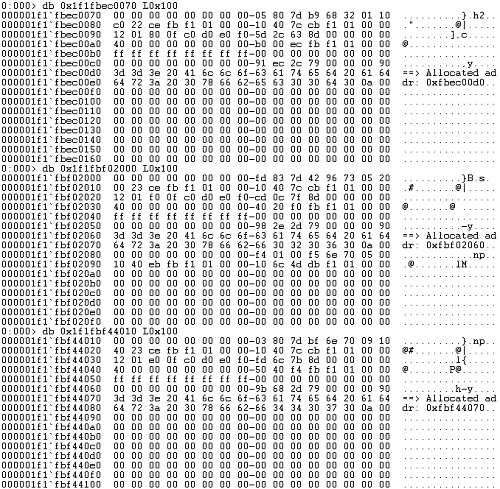
Identifying the code responsible for the memory leak
By analyzing the allocated heap regions from the dump file, we identified that the memory leak is very likely occurring because heap regions containing the string ==> Allocated addr: <Address> have not been freed.
For issues such as memory leaks, unless allocations occur extremely intermittently, it is rare for the call stack at the time the dump file is captured to contain useful information.
So in many cases, live debugging, inspecting the source code, or reverse-engineering the application is more efficient than analyzing the dump file.
That said, in this book we will try, as much as possible, to identify the code responsible for the memory leak by analyzing the dump file.
First, with the process dump file loaded in WinDbg, run the k command to output a stack backtrace.
0:000> k
 # Child-SP          RetAddr               Call Site
00 0000003d`d1eff6e8 00007ffa`382d30ce     ntdll!NtWaitForSingleObject+0x14
01 0000003d`d1eff6f0 00007ff6`dfe213b9     KERNELBASE!WaitForSingleObjectEx+0x8e
02 0000003d`d1eff790 00007ff6`dfe21a40     D4C+0x13b9
03 0000003d`d1effa50 00007ffa`38b17344     D4C+0x1a40
04 0000003d`d1effa90 00007ffa`3a9c26b1     kernel32!BaseThreadInitThunk+0x14
05 0000003d`d1effac0 00000000`00000000     ntdll!RtlUserThreadStart+0x21
Unfortunately, calls to functions such as HeapAlloc, which are used for heap allocation, were not recorded in this stack backtrace.
However, although we did not deal with this in Chapters 4 and 5, many ordinary applications run as multi-threaded programs.
The information you get by running the k command after loading a process dump into WinDbg is only the stack backtrace of the process’s main thread, so just to be safe, let’s investigate the stack backtraces of the other threads as well.
Threads running inside a user-mode process can be enumerated with the !threads extension.13

When we run !threads with the process dump we are analyzing loaded, we can confirm, as shown above, that in addition to the main thread (thread ID: 0), two more threads have been created. (If No export threads found appears when you run !threads, try running !analyze -v once.)
If you want to see the stack backtraces of all threads running in the current process context, use the ~*k command.
You can also specify the index of a particular thread, such as ~1k or ~2k.
Furthermore, by specifying a particular thread index and running ~1s or ~2s, you can switch the current thread context.
In other words, running ~1s; k also lets you see the stack backtrace of thread index 1, just like ~1k.
~s (set the current thread):
https://learn.microsoft.com/ja-jp/windows-hardware/drivers/debugger/-s—set-current-thread-
This time, we will use the ~*k command to output the stack backtraces of all threads together.
0:000> ~*k

.  0  Id: 159c.10d4 Suspend: 0 Teb: 0000003d`d1ce8000 Unfrozen
 # Child-SP          RetAddr               Call Site
00 0000003d`d1eff6e8 00007ffa`382d30ce     ntdll!NtWaitForSingleObject+0x14
01 0000003d`d1eff6f0 00007ff6`dfe213b9     KERNELBASE!WaitForSingleObjectEx+0x8e
02 0000003d`d1eff790 00007ff6`dfe21a40     D4C+0x13b9
03 0000003d`d1effa50 00007ffa`38b17344     D4C+0x1a40
04 0000003d`d1effa90 00007ffa`3a9c26b1     kernel32!BaseThreadInitThunk+0x14
05 0000003d`d1effac0 00000000`00000000     ntdll!RtlUserThreadStart+0x21

   1  Id: 159c.2390 Suspend: 0 Teb: 0000003d`d1cf0000 Unfrozen
 # Child-SP          RetAddr               Call Site
00 0000003d`d22fe838 00007ffa`382fb4ee     ntdll!NtDelayExecution+0x14
01 0000003d`d22fe840 00007ff6`dfe21680     KERNELBASE!SleepEx+0x9e
02 0000003d`d22fe8e0 00007ffa`38b17344     D4C+0x1680
03 0000003d`d22ff930 00007ffa`3a9c26b1     kernel32!BaseThreadInitThunk+0x14
04 0000003d`d22ff960 00000000`00000000     ntdll!RtlUserThreadStart+0x21

   2  Id: 159c.1018 Suspend: 0 Teb: 0000003d`d1cf2000 Unfrozen
 # Child-SP          RetAddr               Call Site
00 0000003d`d23fea68 00007ffa`382fb4ee     ntdll!NtDelayExecution+0x14
01 0000003d`d23fea70 00007ff6`dfe21680     KERNELBASE!SleepEx+0x9e
02 0000003d`d23feb10 00007ffa`38b17344     D4C+0x1680
03 0000003d`d23ffb60 00007ffa`3a9c26b1     kernel32!BaseThreadInitThunk+0x14
04 0000003d`d23ffb90 00000000`00000000     ntdll!RtlUserThreadStart+0x21
From the output above, we can see that threads with indexes 1 and 2 are both calling KERNELBASE!SleepEx from D4C+0x1680 in the same way.
However, from this alone we still cannot decide which thread we should investigate first.
So let’s examine the information for each thread from a slightly different angle.
In WinDbg, the !runaway extension14 lets you obtain information about the amount of time consumed by each thread.
If we run !runaway 7 in WinDbg after loading the dump file captured this time, we get the following output. (7 is an option flag that tells the !runaway extension to output all information about user-mode time consumed, kernel-mode time consumed, and elapsed time since each thread was created.)
0:000> !runaway 7

User Mode Time
Thread       Time
  1:2390     0 days 0:00:27.031
  2:1018     0 days 0:00:11.093
  0:10d4     0 days 0:00:00.000

Kernel Mode Time
Thread       Time
  1:2390     0 days 0:01:38.703
  2:1018     0 days 0:00:01.703
  0:10d4     0 days 0:00:00.000

Elapsed Time
Thread       Time
  0:10d4     0 days 0:30:53.547
  1:2390     0 days 0:30:45.242
  2:1018     0 days 0:30:45.242
Looking at the output of !runaway 7, we can see that the thread with index 1 has consumed an unusually large amount of kernel time.
In general, problems that affect system performance, such as memory leaks, are often caused by the behavior of threads that consume more system resources (= threads that consume more execution time).
Also, processing related to memory operations such as heap allocation generally involves kernel-mode execution.
Therefore, the thread with index 1, which is consuming more kernel time, is likely the cause of the problem, so we will prioritize investigating it.
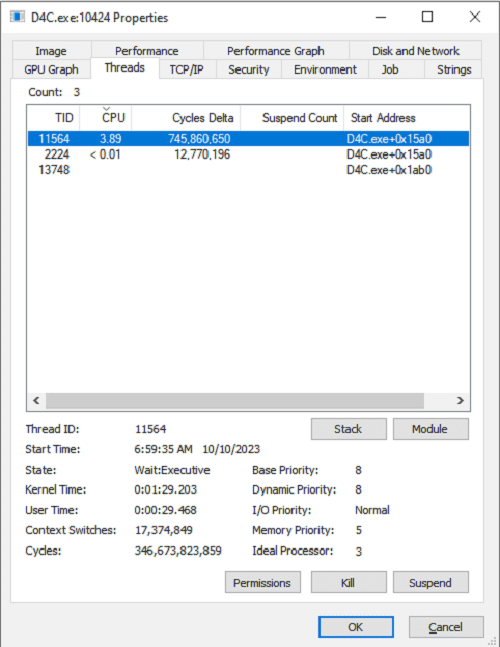
Incidentally, you can investigate the number of threads running in a process and their execution time with tools such as Process Explorer even without using WinDbg.
When using Process Explorer, just as when you captured the dump file, launch Process Explorer with administrator privileges and right-click the D4C.exe process.
Then click [Properties..] and open the [Threads] tab to inspect information about the threads running in the process, as shown below.
Analyzing what each thread is doing
By this point in the investigation, we have identified the following information about the D4C.exe memory leak issue.
- The heap region in the
D4C.exeprocess has ballooned. - The memory of many heap entries that were allocated and never freed contains the string
==> Allocated addr: <Address>. - Three threads are running in the
D4C.exeprocess, and in particular the thread with index 1 has consumed an unusually large amount of kernel-mode execution time.
From here, we will identify the code that is actually causing the process’s heap region to balloon and triggering the memory leak.
However, unlike the crash analyses we have performed so far, a dump file captured by the user at an arbitrary timing does not necessarily contain convenient information about the execution of the code that caused the problem.
This is because the information contained in a dump file is, after all, nothing more than the state of memory at the moment the dump was captured.
In such cases, if you want to identify the code that writes to the heap region, it is often more effective to do live debugging or source-code analysis, or to use a decompiler such as Ghidra, which we used in Chapters 4 and 5.
There are multiple possible ways to identify the code that writes to the heap region, but in this book we will proceed with the following approach.
- Identify the offset in the application’s data region where the string
==> Allocated addr:is hardcoded. - Use a decompiler to identify the code that references the data at the offset found in step 1, and thereby identify the code that writes the string
==> Allocated addr: <Address>into memory.
As we confirmed in the sections above, the memory inside the heap regions allocated this time contains the string ==> Allocated addr: <Address>, and the ==> Allocated addr: part was the same in every heap region.
In other words, unless the program is obfuscated, it is reasonable to assume that the text ==> Allocated addr: is hardcoded in the program.
Data such as text hardcoded in a program is typically placed in the .rdata region (initialized read-only data) of the running process.15
So first, in WinDbg with the process dump file loaded, we will scan the .rdata region to identify the address where the text ==> Allocated addr: is hardcoded.
To scan the .rdata region, we first need to identify the target address range, so let’s display the section header information for D4C.exe with the !dh -s command.
0:000> !dh -s !D4C

SECTION HEADER #1
 .text name
  15EC virtual size
  1000 virtual address
  1600 size of raw data
   400 file pointer to raw data
     0 file pointer to relocation table
     0 file pointer to line numbers
     0 number of relocations
     0 number of line numbers
60000020 flags
       Code
       (no align specified)
       Execute Read

SECTION HEADER #2
.rdata name
  343A virtual size
  3000 virtual address
  3600 size of raw data
  1A00 file pointer to raw data
     0 file pointer to relocation table
     0 file pointer to line numbers
     0 number of relocations
     0 number of line numbers
40000040 flags
       Initialized Data
       (no align specified)
       Read Only

{{ omitted }}

SECTION HEADER #3
 .data name
   638 virtual size
  7000 virtual address
   200 size of raw data
  5000 file pointer to raw data
     0 file pointer to relocation table
     0 file pointer to line numbers
     0 number of relocations
     0 number of line numbers
C0000040 flags
       Initialized Data
       (no align specified)
       Read Write

{{ omitted }}
When we ran !dh -s !D4C in WinDbg with this process dump loaded, we found, as shown above, that the .rdata section had a virtual address of 0x3000 and an aligned size of 0x3600.
In other words, we can conclude that the .rdata section in this process dump exists in the range starting at !D4C+0x3000 (the address obtained by adding 0x3000 to the image base address of D4C.exe) and extending for 0x3600 bytes.
Now that we know the address range of the .rdata section, next let’s use the s command to search for text within that range.16
When using the s command to search for ASCII text within a specified address range, run s -a <search start address> L<search size> "<ASCII text to search for>".
(-a specifies that the search target is an ASCII string. If you want to search for a Unicode string, use the -u option.)
To search for the text ==> Allocated addr: in the .rdata section inside the D4C.exe process, run s -a !D4C+0x3000 L0x3600 "==> Allocated addr:".
When we actually ran that command, we confirmed that the target string was defined at address 0x7ff6dfe236b0, as shown below.
0:000> s -a !D4C+0x3000 L0x3600 "==> Allocated addr:"
00007ff6`dfe236b0  3d 3d 3e 20 41 6c 6c 6f-63 61 74 65 64 20 61 64  ==> Allocated ad
The output of the s command above did not show the full text that was defined, so next let’s use the da command to display the text stored at that address.17
0:000> da 00007ff6dfe236b0
00007ff6`dfe236b0  "==> Allocated addr: 0x%08x."
This confirms that the hardcoded text ==> Allocated addr: 0x%08x. exists at address 0x7ff6dfe236b0.
Finally, we will identify the relative virtual address (RVA) where this text is hardcoded.
You can identify the RVA by subtracting the image base address of D4C.exe from the address 0x7ff6dfe236b0, where this text is hardcoded.
0:000> ? 0x7ff6dfe236b0 - !D4C
Evaluate expression: 14000 = 00000000`000036b0
By calculating the address with the command above, we can identify that the RVA where the target text is defined is 0x36b0.
Now that we know the offset where the string ==> Allocated addr: is hardcoded, we will continue by using the Ghidra decompiler to identify the code that writes this text to the heap region.
After launching Ghidra and loading D4C.exe using the same procedure as in Chapters 4 and 5, press [g] on the keyboard to open the GoTo window.
Next, enter the value obtained by adding the offset 0x36b0 we identified earlier to the default image base address 0x140000000 that Ghidra uses when loading D4C.exe, and click [OK].
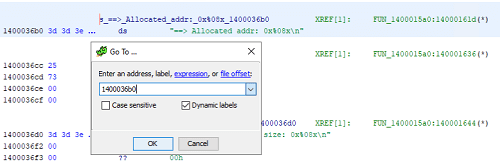
This jumps to address 0x1400036b0, where we can confirm in Ghidra as well that the text ==> Allocated addr: 0x%08x. is hardcoded.
If you inspect the text at address 0x1400036b0 in Ghidra’s Listing window, you can also see XREF[1]: FUN_1400015a0:14000161d(*) displayed on the right side.
This indicates the address of the code that references this data.
If you double-click XREF[1]: FUN_1400015a0:14000161d(*) in Ghidra, you can jump to address 0x14000161d, which loads the text at 0x1400036b0, as shown below.
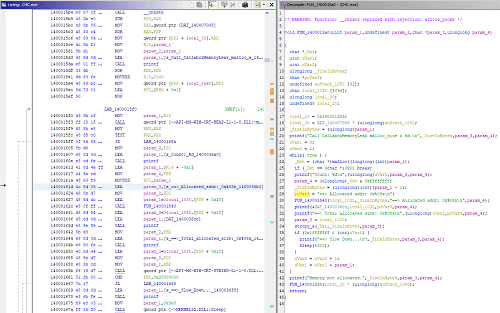
As a result of decompiling the code around this address in Ghidra, we obtained the following pseudocode.
while( true ) {
   _Dst = (char *)malloc((longlong)(int)param_1);
   if (_Dst == (char *)0x0) break;
      printf("Count: %d\n",(ulonglong)uVar2,param_3,param_4);

   param_4 = (ulonglong)_Dst & 0xffffffff;
   _SizeInBytes = (ulonglong)(int)(param_1 - 1)

   pcVar3 = "==> Allocated addr: 0x%08x\n";
   FUN_140001540(local_1030,_SizeInBytes,"==> Allocated addr: 0x%08x\n",param_4);

   printf(&DAT_1400036cc,local_1030,pcVar3,param_4);
   printf("==> Total allocated size: 0x%08x\n",(ulonglong)uVar1,pcVar3,param_4);

   param_3 = local_1030;
   strcpy_s(_Dst,_SizeInBytes,param_3);

   if (0x1fffffff < (int)uVar1) {
      printf("==> Slow Down...\n",_SizeInBytes,param_3,param_4);
      Sleep(1000);
   }

   uVar2 = uVar2 + 1;
   uVar1 = uVar1 + param_1;
}
By analyzing this pseudocode, we can see that inside the while loop, the program repeatedly allocates heap memory with the malloc function and writes to it with the strcpy_s function, yet no code is defined to free the allocated heap.
With that, we have identified the code responsible for the user-mode memory leak in D4C.exe.
Summary of Chapter 6
In this chapter, as an example of investigating the cause of a non-crash problem from a dump file, we analyzed a user-mode application memory leak issue.
In Chapter 7, the final chapter of this book, we will investigate the same memory leak issue covered in this chapter, this time from a full system memory dump.
Even though we casually refer to both of them as “dump files,” the analysis methods and investigative approach differ greatly between a user-mode process dump and a full system memory dump.
Compared with the crash-dump analysis covered in Chapters 4 and 5, this chapter may have felt a little more difficult, but I think investigating problems like this is one of the real pleasures of dump analysis, so I hope you will enjoy reading through to the very end.
Links to each chapter
- Preface
- Chapter 1: Environment Setup
- Chapter 2: Basic WinDbg Operations
- Chapter 3: Prerequisites for Analysis
- Chapter 4: Analyzing an Application Crash Dump
- Chapter 5: Analyzing a Full Memory Dump from a System Crash
- Chapter 6: Investigating a User-Mode Application Memory Leak from a Process Dump
- Chapter 7: Investigating a User-Mode Memory Leak from a Full Memory Dump
- Appendix A: WinDbg Tips
- Appendix B: Analyzing Crash Dumps with Volatility 3
- Afterword
-
Virtual memory and physical memory https://learn.microsoft.com/ja-jp/windows-hardware/drivers/debugger/virtual-and-physical-memory
↩ -
Bug Check
↩0x8E: KERNEL_MODE_EXCEPTION_NOT_HANDLEDhttps://learn.microsoft.com/ja-jp/windows-hardware/drivers/debugger/bug-check-0x8e—kernel-mode-exception-not-handled -
Windows Internals, 7th Edition, Part 1, p.402 (by Pavel Yosifovich, Alex Ionescu, Mark E. Russinovich, David A. Solomon / translated by 山内 和朗 / 日系 BP 社 / 2018)
↩ -
↩HeapCreatefunction https://learn.microsoft.com/ja-jp/windows/win32/api/heapapi/nf-heapapi-heapcreate -
↩HeapAllocfunction https://learn.microsoft.com/ja-jp/windows/win32/api/heapapi/nf-heapapi-heapalloc -
Windows Internals, 7th Edition, Part 1, p.366 (by Pavel Yosifovich, Alex Ionescu, Mark E. Russinovich, David A. Solomon / translated by 山内 和朗 / 日系 BP 社 / 2018)
↩ -
↩!heapextension https://learn.microsoft.com/ja-jp/windows-hardware/drivers/debugger/-heap -
Windows Internals, 7th Edition, Part 1, p.368 (by Pavel Yosifovich, Alex Ionescu, Mark E. Russinovich, David A. Solomon / translated by 山内 和朗 / 日系 BP 社 / 2018)
↩ -
Windows Internals, 7th Edition, Part 1, p.372 (by Pavel Yosifovich, Alex Ionescu, Mark E. Russinovich, David A. Solomon / translated by 山内 和朗 / 日系 BP 社 / 2018)
↩ -
Advanced Windows Debugging, 1st Edition, p.276 (by Mario Hewardt, Daniel Pravat / Addison-Wesley Professional / 2007)
↩ -
Windows Internals, 7th Edition, Part 1, p.406 (by Pavel Yosifovich, Alex Ionescu, Mark E. Russinovich, David A. Solomon / translated by 山内 和朗 / 日系 BP 社 / 2018)
↩ -
Windows Dump no Gokui: When an Error Occurs, Start with Dump Analysis!, p.120 (by 上原 祥市 / ASCII Media Works / 2008)
↩ -
↩!threadsextension https://learn.microsoft.com/ja-jp/windows-hardware/drivers/debugger/-thread -
↩!runawayextension https://learn.microsoft.com/ja-jp/windows-hardware/drivers/debugger/-runaway -
PE format https://learn.microsoft.com/ja-jp/windows/win32/debug/pe-format
↩ -
↩s(search memory) https://learn.microsoft.com/ja-jp/windows-hardware/drivers/debugger/s—search-memory- -
↩d,da,db,dc,dd,dD,df,dp,dq,du,dw,dyb,dyd(display memory) https://learn.microsoft.com/ja-jp/windows-hardware/drivers/debugger/d—da—db—dc—dd—dd—df—dp—dq—du—dw—dw—dyb—dyd—display-memor