This page has been machine-translated from the original page.
In this appendix, I introduce several debugger techniques that could not be included in the main text.
Table of contents
- Output Command Window Results to a File
- Script and Execute WinDbg Commands
- Use the MEX Extension
- Read File Contents from a Full Memory Dump
- Extract Executables from Dump Files with WinDbg
- Links to each chapter
Output Command Window Results to a File
You can configure the WinDbg Command window to write execution results to any file.
This is useful when you want to save a history of your analysis with WinDbg, or when you want to analyze the results of commands that produce a huge amount of output using methods other than WinDbg.
If you want to save WinDbg command output to a specified file, run the .logopen <full path to the destination file> command in the Command window.
After running this command, the results of subsequent commands will be written to the specified path as ASCII text.
To stop writing and close the file, run the .logclose command.
By running the commands above, the output is saved to a log as shown in the image below.
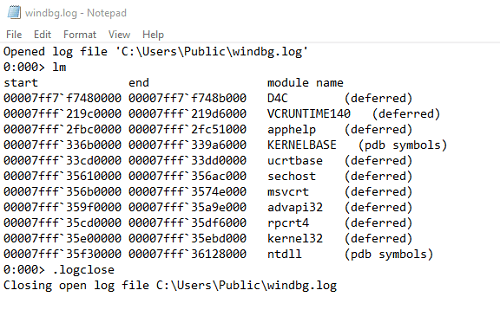
Note that if you specify a log destination with .logopen and a file already exists at that path, the existing file data will be deleted and replaced with the new command output.
If you want to save command output by appending to an existing file, use the .logappend <full path to the destination file> command instead of .logopen.
Also, if you want to avoid accidentally overwriting a file that contains past analysis results, you can use the /t option with the .logopen command.
When you use the /t option, timestamp information for the date and time when logging started is automatically added to the specified file path, as in the example below, which prevents existing files from being overwritten.
0:000> .logopen /t C:\Users\Public\windbg.log
Closing open log file C:\Users\Public\windbg.log
Opened log file 'C:\Users\Public\windbg_1058_2023-09-24_08-36-13-088.log'
Whichever command you use, run .logclose to stop writing and close the file.
For more detailed information about saving WinDbg output, please refer to the official documentation below.
Keeping a Log File in WinDbg:
https://learn.microsoft.com/ja-jp/windows-hardware/drivers/debugger/keeping-a-log-file-in-windbg
Script and Execute WinDbg Commands
WinDbg can execute complex scripted processing.
In this book, when using commands for dump file analysis, I entered either a single command or multiple commands separated by semicolons (;) in the WinDbg Command window.
However, to analyze more efficiently, there are cases where you may want to execute complex commands all at once or control which commands run by using conditional branches.
For example, the following script enumerates EPROCESS structures in kernel memory and uses an If statement to print only the address when the D4C.exe process is found.
$$  Get process list LIST_ENTRY in $t0.
r $t0 = nt!PsActiveProcessHead

$$  Iterate over all processes in list.
.for (r $t1 = poi(@$t0);
      (@$t1 != 0) & (@$t1 != @$t0);
      r $t1 = poi(@$t1))
{
    r? $t2 = #CONTAINING_RECORD(@$t1, nt!_EPROCESS, ActiveProcessLinks);
    as /x Procc @$t2

    $$  Get image name into $ImageName.
    as /ma $ImageName @@c++(&@$t2->ImageFileName[0])

    .block
    {
   .if ($scmp("D4C.exe","${$ImageName}")) { } .else {.echo ${$ImageName} at ${Procc}}
    }

    ad $ImageName
    ad Procc
}
You can save this script as C:\Users\Win10\Downloads\windbg_script.txt and execute it by invoking it in WinDbg as follows.
6: kd> $$>a<C:\Users\Win10\Downloads\windbg_script.txt
D4C.exe at 0xffffc18f45284080
This book does not explain in detail the script invocation commands1, the syntax for the conditional branches2 and loops3 used in this script, or how to use aliases4 and pseudo-registers5.
Please refer to the public documentation for details on each command.
Use the MEX Extension
The MEX extension is an extension for WinDbg officially provided by Microsoft.
Some commands in the MEX extension were used in Chapter 7.
For the level of analysis covered in this book, you do not need to use the MEX extension, but I think it is convenient to know about it.
To use the MEX extension, first run Mex.exe, which can be downloaded from the URL below, on a Windows system.
Download MEX Debugging Extension from Official Microsoft Download Center:
https://www.microsoft.com/en-us/download/details.aspx?id=53304
Next, in the window that appears after you agree to the license terms, specify any folder path where the MEX extension modules will be placed.
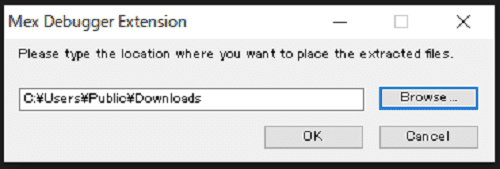
If you open the path you specified above in Explorer, you can confirm that a file named Mex.zip has been placed there, so extract this ZIP file.
By loading the mex.dll file contained in the extracted folder into WinDbg with the .load <full path to mex.dll> command, you will be able to use the MEX extension.
This book does not explain the MEX extension in detail, but you can output help for each available feature by running the !mex.help -all command.
Read File Contents from a Full Memory Dump
In this section, I introduce a technique for retrieving file data from memory data collected in a full memory dump.
On Windows systems, a mechanism called the cache manager caches file contents and file system metadata.6
This cache manager tracks which parts of which files exist in the cache by using a mechanism called Virtual Block Caching.
In this book, I attempt to extract file contents from the system by identifying the address of the structure called the virtual address control block (VACB), which is managed by the cache manager, from a memory-mapped file object.
Note that this method assumes cached data exists in pages included in the full memory dump, so it is important to keep in mind that you cannot necessarily retrieve file contents from every full memory dump you collect.
To extract file contents from a full memory dump, first load the collected full memory dump into WinDbg and run the !memusage command.
Because the output of !memusage is enormous, I recommend enabling output to a file in advance with the .logopen command.
As a result of running !memusage and analyzing the PFN database information, I confirmed the presence of no-cached-file.txt and Microsoft-Windows-Windows Defender%4Operational.evtx (the Microsoft Defender Antivirus event log file) as mapped files.
0: kd> !memusage
loading PFN database
{{ omitted }}
Usage Summary (in Kb):
Control       Valid Standby Dirty Shared Locked PageTables  name

ffffc40861b53750     0      4     0     0     0     0  mapped_file( no-cached-file.txt )

ffffc40861b5c350    68      0     0     0    68     0  mapped_file( Microsoft-Windows-Windows Defender%4Operational.evtx )
To inspect the Control information identified here, use the !ca extension.7
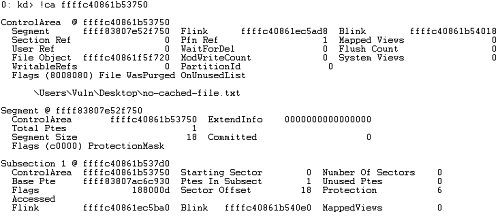
When I ran the !ca ffffc40861b53750 command using 0xffffc40861b53750, which is the address of the control area corresponding to mapped_file( no-cached-file.txt ), I obtained the following result.
Likewise, when I ran the !ca ffffc40861b5c350 command using 0xffffc40861b5c350, which is the address of the control area corresponding to mapped_file( Microsoft-Windows-Windows Defender%4Operational.evtx ), the result was as follows.
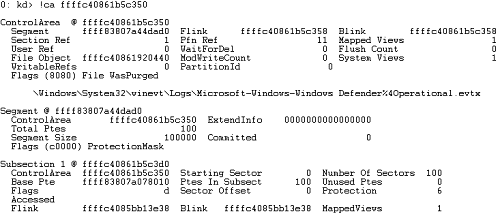
From this output, you can confirm the path of each file and the address of its file object.
For example, because the output for no-cached-file.txt shows File Object ffffc40861f5f720, you can determine that this file’s file object exists at 0xffffc40861f5f720.
You can also confirm that the output for the event log file shows File Object ffffc40861920440.
To verify this, let’s use these addresses to run the !fileobj extension and confirm that we can inspect the detailed information for the file objects.
# Inspect the file object for no-cached-file.txt
0: kd> !fileobj ffffc40861f5f720

\Users\Vuln\Desktop\no-cached-file.txt

Device Object: 0xffffc4085b32ec00   \Driver\volmgr
Vpb: 0xffffc4085b3c69c0
Access: Read SharedRead SharedWrite

Flags:  0x44042
Synchronous IO
Cache Supported
Cleanup Complete
Handle Created

Final Status: 80000005
FsContext: 0xffff83807b62d700FsContext2: 0xffff83807ceb2580
CurrentByteOffset: 0
Cache Data:
  Section Object Pointers: ffffc40861f22a98
  Shared Cache Map: 00000000


# Inspect the file object for the event log file
0: kd> !fileobj ffffc40861920440

\Windows\System32\winevt\Logs\Microsoft-Windows-Windows Defender%4Operational.evtx

Device Object: 0xffffc4085b32ec00   \Driver\volmgr
Vpb: 0xffffc4085b3c69c0
Event signalled
Access: Read Write SharedRead

Flags:  0x41042
Synchronous IO
Cache Supported
Modified
Handle Created

FsContext: 0xffff83807a55f700FsContext2: 0xffff83807a55f970
Private Cache Map: 0xffffc40861582b98
CurrentByteOffset: 36a0
Cache Data:
  Section Object Pointers: ffffc40861981b38
  Shared Cache Map: ffffc40861582a20         File Offset: 36a0 in VACB number 0
  Vacb: ffffc4085abd5ea0
  Your data is at: ffff9688ea9436a0
Now that we have identified the address of each file object, we can next obtain the address of the nt!_SECTION_OBJECT_POINTERS structure from information in the nt!_FILE_OBJECT structure.
# Inspect the file object for no-cached-file.txt
0: kd> dt nt!_FILE_OBJECT ffffc40861f5f720 SectionObjectPointer
   +0x028 SectionObjectPointer : 0xffffc408`61f22a98 _SECTION_OBJECT_POINTERS

# Inspect the file object for the event log file
0: kd> dt nt!_FILE_OBJECT ffffc40861920440 SectionObjectPointer
   +0x028 SectionObjectPointer : 0xffffc408`61981b38 _SECTION_OBJECT_POINTERS
Next, dump the information in the nt!_SECTION_OBJECT_POINTERS structure pointed to by those addresses.
If we first dump the information for no-cached-file.txt, we can see that SharedCacheMap is empty as shown below.
In this case, no-cached-file.txt is not cached by the cache manager, so its contents cannot be referenced from the cache.
0: kd> dt nt!_SECTION_OBJECT_POINTERS ffffc408`61f22a98
   +0x000 DataSectionObject : 0xffffc408`61b53750 Void
   +0x008 SharedCacheMap   : (null)
   +0x010 ImageSectionObject : (null)
Next, let’s dump the structure information for the event log file.
0: kd> dt nt!_SECTION_OBJECT_POINTERS ffffc40861981b38
   +0x000 DataSectionObject : 0xffffc408`61b5c350 Void
   +0x008 SharedCacheMap   : 0xffffc408`61582a20 Void
   +0x010 ImageSectionObject : (null)
Here, we can see that the address 0xffffc40861582a20 is stored in SharedCacheMap.
The SharedCacheMap structure includes the address of a VACB.
Therefore, by running the dt nt!_SHARED_CACHE_MAP ffffc40861582a20 Vacbs command using the identified SharedCacheMap address, we can identify the VACB address needed to refer to the cache that contains the target file’s contents.
0: kd> dt nt!_SHARED_CACHE_MAP ffffc40861582a20 Vacbs
   +0x058 Vacbs : 0xffffc408`61582a58  -> 0xffffc408`5abd5ea0 _VACB
By dumping the information in the nt!_VACB structure using the VACB address 0xffffc4085abd5ea0 identified by the command above, I was able to obtain the following information.
0: kd> dt nt!_VACB ffffc4085abd5ea0
   +0x000 BaseAddress      : 0xffff9688`ea940000 Void
   +0x008 SharedCacheMap   : 0xffffc408`61582a20 _SHARED_CACHE_MAP
   +0x010 Overlay          : <anonymous-tag>
   +0x020 ArrayHead        : 0xffffc408`5abce000 _VACB_ARRAY_HEADER
The VACB structure is managed by the system’s VACB array, and each VACB entry describes the address of a 256 KB slot allocated for the system cache.8
In other words, the contents of the Microsoft Defender Antivirus event log file are cached at the address 0xffff9688ea940000 shown in BaseAddress.
If you actually dump 60 bytes of memory from BaseAddress with the db 0xffff9688ea940000 L60 command, you can see that the data begins with ElfFile\x00, which is the signature of the Windows Event Log (EVTX) format.

Although the detailed specification of the Windows Event Log (EVTX) format is not public, you can get information about the file header and chunk header from the public information in the libyal/libevtx repository on GitHub.
To further check whether event log file data is written to the memory region beginning at this BaseAddress, dump an arbitrary 10000 bytes into windefend-event.txt with the .writemem C:\windefend-event.txt ffff9688ea940000 L10000 command.
Because the text inside the event log file is written as a wide string, when I extracted text from the file with a command such as strings -e l windefend-event.txt, I found that I could obtain data written in the event log file as shown below.
$ strings -e l windefend-event.txt

Microsoft Defender Antivirus
4.18.23080.2006
1.397.865.0
1.1.23080.2005
Security intelligence update
C:\ProgramData\Microsoft\Windows Defender\Scans\RtSigs\data\884898236a1fb17353dac39aea1e06cfeadc24e4
0.0.0.0
10/20/2023 11:36:23 AM
Duration
2592000000
Microsoft-Windows-Windows Defender
Microsoft-Windows-Windows Defender/Operational
By the way, this time I followed the structure information step by step from the file object address to reach the VACB address, but if you use the !finddata extension9, you can identify the address where the contents are cached much more easily.
When I ran the !finddata command using the addresses of the file objects for no-cached-file.txt and the event log file that I investigated above, I obtained the following results.
# Inspect the file object for no-cached-file.txt
0: kd> !finddata ffffc40861f5f720

FindData for FileObject ffffc40861f5f720   Section Object Pointers: ffffc40861f22a98
Shared Cache Map: 00000000Unable to read nt!_SHARED_CACHE_MAP at 0000000000000000


# Inspect the file object for the event log file
0: kd> !finddata ffffc40861920440

FindData for FileObject ffffc40861920440   Section Object Pointers: ffffc40861981b38
Shared Cache Map: ffffc40861582a20         File Offset: 0 in VACB number 0
Vacb: ffffc4085abd5ea0
Your data is at: ffff9688ea940000
In the case of no-cached-file.txt, which had no cache present in memory, text was output indicating that the address of the nt!_SHARED_CACHE_MAP structure could not be referenced.
On the other hand, for the event log file, Your data is at: ffff9688ea940000 was output, which is the cached address of the contents identified from the VACB structure information.
With that, I was able to extract data for files cached in the system from the full memory dump.
This method makes it difficult to retrieve a specifically targeted file or the original complete file, but I think it is an interesting technique to know when analyzing full memory dumps.
Extract Executables from Dump Files with WinDbg
You are unlikely to need this in actual troubleshooting, but for example, when analyzing a dump file from a malware-infected system, there are cases where you may want to retrieve the original executable from the memory dump.
In such cases, you can obtain an executable (a PE file) by extracting the data expanded in a process’s memory with WinDbg and exporting it as a file.
However, note that an executable extracted from process memory with this method is not completely identical to the original executable.10
There are several reasons for this, but one is that some sections of the PE file are not expanded into process memory.
Also, if values such as global variables or executable code expanded in memory have been modified by the program, it is no longer possible to extract the original executable file.
There are other reasons why it is difficult to extract a file from process memory that is completely identical to the original executable, but this book omits a detailed explanation.
For executable extraction from process memory, the reference listed in this book, The Art of Memory Forensics, explains the topic in detail.
In this book, I will recover the D4C.exe executable from a full process memory dump using WinDbg.
Basically, recovery is possible by performing the reverse of the PE file loader: extracting the PE headers and each section’s information as expanded in process memory and merging them into a single file.
As introduced in Chapters 5 and 6, it is technically possible to recover the executable by using the !dh -f and !dh -s commands to obtain information about the IAT and section headers, then using the .writemem command to write each memory region to a file.
This time, however, I will extract the executable by using an open-source extension published on GitHub (HongThatCong/dumpext).
This book only introduces the fact that executables can be extracted from process dumps, so it does not explain the details of the extension.
To extract the executable, I use the D4C.exe process dump obtained in Chapter 6.
After loading the D4C.exe process dump into WinDbg, load the extension downloaded from the HongThatCong/dumpext repository with the .load C:\Users\Public\Downloads\dumpext.dll command.
After loading the extension, run the !dumpext.dump_pe !D4C command to dump the executable from the process.
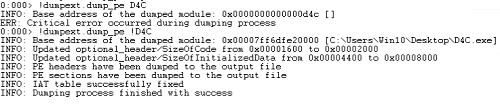
The binary output by the extension is saved as dump.out in WinDbg’s execution folder (C:\Program Files (x86)\Windows Kits\10\Debuggers\x64), so rename it to something like dump.exe.
When I ran dump.exe, it started just like the original D4C.exe and I was able to use its various functions.
However, when I compared the file hashes of dump.exe obtained here and the original D4C.exe, I found that the file recovered from the dump file did not match the original file.
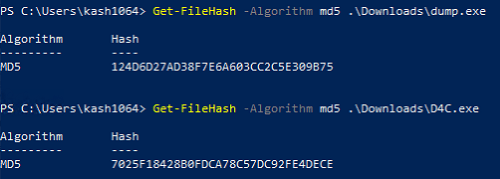
As shown above, I confirmed that even though it does not completely match the original file, it is possible to extract an executable EXE file from a process dump.
Links to each chapter
- Preface
- Chapter 1: Environment Setup
- Chapter 2: Basic WinDbg Operations
- Chapter 3: Prerequisites for Analysis
- Chapter 4: Analyzing an Application Crash Dump
- Chapter 5: Analyzing a Full Memory Dump from a System Crash
- Chapter 6: Investigating a User-Mode Application Memory Leak from a Process Dump
- Chapter 7: Investigating a User-Mode Memory Leak from a Full Memory Dump
- Appendix A: WinDbg Tips
- Appendix B: Analyzing Crash Dumps with Volatility 3
-
><, ><, $$ >a< Run Script File: https://learn.microsoft.com/ja-jp/windows-hardware/drivers/debugger/-----------------------a---run-script-file-
↩ -
.if: https://learn.microsoft.com/ja-jp/windows-hardware/drivers/debugger/-if
↩ -
.for: https://learn.microsoft.com/ja-jp/windows-hardware/drivers/debugger/-for
↩ -
as, aS Set Alias: https://learn.microsoft.com/ja-jp/windows-hardware/drivers/debugger/as—as—set-alias-
↩ -
Pseudo-register syntax: https://learn.microsoft.com/ja-jp/windows-hardware/drivers/debugger/pseudo-register-syntax
↩ -
インサイド Windows 第 7 版 下 P.595 (Andrea Allievi, Mark E.Russinovich, Alex Ionescu, David A.Solomon 著 / 山内和朗 訳 / 日系 BP 社 / 2022 年)
↩ -
↩!caextension https://learn.microsoft.com/ja-jp/windows-hardware/drivers/debugger/-ca -
インサイド Windows 第 7 版 下 P.606 (Andrea Allievi, Mark E.Russinovich, Alex Ionescu, David A.Solomon 著 / 山内和朗 訳 / 日系 BP 社 / 2022 年)
↩ -
↩!finddataextension https://learn.microsoft.com/ja-jp/windows-hardware/drivers/debugger/-finddata -
The Art of Memory Forensics: Detecting Malware and Threats in Windows, Linux, and Mac Memory 1st Edition P.239 (Michael Hale Ligh, Andrew Case, Jamie Levy, AAron Walters 著 / Wiley / 2014 年 )
↩