This page has been machine-translated from the original page.
In this chapter, we will analyze a simple application crash dump with WinDbg.
Table of contents
- Creating an application crash dump for analysis
- Loading the application crash dump in WinDbg
- Analyzing the crash dump with the !analyze extension
- Reading the instructions around the crash
- Appendix: Analyzing the binary with Ghidra
- Summary of Chapter 4
- Links to each chapter
Creating an application crash dump for analysis
First, create an application crash dump for analysis.
Launch D4C.exe, which you downloaded in Chapter 1, select menu item 1, and press Enter. D4C.exe will crash and a user-mode crash dump will be generated.
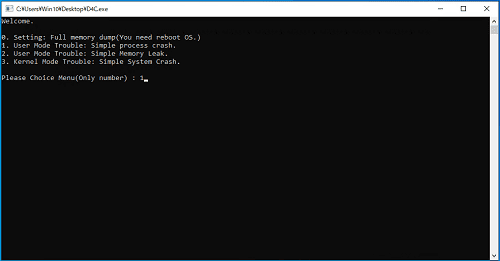
On modern operating systems such as Windows 10, when a user-mode application crashes, the WER service starts and creates a crash report, and in that process a user-mode crash dump of the application is generated.1
By default, the generated user-mode crash dump is saved in C:\Users\<user name>\AppData\Local\CrashDumps.
Also, by default, the type of dump file generated when an application crashes is a minidump.
A minidump captures the crashing thread’s register and stack information, together with the memory pages referenced by those registers, at the point when the application crash occurred.2
The minimum information needed to investigate a crash can be checked even from a minidump, but if you want to perform more detailed troubleshooting, it is preferable to obtain a full dump that captures all user-mode memory regions of the target process. (However, as described in Chapter 1, depending on the specified options, a process minidump can sometimes contain more information than a full dump.)
To change the type of dump generated when an application crash occurs, change the DWORD value DumpType under the registry key HKEY_LOCAL_MACHINE\SOFTWARE\Microsoft\Windows\Windows Error Reporting\LocalDumps to 2.
If your environment has already been configured with D4C.exe to collect full memory dumps, the type of application crash dump generated has already been changed to full dump, so a full dump will also be generated when D4C.exe crashes.
Collecting user-mode dumps:
https://learn.microsoft.com/ja-jp/windows/win32/wer/collecting-user-mode-dumps
Loading the application crash dump in WinDbg
The application crash dump generated when D4C.exe crashes is saved by default in C:\Users\<user name>\AppData\Local\CrashDumps.
To analyze it, start the 64-bit version of WinDbg as administrator, press the [Ctrl + D] shortcut key, and load the dump file collected from that folder.
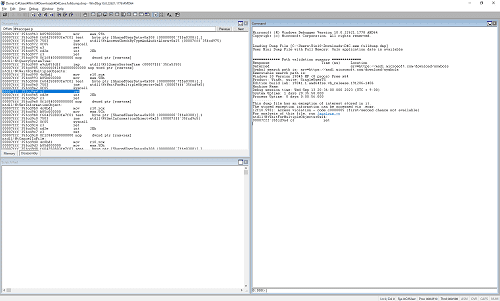
In the Command window immediately after WinDbg starts, information labeled Path validation summary is displayed.
Path validation summary contains useful information for analysis, so let’s look at a few items.
First, in the first part below, you can see the current .sympath information and the OS version.
Response                         Time (ms)     Location
Deferred                                       srv*https://msdl.microsoft.com/download/symbols
Symbol search path is: srv*https://msdl.microsoft.com/download/symbols
Executable search path is:
Windows 10 Version 19045 MP (8 procs) Free x64
Product: WinNt, suite: SingleUserTS
Edition build lab: 19041.1.amd64fre.vb_release.191206-1406
Next, in the lines below, Debug session time shows when the process crash occurred, while System Uptime and Process Uptime show the system uptime and process uptime before the application crashed, respectively.
Debug session time: Wed Sep 13 20:36:00.000 2023 (UTC + 9:00)
System Uptime: 1 days 20:35:58.000
Process Uptime: 0 days 0:00:56.000
The following lines also show the exception code that directly caused the application crash.
This dump file has an exception of interest stored in it.
The stored exception information can be accessed via .ecxr.
(2f10.598): Access violation - code c0000005 (first/second chance not available)
For analysis of this file, run !analyze -v
ntdll!NtWaitForMultipleObjects+0x14:
00007fff`35fcd9a4 c3              ret
From the information Access violation - code c0000005 (first/second chance not available) shown here, we can easily determine that the direct cause of the application crash was an access violation.
Access violation C0000005:
https://learn.microsoft.com/ja-jp/shows/inside/c0000005
From here, we will identify the specific processing where the problem occurred.
Analyzing the crash dump with the !analyze extension
One of the commands I use most often when analyzing crash dumps in WinDbg is !analyze -v.
This command uses the !analyze extension to display detailed information about the exception captured in the crash dump.
!analyze (WinDbg):
https://learn.microsoft.com/ja-jp/windows-hardware/drivers/debugger/-analyze
Commands beginning with an exclamation mark (!) usually mean commands that call debugger extensions.
Debugger extensions can be used by loading DLLs prepared as modules separate from the debugger itself into WinDbg.
WinDbg has several extensions loaded by default, and users can also create their own extensions and load them into the debugger.
You can retrieve a list of the extensions currently loaded in WinDbg with the .chain command.
When I actually run .chain in my environment, I get the following result.
Extension DLL chain:

ext: image 10.0.22621.1778, API 1.0.0,
  [path: C:\Program Files (x86)\Windows Kits\10\Debuggers\x64\winext\ext.dll]

ELFBinComposition: image 10.0.22621.1778, API 0.0.0,
  [path: C:\Program Files (x86)\Windows Kits\10\Debuggers\x64\winext\ELFBinComposition.dll]

dbghelp: image 10.0.22621.1778, API 10.0.6,
  [path: C:\Program Files (x86)\Windows Kits\10\Debuggers\x64\dbghelp.dll]

exts: image 10.0.22621.1778, API 1.0.0,
  [path: C:\Program Files (x86)\Windows Kits\10\Debuggers\x64\WINXP\exts.dll]

uext: image 10.0.22621.1778, API 1.0.0,
  [path: C:\Program Files (x86)\Windows Kits\10\Debuggers\x64\winext\uext.dll]

ntsdexts: image 10.0.22621.1778, API 1.0.0,
  [path: C:\Program Files (x86)\Windows Kits\10\Debuggers\x64\WINXP\ntsdexts.dll]
However, if you look at this list, you can see that there is no extension named analyze.
This is because, strictly speaking, the !analyze extension is one of the features included in the ext extension that WinDbg loads by default.
In WinDbg, you can call an extension module by executing either !<alias of extension module> or !<extension name>.<module name of extension module>.
In other words, executing !ext.analyze gives the same output as executing !analyze.
As an aside, you can list the modules included in the ext extension with !help or !ext.help.
As shown below, you can confirm that, besides analyze, it also includes frequently used entries such as address.
0:000> !ext.help
analyze [-v][level]        - Analyzes current exception or bugcheck (levels are 0..9)
owner [symbol!module]      - Displays the Owner for current exception or bugcheck
comment                    - Displays the Dump's Comment(s)

error [errorcode]          - Displays Win32 or NTSTATUS error string
gle [-all]                 - Displays the Last Error & Last Status of the current thread

address [address]          - Displays the address space layout
        [-UsageType]       - Displays the address space regions of the given type

cpuid [processor]          - Displays the CPU information for a specific or all CPUs

exchain                    - Displays exception chain for the current thread

for_each_process <cmd>     - Executes command for each process
for_each_thread <cmd>      - Executes command for each thread
for_each_frame <cmd>       - Executes command for each frame in the current thread
for_each_local <cmd> $$<n> - Executes command for each local variable in the current frame,
                             substituting the fixed-name alias $u<n> for each occurrence of $$<n>

imggp <imagebase>          - Displays GP directory entry for 64-bit image
imgreloc <imagebase>       - Relocates modules for an image

str <address>              - Displays ANSI_STRING or OEM_STRING
ustr <address>             - Displays UNICODE_STRING

list [-? | parameters]     - Displays lists

cppexr <exraddress>        - Displays a C++ EXCEPTION_RECORD
obja <address>             - Displays OBJECT_ATTRIBUTES[32|64]
rtlavl <address>           - Displays RTL_AVL_TABLE
std_map <address>          - Displays a std::map<>
Now that we have confirmed the extensions, let’s actually run the !analyze -v command and analyze the dump file.
The output of !analyze -v is fairly long, so we will review it in parts.
The first section displays environment information and information about the dump file.
KEY_VALUES_STRING: 1

  Key  : AV.Dereference
  Value: NullPtr

  Key  : AV.Fault
  Value: Write

  Key  : Analysis.CPU.mSec
  Value: 561

  Key  : Analysis.DebugAnalysisManager
  Value: Create

  Key  : Analysis.Elapsed.mSec
  Value: 577

  Key  : Analysis.Init.CPU.mSec
  Value: 12827

  Key  : Analysis.Init.Elapsed.mSec
  Value: 85744066

  Key  : Analysis.Memory.CommitPeak.Mb
  Value: 84

  Key  : Timeline.OS.Boot.DeltaSec
  Value: 44

  Key  : Timeline.Process.Start.DeltaSec
  Value: 7

  Key  : WER.OS.Branch
  Value: vb_release

  Key  : WER.OS.Timestamp
  Value: 2019-12-06T14:06:00Z

  Key  : WER.OS.Version
  Value: 10.0.19041.1

FILE_IN_CAB:  D4C.exe.9608.dmp

NTGLOBALFLAG:  0

PROCESS_BAM_CURRENT_THROTTLED: 0

PROCESS_BAM_PREVIOUS_THROTTLED: 0

APPLICATION_VERIFIER_FLAGS:  0
The next section shows the output of the .ecxr command, which displays the Register Context3 associated with the exception that occurred.
This information does not need to be consulted for dumps collected manually to investigate issues such as memory leaks, but it is extremely important when investigating a crash dump like this one.
CONTEXT:  (.ecxr)
rax=0000000000000017 rbx=0000021b6cad2460 rcx=00007ff6abb95300
rdx=000000bfc50ff948 rsi=00007ff6abb953f8 rdi=0000021b6cad7490
rip=00007ff6abb91412 rsp=000000bfc50ff910 rbp=0000000000000000
 r8=000000bfc50fdd28  r9=0000021b6cad9477 r10=0000000000000000
r11=000000bfc50ff810 r12=0000000000000000 r13=0000000000000000
r14=0000000000000000 r15=0000000000000000
iopl=0         nv up ei pl nz na po nc
cs=0033  ss=002b  ds=002b  es=002b  fs=0053  gs=002b             efl=00010206
D4C+0x1412:
00007ff6`abb91412 41c706e8030000  mov     dword ptr [r14],3E8h ds:00000000`00000000=????????
Resetting default scope
Looking at the .ecxr output above, we can see that the application crashed at the instruction at offset 0x1412.
We can also see that the instruction that caused the crash was mov dword ptr [r14],3E8h.
D4C+0x1412:
00007ff6`abb91412 41c706e8030000  mov     dword ptr [r14],3E8h ds:00000000`00000000=????????
This instruction stores the value 0x3E8 (1000) into a DWORD (32-bit) region at the pointer address held in the r14 register.
However, as shown by r14=0000000000000000, the r14 register does not contain a valid pointer address.
In other words, we can conclude that the application crashed with an access violation because it tried to store a value to a memory address that does not exist.
At this point, we have already identified the detailed cause of the application crash, but this time we will continue analyzing the dump file as-is.
The next section shows output equivalent to running the .exr -1 command.
This command outputs information related to an exception that occurred in the system.
If you specify -1 as the argument, it displays information for the most recent exception.4
EXCEPTION_RECORD:  (.exr -1)
ExceptionAddress: 00007ff7f7481412 (D4C+0x0000000000001412)
   ExceptionCode: c0000005 (Access violation)
  ExceptionFlags: 00000000
NumberParameters: 2
   Parameter[0]: 0000000000000001
   Parameter[1]: 0000000000000000
Attempt to write to address 0000000000000000
From the ExceptionAddress in the result above, we can see that the exception was c0000005 (Access violation) and that it occurred at offset 0x1412 in D4C.exe.
Also, when the exception is c0000005 (Access violation), the two parameters displayed by .exr -1 have the following meanings.5
Parameter[0]: Type of memory access (read:0/ write:1/ execute:8)Parameter[1]: Target memory address
In other words, from the result above, we can see that the access violation was caused by a write access to address 0x0.
Let’s continue to the next section.
PROCESS_NAME:  D4C.exe

WRITE_ADDRESS:  0000000000000000

ERROR_CODE: (NTSTATUS) 0xc0000005 - 0x%p ???? 0x%p ???????????????? %s ???????????????

EXCEPTION_CODE_STR:  c0000005

EXCEPTION_PARAMETER1:  0000000000000001

EXCEPTION_PARAMETER2:  0000000000000000

STACK_TEXT:
00000065`1e9cf580 00007ff7`f7481a40 : {省略} : D4C+0x1412
00000065`1e9cf840 00007fff`35e17344 : {省略} : D4C+0x1a40
00000065`1e9cf880 00007fff`35f826b1 : {省略} : kernel32!BaseThreadInitThunk+0x14
00000065`1e9cf8b0 00000000`00000000 : {省略} : ntdll!RtlUserThreadStart+0x21

STACK_COMMAND:  ~0s; .ecxr ; kb
The information in the first half, like the output of .exr -1, shows the type of the most recent exception and the parameters at the time the exception occurred.
The STACK_TEXT in the second half shows the stack backtrace up to the exception.
This stack backtrace information is equivalent to the information you can obtain with the ~0s; .ecxr ; kb command.
Breaking that command down, ~0s and .ecxr obtain the Register Context for the first thread, and then kb outputs a stack backtrace with arguments.
In other words, for this crash dump, this output is equivalent to extracting from the stack backtrace shown by kb only the information up to just before the exception dispatcher (KiUserExceptionDispatch)6 is called.
If you actually run the kb command in WinDbg, you can obtain the following information.
0:000> kb
# RetAddr               : Args to Child  : Call Site
00 00007fff`33701be0    : {省略} : ntdll!NtWaitForMultipleObjects+0x14
01 00007fff`33701ade    : {省略} : KERNELBASE!WaitForMultipleObjectsEx+0xf0
02 00007fff`35e6f93a    : {省略} : KERNELBASE!WaitForMultipleObjects+0xe
03 00007fff`35e6f376    : {省略} : kernel32!WerpReportFaultInternal+0x58a
04 00007fff`337de099    : {省略} : kernel32!WerpReportFault+0xbe
05 00007fff`35fd5330    : {省略} : KERNELBASE!UnhandledExceptionFilter+0x3d9
06 00007fff`35fbc876    : {省略} : ntdll!RtlUserThreadStart$filt$0+0xa2
07 00007fff`35fd221f    : {省略} : ntdll!_C_specific_handler+0x96
08 00007fff`35f814b4    : {省略} : ntdll!RtlpExecuteHandlerForException+0xf
09 00007fff`35fd0d2e    : {省略} : ntdll!RtlDispatchException+0x244
0a 00007ff7`f7481412    : {省略} : ntdll!KiUserExceptionDispatcher+0x2e
0b 00007ff7`f7481a40    : {省略} : D4C+0x1412
0c 00007fff`35e17344    : {省略} : D4C+0x1a40
0d 00007fff`35f826b1    : {省略} : kernel32!BaseThreadInitThunk+0x14
0e 00000000`00000000    : {省略} : ntdll!RtlUserThreadStart+0x21
If you read the stack backtrace above in order, you can follow the entire flow: execution starts at the RtlUserThreadStart function, which starts a user-mode thread in Windows, then offset 0x1412 is pushed onto the stack, and then the exception dispatcher and the WerpReportFault function that connects to the WER service are called, leading up to creation of the crash dump.7
Next, let’s look at the last section of !analyze -v.
SYMBOL_NAME:  D4C+1412

MODULE_NAME: D4C

IMAGE_NAME:  D4C.exe

FAILURE_BUCKET_ID:  NULL_POINTER_WRITE_c0000005_D4C.exe!Unknown

OS_VERSION:  10.0.19041.1

BUILDLAB_STR:  vb_release

OSPLATFORM_TYPE:  x64

OSNAME:  Windows 10

FAILURE_ID_HASH:  {3a8ea6b5-fbef-8da5-2baa-142fae4fc055}

Followup:     MachineOwner
FAILURE_BUCKET_ID is one of the most important pieces of information when analyzing a dump file.
When you load a crash dump file into the debugger, a signature called a BUCKET ID is generated to identify the type of crash.8 9
In this dump file, FAILURE_BUCKET_ID is displayed as NULL_POINTER_WRITE_c0000005_D4C.exe!Unknown.
This is another reason we can determine that the cause of the application crash was an access violation caused by writing to a NULL pointer.
With that, we have now reviewed all output from the !analyze -v command.
For a simple crash dump like this one, just reading the output of !analyze -v makes it easy to identify the cause of the application crash.
Reading the instructions around the crash
Although we have already identified the cause of the application crash from the output of !analyze -v, we will continue analyzing the dump file to obtain more detailed information.
From the output of !analyze -v, we confirmed that the instruction where the application crash occurred was mov dword ptr [r14],3E8h at offset 0x1412.
In this section, we will trace the processing immediately before the crash occurred.
First, let’s call threads, included in the ext extension, to list the application’s threads.
From the output below, we can see that this application has only one thread—the main thread—running.
0:000> !threads
IndexTIDTEBStackBaseStackLimit DeAlloc StackSize ThreadProc
00000000000000000 0x000000651eac0000 0x000000651e9d0000 0x000000651e9cc0000x000000651e8d0000 0x00000000000040000x0
Total VM consumed by thread stacks 0x00004000
From the result above, we can see that using the main thread as the analysis target is fine, so we display a stack backtrace with the Register Context of the exception specified by running ~0s; .ecxr ; k.
Note that the Args to Child information obtained by the kb command is not very useful for x64 binaries because of the calling convention, so in the example below I display information using only the k command.
0:000> ~0s; .ecxr ; k
{省略}
D4C+0x1412:
00007ff7`f7481412 41c706e8030000  mov     dword ptr [r14],3E8h ds:00000000`00000000=????????
  *** Stack trace for last set context - .thread/.cxr resets it
 # Child-SP          RetAddr               Call Site
00 00000065`1e9cf580 00007ff7`f7481a40     D4C+0x1412
01 00000065`1e9cf840 00007fff`35e17344     D4C+0x1a40
02 00000065`1e9cf880 00007fff`35f826b1     kernel32!BaseThreadInitThunk+0x14
03 00000065`1e9cf8b0 00000000`00000000     ntdll!RtlUserThreadStart+0x21
In an application crash dump like this one, the topmost Call Site is usually the offset of the instruction that raised the exception.
In the output for this dump file, the call immediately before the exception dispatcher is D4C+0x1412, so we can see that the crashing instruction is at offset 0x1412 in D4C.exe.
We already confirmed from the output of .ecxr that this application crash was caused by an access violation at the instruction at offset 0x1412, but let’s also inspect the instructions around that offset just to be sure.
You can inspect the instructions around a specific offset by using the Disassembly window opened with [Alt + 7].
When you use the Disassembly window, enter !<module name>+offset in the Offset field at the top of the window.
In other words, if you want to inspect the instruction at offset 0x1412 in D4C.exe, enter !D4C+0x1412 in the Offset field at the top of the window.
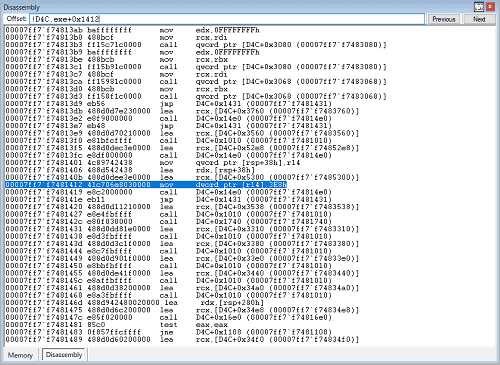
You can also use the u / ub / uu commands10 in WinDbg to inspect instructions at a specific offset.
When using commands, you can specify the offset in the same format as in the Disassembly window.
To retrieve the instruction at offset 0x1412, run the u !D4C+0x1412 command.
If you do not specify any options for the u command, it displays the eight instructions after the specified offset. (This includes the instruction at the specified offset.)
On the other hand, if you want to inspect the instruction immediately before the specified offset, you can use the ub command.
Running ub !D4C+0x1412 displays the eight or nine instructions before the specified offset. (It does not include the instruction at the specified offset.)
If you look at the actual output of each command, you can see that the instructions before and after the specified offset are retrieved correctly, as shown below.
# Retrieve the 8 instructions starting at the specified offset with the u command (partially omitted)
0:000> u !D4C+0x1412
D4C+0x1412:
mov     dword ptr [r14],3E8h
call    D4C+0x14e0 (00007ff7`f74814e0)
jmp     D4C+0x1431 (00007ff7`f7481431)
lea     rcx,[D4C+0x3538 (00007ff7`f7483538)]
call    D4C+0x1010 (00007ff7`f7481010)
call    D4C+0x1740 (00007ff7`f7481740)
lea     rcx,[D4C+0x3310 (00007ff7`f7483310)]
call    D4C+0x1010 (00007ff7`f7481010)


# Retrieve the 8 (or 9) instructions before the specified offset with the ub command (partially omitted)
0:000> ub !D4C+0x1412
D4C+0x13e7:
jmp     D4C+0x1431 (00007ff7`f7481431)
lea     rcx,[D4C+0x3560 (00007ff7`f7483560)]
call    D4C+0x1010 (00007ff7`f7481010)
lea     rcx,[D4C+0x52e8 (00007ff7`f74852e8)]
call    D4C+0x14e0 (00007ff7`f74814e0)
mov     qword ptr [rsp+38h],r14
lea     rdx,[rsp+38h]
lea     rcx,[D4C+0x5300 (00007ff7`f7485300)]


# Retrieve 16 (0x10) instructions starting from the offset identified with ub (partially omitted)
0:000> u !D4C+0x13e7 L10
D4C+0x13e7:
jmp     D4C+0x1431 (00007ff7`f7481431)
lea     rcx,[D4C+0x3560 (00007ff7`f7483560)]
call    D4C+0x1010 (00007ff7`f7481010)
lea     rcx,[D4C+0x52e8 (00007ff7`f74852e8)]
call    D4C+0x14e0 (00007ff7`f74814e0)
mov     qword ptr [rsp+38h],r14
lea     rdx,[rsp+38h]
lea     rcx,[D4C+0x5300 (00007ff7`f7485300)]
mov     dword ptr [r14],3E8h
call    D4C+0x14e0 (00007ff7`f74814e0)
jmp     D4C+0x1431 (00007ff7`f7481431)
lea     rcx,[D4C+0x3538 (00007ff7`f7483538)]
call    D4C+0x1010 (00007ff7`f7481010)
call    D4C+0x1740 (00007ff7`f7481740)
lea     rcx,[D4C+0x3310 (00007ff7`f7483310)]
call    D4C+0x1010 (00007ff7`f7481010)
Now we have been able to inspect the instructions immediately before and after the application crash in WinDbg.
Appendix: Analyzing the binary with Ghidra
In general, crash dump analysis is only one part of a larger troubleshooting workflow.
As in this example, if dump analysis has already identified the specific cause of the application crash and the offset of the code where the error occurred, then other approaches—such as checking the source code, live debugging, or changing settings in an environment where the problem can be reproduced—may be more effective than dump analysis for determining the deeper cause or a workaround.
However, situations often arise where the analyst cannot obtain the source code or symbols of the program under investigation, making troubleshooting with those approaches difficult.
One option in such cases is to learn techniques for restoring an application into assembly or pseudocode using tools called decompilers.
In this book, I use version 2.3 of Ghidra, a powerful open-source decompiler, to decompile the application.
Ghidra is a tool developed by the United States National Security Agency (NSA) that makes it easy to disassemble and decompile application executables.
However, if the program being analyzed is written in a programming language such as .Net or Java, it is more efficient to use dedicated decompilers such as ILSpy11 or jadx12.
When doing analysis, it is best to use the most suitable tool or a combination of tools—according to the type of program being analyzed, the programming language used to develop it, the framework, and so on.
Decompiling and analyzing a command-line application written in C, like D4C.exe, is very easy with Ghidra.
First, start the Ghidra you set up in Chapter 1 and drag and drop the executable D4C.exe into the project screen.
At that point, if Ghidra automatically analyzes the file type and indicates that it is a PE binary for the x64 platform (a Windows executable), click [OK] to load the file.
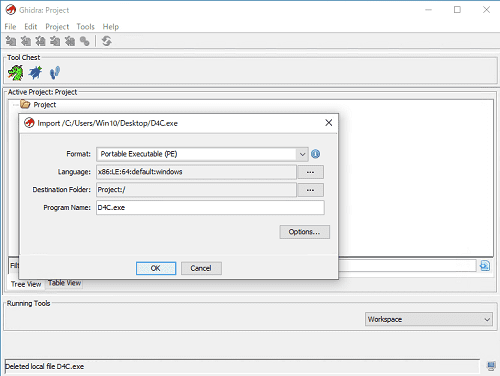
Next, double-click the loaded file to open the analysis window.
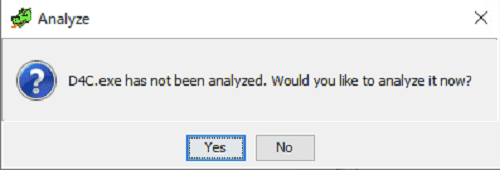
If several confirmation prompts like the ones below appear, select [Yes].
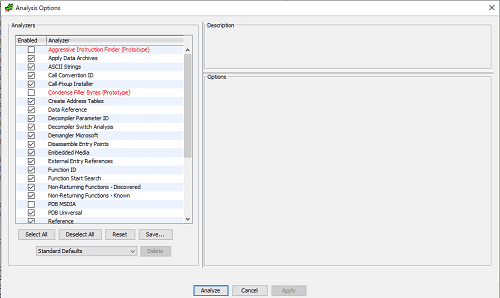
For the analysis options that appear next, the default settings are fine, so click [Analyze] to start analyzing the program.
After automatic analysis runs for a few dozen seconds to a few minutes, you will be able to inspect the decompiled result of the application in Ghidra.
By default, the Ghidra analysis window is laid out as shown below.
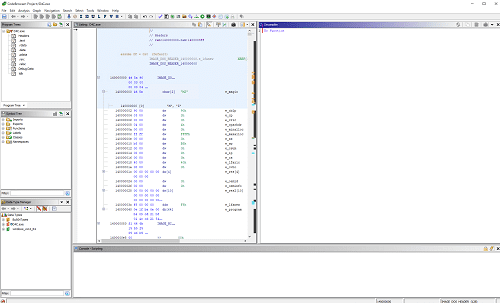
First, the Decompiler window on the right shows the result of decompiling application functions into pseudocode close to C.
The Listing window in the center shows the disassembly of the application.
The code displayed in the Listing window is basically the same disassembly you can inspect in WinDbg’s Disassembly window, but Ghidra automatically analyzes information such as the IAT and displays the results, so it often shows code that is easier to read than the disassembly you inspect in WinDbg.
On the left side of the window, you can see windows for inspecting the program’s sections, symbol tree, and data types.
To analyze the program, first let’s identify the main function, which is the first function executed by the program.
When Windows executes a PE file (exe)13, the value of AddressOfEntryPoint embedded in the PE file header is the starting point of execution.
Windows begins executing the program from the address specified by AddressOfEntryPoint, performs several initialization steps, and then runs the main function.
You can identify the entry point specified by AddressOfEntryPoint by expanding the [Functions] tree in the Symbol Tree window on the left side of Ghidra’s analysis window and finding the entry function.
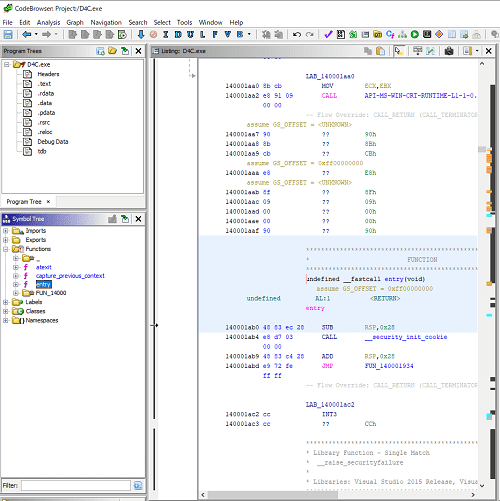
Next, click the function FUN_140001934() shown in the Listing window or Decompiler window to jump to that function’s offset. (The function offset varies depending on the binary.)
The decompiled result of the function FUN_140001934() is as follows. (Partially omitted.)
uint FUN_140001934(void)
{
  {{ 省略 }}
  uVar4 = __scrt_initialize_crt(1);
  if ((char)uVar4 == '\0') {
    FUN_140001fa8(7);
  }
  else {
      {{ 省略 }}

      puVar7 = (undefined *)_get_initial_narrow_environment();
      puVar8 = (undefined8 *)__p___argv();
      uVar1 = *puVar8;
      puVar9 = (uint *)__p___argc();
      uVar10 = (ulonglong)*puVar9;
      unaff_EBX = FUN_140001070(uVar10,uVar1,puVar7,in_R9);

      {{ 省略 }}
    }
  }
  FUN_140001fa8(7);
  LAB_140001aa0:

  exit(unaff_EBX);
}
The details of this code are outside the scope of this book, so I will not explain them in detail, but the function FUN_140001934() corresponds to the initialization process that runs when the application starts.14
In particular, pay attention to the line unaff_EBX = FUN_140001070(uVar10,uVar1,puVar7,in_R9);, which takes _get_initial_narrow_environment, __p___argv, and __p___argc—symbol names identified under Ghidra 2.3’s default settings—as arguments.
I could not find information about this in the official documentation, but if you search the web, including sites such as Stack Overflow, using those three values as clues, you can determine that they most likely correspond to the following processing that the Windows CRT uses to run the main function.
static int __cdecl invoke_main()
{
    return main(__argc, __argv, _get_initial_narrow_environment());
}
In other words, we can conclude that the function FUN_140001070() called by the line unaff_EBX = FUN_140001070(uVar10,uVar1,puVar7,in_R9); inside FUN_140001934() corresponds to the main function of this program.
If you actually jump to FUN_140001070() in Ghidra and check the Decompiler window, you can see code that includes strings such as Welcome. displayed on the console when the program starts, confirming that FUN_140001070() is the main function of D4C.exe.
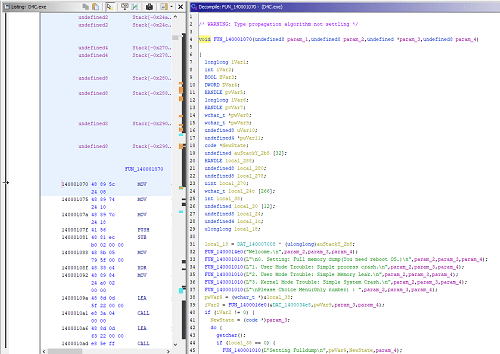
In Ghidra, you can rename a function to any name you want by right-clicking the function name and selecting [Rename Function].
To make the analysis smoother, rename FUN_140001070() to main.
You can also infer that FUN_1400014e0("Welcome.\n",param_2,param_3,param_4); and FUN_140001010(L"\n0. Setting: Full memory dump(You need reboot OS.)\n",param_2,param_3,param_4); are functions that output an ASCII string and a wide string to the console, respectively.
Therefore, rename FUN_1400014e0() to printf and FUN_140001010() to wprintf.
This already makes the decompiled output much easier to read.
Finally, we will use Ghidra to determine the more detailed cause of the application crash.
As we have already confirmed, this application crash occurred because, after selecting 1 in the first menu, the program attempted to write to an invalid address.
So, let’s investigate the code at the point where the application crash occurred from the decompiled output of the main function.
Looking at the information in the Decompiler window, we can see that the application crash occurred at the following code.
else if (local_38 == 1) {
  wprintf(L"User Mode Trouble: Simple process crash.\n",pwVar9,NewState,param_4);
  printf("OK, Start application.\n",pwVar9,NewState,param_4);

  local_280 = 0;
  pwVar9 = (wchar_t *)&local_280;
  uRam0000000000000000 = 1000;

  printf(&DAT_140005300,pwVar9,NewState,param_4);
}
If you actually select the write access uRam0000000000000000 = 1000;, the Listing window shows that the corresponding code is at offset 0x1412.
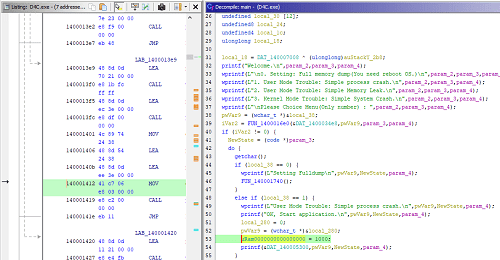
This offset 0x1412 matches the offset we identified when analyzing the dump file in WinDbg.
Furthermore, if you inspect Ghidra’s decompiled output, you can see that the destination address for the write refers to a hard-coded value of 0.

With that, we have determined that the cause of the application crash investigated here was a memory access violation caused by the developer hard-coding 0 as the destination address for the value 1000.
Summary of Chapter 4
That concludes the analysis of a simple application crash dump.
In real-world troubleshooting, you will almost never investigate a crash event that is this simple, but the basic analysis steps do not change very much.
As long as the application crash dump has been generated correctly, you can investigate the type of exception that directly caused the crash and the offset of the instruction where the crash occurred from the dump file, regardless of the underlying root cause.
Through this chapter, I hope you felt that dump file analysis, which may look complex at first glance, can actually make it possible to identify the cause quite easily if you just keep track of a few key checkpoints.
Links to each chapter
- Preface
- Chapter 1: Environment Setup
- Chapter 2: Basic WinDbg Operations
- Chapter 3: Prerequisites for Analysis
- Chapter 4: Analyzing Application Crash Dumps
- Chapter 5: Analyzing Full Memory Dumps from System Crashes
- Chapter 6: Investigating User-Mode Application Memory Leaks from Process Dumps
- Chapter 7: Investigating User-Mode Memory Leaks from Full Memory Dumps
- Appendix A: WinDbg Tips
- Appendix B: Analyzing Crash Dumps with Volatility 3
-
Windows Internals, 7th Edition, Part 2, p.564 (by Andrea Allievi, Mark E. Russinovich, Alex Ionescu, David A. Solomon / translated by 山内 和朗 / 日系 BP 社 / 2022)
↩ -
Windows Internals, 7th Edition, Part 1, p.534 (by Pavel Yosifovich, Alex Ionescu, Mark E. Russinovich, David A. Solomon / translated by 山内 和朗 / 日系 BP 社 / 2018)
↩ -
Register Context https://learn.microsoft.com/ja-jp/windows-hardware/drivers/debugger/changing-contexts#register-context
↩ -
.exr Display Exception Record https://learn.microsoft.com/ja-jp/windows-hardware/drivers/debugger/-exr—display-exception-record-
↩ -
Access violation C0000005 https://learn.microsoft.com/ja-jp/shows/inside/c0000005
↩ -
Windows Internals, 7th Edition, Part 2, p.91 (by Andrea Allievi, Mark E. Russinovich, Alex Ionescu, David A. Solomon / translated by 山内和朗 / 日系 BP 社 / 2022)
↩ -
Windows Internals, 7th Edition, Part 2, p.565 (by Andrea Allievi, Mark E. Russinovich, Alex Ionescu, David A. Solomon / translated by 山内和朗 / 日系 BP 社 / 2022)
↩ -
インサイド Windows 第 6 版 下, p.624 (by Mark E. Russinovich, David A. Solomon, Alex Ionescu / translated by 株式会社クイープ / 日系 BP 社 / 2013)
↩ -
Using the !analyze extension https://learn.microsoft.com/ja-jp/windows-hardware/drivers/debugger/using-the—analyze-extension
↩ -
u, ub, uu Unassemble https://learn.microsoft.com/ja-jp/windows-hardware/drivers/debugger/u—unassemble-
↩ -
ILSpy https://github.com/icsharpcode/ILSpy
↩ -
jadx https://github.com/skylot/jadx
↩ -
PE format https://learn.microsoft.com/ja-jp/windows/win32/debug/pe-format
↩ -
CRT initialization https://learn.microsoft.com/ja-jp/cpp/c-runtime-library/crt-initialization?view=msvc-170
↩