This page has been machine-translated from the original page.
In Chapter 4, we analyzed a simple application crash dump.
In Chapter 5, which follows, we will analyze a full memory dump collected when a simple system crash occurred.
Table of Contents
- Triggering a system crash and creating a full memory dump
- Loading the full memory dump in WinDbg
- Analyzing the crash dump with the
!analyzeextension - Identifying the process that caused the crash
- Reading the instructions before and after the crash
- Analyzing the IAT (Import Address Table) in WinDbg
- Chapter 5 summary
- Chapter links
Triggering a system crash and creating a full memory dump
As we saw in Chapter 4, when an exception occurs in the processing of an application running in user mode, the application crashes and an application crash dump is generated.
Similarly, if an exception occurs inside a system process running in kernel mode, a system crash called a BSOD (Blue Screen of Death) occurs, and a system crash dump is generated.
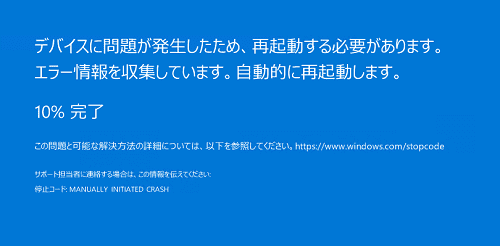
There are several kinds of system crash dumps, but the full memory dump we will capture this time contains all page information from all physical memory accessible to the Windows system running on that machine.
A full memory dump is not generated under Windows default settings, but if your environment has been configured to collect dump files according to the procedure in Chapter 1, the setting to capture a full memory dump is already in place.
Therefore, we will use D4C.exe to obtain a full memory dump for analysis.
First, run the D4C.exe downloaded in Chapter 1, enter 3 in the menu shown at the prompt, and press Enter.
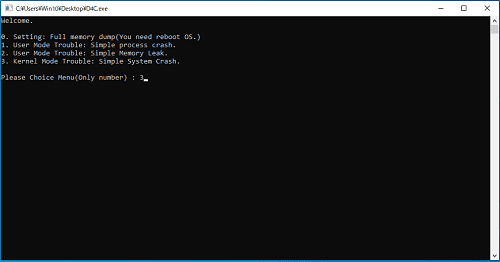
When you execute option 3 in D4C.exe, a system crash occurs and the machine automatically reboots.
After the system restarts, if a file named FULL_MEMORY.DMP has been created directly under the C:\Windows folder, the full memory dump has been successfully captured.
Loading the full memory dump in WinDbg
When analyzing a full memory dump, just as with an application crash dump, launch the 64-bit version of WinDbg as administrator and use the [Ctrl + D] shortcut to load the dump file you captured from that folder.
Once loading finishes and the message For analysis of this file, run !analyze -v appears, the dump is ready. (Depending on the full memory dump file size, loading may take a little time.)
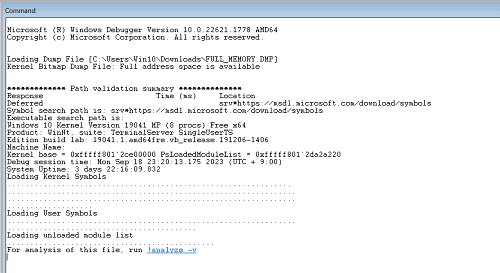
Analyzing the crash dump with the !analyze extension
As with application crash dump investigations, the !analyze -v command is extremely useful when investigating a system crash.
So let’s go through the output you get by running !analyze -v in the Command window, section by section.
The first section shows the analysis result of the bug check data1 that can be obtained with the .bugcheck command, as shown below.
CRITICAL_PROCESS_DIED (ef)
        A critical system process died
Arguments:
Arg1: ffffc18f36303080, Process object or thread object
Arg2: 0000000000000000, If this is 0, a process died. If this is 1, a thread died.
Arg3: 0000000000000000, The process object that initiated the termination.
Arg4: 0000000000000000
By referring to the output above, we can see that the cause of the system crash is CRITICAL_PROCESS_DIED.
If you actually run the .bugcheck command in WinDbg, you get the following output.
6: kd> .bugcheck
Bugcheck code 000000EF
Arguments ffffc18f`36303080 00000000`00000000 00000000`00000000 00000000`00000000
Windows bug check codes are published in the official documentation below.
If you look up the value 000000EF in that reference, you can see that it matches the bug check code for CRITICAL_PROCESS_DIED shown by !analyze -v.
Also, the output of !analyze -v is equivalent to analyzing the bug check with the !analyze -show <bug check code> <Arg1> command.
Bug check codes:
From the output of these commands, we can see that the system crash was CRITICAL_PROCESS_DIED (0xef), caused by the termination of a critical Windows system process.
So what exactly is meant by a critical Windows system process?
Critical Windows system processes include built-in system processes such as csrss.exe, wininit.exe, logonui.exe, smss.exe, services.exe, conhost.exe, and winlogon.exe.
Bug Check 0xEF: CRITICAL_PROCESS_DIED
In addition, because the value of Arg2 is 0, we can tell that the cause was the termination of a process rather than a thread, and that the actual stopped process object exists at 0xffffc18f36303080.
If we inspect the information managed by the EPROCESS structure at that address, we can identify the stopped system process as svchost.exe with PID 0x3bc.
6: kd> !process ffffc18f`36303080 0
PROCESS ffffc18f36303080
    SessionId: 0  Cid: 02dc    Peb: 27dedd6000  ParentCid: 03bc
    DirBase: 7fbd5002  ObjectTable: ffffe50cc9052800  HandleCount: 1465.
    Image: svchost.exe

6: kd> dt nt!_EPROCESS 0xffffc18f`36303080
   {{ omitted }}
   +0x440 UniqueProcessId  : 0x00000000`000002dc Void
   +0x5a8 ImageFileName    : [15]  "svchost.exe"
   {{ omitted }}
As you can see, just by analyzing the bug check based on the initial output of !analyze -v, we were already able to get very close to the cause of the system crash.
Let’s continue to the next section.
The section after the bug check analysis also contains very interesting information. From CriticalProcessDied.Process, we can again see that the crashed process was svchost.exe.
Debugging Details:
------------------

KEY_VALUES_STRING: 1

    Key  : Analysis.CPU.mSec
    Value: 3765

    Key  : Analysis.DebugAnalysisManager
    Value: Create

    Key  : Analysis.Elapsed.mSec
    Value: 4092

    Key  : Analysis.Init.CPU.mSec
    Value: 78343

    Key  : Analysis.Init.Elapsed.mSec
    Value: 78474127

    Key  : Analysis.Memory.CommitPeak.Mb
    Value: 128

    Key  : CriticalProcessDied.ExceptionCode
    Value: 42bd7080

    Key  : CriticalProcessDied.Process
    Value: svchost.exe

    Key  : WER.OS.Branch
    Value: vb_release

    Key  : WER.OS.Timestamp
    Value: 2019-12-06T14:06:00Z

    Key  : WER.OS.Version
    Value: 10.0.19041.1
The following section outputs the information below.
FILE_IN_CAB:  FULL_MEMORY.DMP

BUGCHECK_CODE:  ef

BUGCHECK_P1: ffffc18f36303080

BUGCHECK_P2: 0

BUGCHECK_P3: 0

BUGCHECK_P4: 0

PROCESS_NAME:  svchost.exe

CRITICAL_PROCESS:  svchost.exe

ERROR_CODE: (NTSTATUS) 0x42bd7080 - <Unable to get error code text>

BLACKBOXBSD: 1 (!blackboxbsd)

BLACKBOXNTFS: 1 (!blackboxntfs)

BLACKBOXPNP: 1 (!blackboxpnp)

BLACKBOXWINLOGON: 1
The information from BUGCHECK_CODE through BUGCHECK_P4 matches the bug check information we saw in the first section.
Also, CRITICAL_PROCESS tells us that the stopped process that caused the system crash was svchost.exe.
The next section is the stack backtrace.
Here, the output is equivalent to running the .cxr; .ecxr ; kb command.
STACK_TEXT:
ffffa209`4982f838 fffff801`2d70e592 : {{ omitted }} : nt!KeBugCheckEx
ffffa209`4982f840 fffff801`2d616045 : {{ omitted }} : nt!PspCatchCriticalBreak+0x10e
ffffa209`4982f8e0 fffff801`2d4819b0 : {{ omitted }} : nt!PspTerminateAllThreads+0x15e655
ffffa209`4982f950 fffff801`2d4817ac : {{ omitted }} : nt!PspTerminateProcess+0xe0
ffffa209`4982f990 fffff801`2d2105f5 : {{ omitted }} : nt!NtTerminateProcess+0x9c
ffffa209`4982fa00 00007ff8`7accd3d4 : {{ omitted }} : nt!KiSystemServiceCopyEnd+0x25
00000087`d59ef568 00000000`00000000 : {{ omitted }} : ntdll!NtTerminateProcess+0x14
The KeBugCheckEx function at the top of the stack backtrace is the function that directly triggers a system crash.2
The KeBugCheckEx function receives a stop code and four parameters whose meanings depend on that stop code.
That corresponds to the bug check information we just examined with the .bugcheck command and similar output.
Conversely, the NtTerminateProcess function at the bottom of the stack backtrace is, as documented below, a function normally used when a user-mode application calls an API to terminate a process.
ZwTerminateProcess function (ntddk.h):
https://learn.microsoft.com/ja-jp/windows-hardware/drivers/ddi/ntddk/nf-ntddk-zwterminateprocess
Considering the stack backtrace output together with the bug check information, we can conclude that it is highly likely that some user-mode application terminated svchost.exe, which is a critical system process, and that this caused the system crash.
In the following output, which appears in the last section of !analyze -v, FAILURE_BUCKET_ID is also shown as 0xEF_svchost.exe_BUGCHECK_CRITICAL_PROCESS_42bd7080_ntdll!NtTerminateProcess, so we can judge that this system crash occurred because svchost.exe was terminated by the NtTerminateProcess function.
SYMBOL_NAME:  ntdll!NtTerminateProcess+14

MODULE_NAME: ntdll

IMAGE_NAME:  ntdll.dll

STACK_COMMAND:  .cxr; .ecxr ; kb

BUCKET_ID_FUNC_OFFSET:  14

FAILURE_BUCKET_ID:  0xEF_svchost.exe_BUGCHECK_CRITICAL_PROCESS_42bd7080_ntdll!NtTerminateProcess

OS_VERSION:  10.0.19041.1

BUILDLAB_STR:  vb_release

OSPLATFORM_TYPE:  x64

OSNAME:  Windows 10

FAILURE_ID_HASH:  {f6ece2b4-3d35-e4e4-9739-fdbc46a086b0}

Followup:     MachineOwner
Identifying the process that caused the crash
From the output of !analyze -v, we were able to identify the exception that directly caused the crash.
However, the stack backtrace shown by !analyze -v did not include any information earlier than ntdll!NtTerminateProcess+0x14, so we still could not determine exactly what caused the exception.
This is because the context associated with this exception is the process context of the terminated svchost.exe.
You can check the current process context associated with the exception by running .ecxr; !peb. (The !peb extension3 displays the PEB (Process Environment Block) corresponding to the current process context.)
Because it was difficult to investigate further from the exception-related context selected by .ecxr, we need to switch the context to the process that may have caused the crash in order to proceed with a more detailed investigation.
In this case, that process is D4C.exe.
If you display thread information for the exception-related context with the .ecxr; !thread command, you can see that Owning Process is D4C.exe, and the address of the process object is shown as 0xffffc18f45284080.
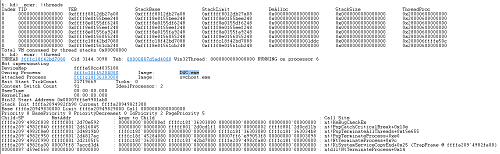
So, use the .process /r /P 0xffffc18f45284080 command to change the debugger’s process context to the D4C.exe process.
If you run the !peb command again after changing the process context, you can confirm that the displayed information changes from the PEB for svchost.exe to the PEB for D4C.exe.
This process-context switch with .process /r /P <process object (EPROCESS) address> is a command that appears frequently when analyzing full memory dumps, so it is worth remembering.
Finally, with the process context changed to D4C.exe, run the k command again to output the stack backtrace. You can now inspect frames from before ntdll!NtTerminateProcess+0x14 was called.
6: kd> k
 # Child-SP          RetAddr               Call Site
00 ffffa209`4982f838 fffff801`2d70e592     nt!KeBugCheckEx
01 ffffa209`4982f840 fffff801`2d616045     nt!PspCatchCriticalBreak+0x10e
02 ffffa209`4982f8e0 fffff801`2d4819b0     nt!PspTerminateAllThreads+0x15e655
03 ffffa209`4982f950 fffff801`2d4817ac     nt!PspTerminateProcess+0xe0
04 ffffa209`4982f990 fffff801`2d2105f5     nt!NtTerminateProcess+0x9c
05 ffffa209`4982fa00 00007ff8`7accd3d4     nt!KiSystemServiceCopyEnd+0x25
06 00000087`d59ef568 00007ff8`789643d0     ntdll!NtTerminateProcess+0x14
07 00000087`d59ef570 00007ff6`e99012d3     KERNELBASE!TerminateProcess+0x30
08 00000087`d59ef5a0 00007ff6`e9901a40     D4C+0x12d3
09 00000087`d59ef860 00007ff8`7a497344     D4C+0x1a40
0a 00000087`d59ef8a0 00007ff8`7ac826b1     KERNEL32!BaseThreadInitThunk+0x14
0b 00000087`d59ef8d0 00000000`00000000     ntdll!RtlUserThreadStart+0x21
From this result, we can infer that the instruction immediately before offset 0x12d3 in D4C.exe likely called the TerminateProcess API and terminated svchost.exe.
Reading the instructions before and after the crash
From the analysis so far, we have confirmed that the instruction immediately before offset 0x12d3 in D4C.exe most likely called the TerminateProcess API and caused the system crash.
Next, we will investigate what the instructions before and after offset 0x12d3 actually looked like.
As in Chapter 4, we used the u command and the Disassembly window to retrieve the instructions around offset 0x12d3.
00007ff6`e99012b0 448b442448      mov     r8d,dword ptr [rsp+48h]
00007ff6`e99012b5 8d48f5          lea     ecx,[rax-0Bh]
00007ff6`e99012b8 33d2            xor     edx,edx
00007ff6`e99012ba ff15781d0000    call    qword ptr [D4C+0x3038 (00007ff6`e9903038)]
00007ff6`e99012c0 488bd8          mov     rbx,rax
00007ff6`e99012c3 4885c0          test    rax,rax
00007ff6`e99012c6 7416            je      D4C+0x12de (00007ff6`e99012de)
00007ff6`e99012c8 33d2            xor     edx,edx
00007ff6`e99012ca 488bc8          mov     rcx,rax
00007ff6`e99012cd ff155d1d0000    call    qword ptr [D4C+0x3030 (00007ff6`e9903030)]
00007ff6`e99012d3 488bcb          mov     rcx,rbx
00007ff6`e99012d6 ff158c1d0000    call    qword ptr [D4C+0x3068 (00007ff6`e9903068)]
00007ff6`e99012dc eb11            jmp     D4C+0x12ef (00007ff6`e99012ef)
00007ff6`e99012de 488d54246c      lea     rdx,[rsp+6Ch]
00007ff6`e99012e3 488d0d26410000  lea     rcx,[D4C+0x5410 (00007ff6`e9905410)]
00007ff6`e99012ea e821fdffff      call    D4C+0x1010 (00007ff6`e9901010)
00007ff6`e99012ef 488d542440      lea     rdx,[rsp+40h]
00007ff6`e99012f4 488bcf          mov     rcx,rdi
00007ff6`e99012f7 ff15431d0000    call    qword ptr [D4C+0x3040 (00007ff6`e9903040)]
00007ff6`e99012fd 85c0            test    eax,eax
In the dump file I captured, the image base address of D4C.exe is 0x00007ff6e9900000, so the virtual address of offset (RVA) 0x12d3 is 0x00007ff6e99012d3.
As an aside, calculations such as address arithmetic can also be performed with expression evaluation using the ? command, as shown below.
# Identify the image base address of D4C.exe
6: kd> ? !D4C
Evaluate expression: 140698457210880 = 00007ff6`e9900000

# Calculate the address of offset 0x12d3 in D4C.exe
6: kd> ? !D4C+0x12d3
Evaluate expression: 140698457215699 = 00007ff6`e99012d3
Looking at the disassembly above, we can see that the instruction immediately before offset 0x12d3, which was added to the stack backtrace, is call qword ptr [D4C+0x3030 (00007ff6e9903030)].
Also, based on the later stack backtrace information, we can infer that this instruction is probably calling the TerminateProcess API.
So let’s confirm from the dump file whether this function really does call the TerminateProcess function.
Analyzing the IAT (Import Address Table) in WinDbg
As briefly introduced in Chapter 3 of this book, programs (.exe files) executed on Windows systems are generally created in PE file format.
When a program is executed on Windows, the system loads various pieces of information from the PE file header and expands them into the process’s allocated memory space.
One of those pieces of information is called the IAT (Import Address Table).
To determine whether the function called at D4C+0x3030 is TerminateProcess, let’s inspect this IAT information.
First, use WinDbg to collect the header information of D4C.exe as it was expanded in memory from this dump file.
In WinDbg, the !dh extension4 lets you inspect the header information of a specific image.
However, when using the !dh extension to inspect the header information of a specific PE file from a full memory dump, you need to switch the context beforehand to the execution process of that PE file with the .process /r /P <process object (EPROCESS) address> command.
After changing the process context to D4C.exe, run the !dh -f !D4C command to retrieve the information.
6: kd> !dh -f !D4C

{{ omitted }}

   0 [       0] address [size] of Export Directory
5B40 [      C8] address [size] of Import Directory
9000 [     1E8] address [size] of Resource Directory
8000 [     1D4] address [size] of Exception Directory
   0 [       0] address [size] of Security Directory
A000 [      3C] address [size] of Base Relocation Directory
5610 [      70] address [size] of Debug Directory
   0 [       0] address [size] of Description Directory
   0 [       0] address [size] of Special Directory
   0 [       0] address [size] of Thread Storage Directory
54D0 [     140] address [size] of Load Configuration Directory
   0 [       0] address [size] of Bound Import Directory
3000 [     248] address [size] of Import Address Table Directory
   0 [       0] address [size] of Delay Import Directory
   0 [       0] address [size] of COR20 Header Directory
   0 [       0] address [size] of Reserved Directory
Because what we want to inspect here is the IAT, focus on the Import Address Table Directory line in the output above.
That line tells us that the IAT offset is 0x3000 and its size is 0x248.
Next, use the dps command5, which resolves the contents of memory within a specified range as a series of addresses in the symbol table, to resolve the IAT symbols.
This resolves the symbols in the IAT expanded into process memory, confirming that the function at virtual address 0x00007ff6e9903030, in other words D4C+0x3030, is KERNEL32!TerminateProcessStub.
# dps !<module_name>+<IAT address> !<module_name>+<IAT address>+<IAT size>

6: kd> dps !D4C+0x3000 !D4C+0x3000+0x248
00007ff6`e9903000  00007ff8`7ab57880 ADVAPI32!AdjustTokenPrivilegesStub
00007ff6`e9903008  00007ff8`7ab56920 ADVAPI32!OpenProcessTokenStub
00007ff6`e9903010  00007ff8`7ab4f970 ADVAPI32!LookupPrivilegeValueW
00007ff6`e9903018  00000000`00000000
00007ff6`e9903020  00007ff8`7a495f00 KERNEL32!GetLastErrorStub
00007ff6`e9903028  00007ff8`7a4a4ba0 KERNEL32!GetCurrentProcessId
00007ff6`e9903030  00007ff8`7a4a0a70 KERNEL32!TerminateProcessStub
00007ff6`e9903038  00007ff8`7a49b0f0 KERNEL32!OpenProcessStub
00007ff6`e9903040  00007ff8`7a4a2740 KERNEL32!Process32NextW
00007ff6`e9903048  00007ff8`7a4a29a0 KERNEL32!Process32FirstW
{{ omitted }}
Also, even without going out of your way to analyze the IAT in WinDbg like this, you can easily identify the function at D4C+0x3030 by using the automatic analysis features of a decompiler such as Ghidra.
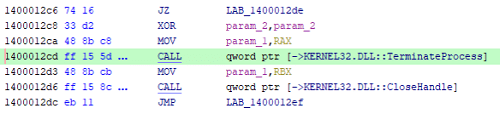
The disassembly at offset 0x3030 is automatically analyzed as well, making it easy to investigate that the function called here is TerminateProcess.
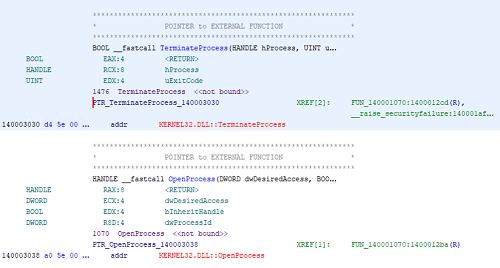
In this way, rather than analyzing only with WinDbg, there are cases where analysis proceeds more efficiently by using multiple powerful tools such as decompilers and approaching the problem from different angles.
This completes the identification, through dump file analysis, that the system crash was caused by svchost.exe being terminated by the TerminateProcess API called from D4C.exe.
Chapter 5 summary
That concludes the analysis of this simple system crash dump.
As with the application crash dump analyzed in Chapter 4, the direct cause (exception) of the BSOD itself can be identified relatively easily from the dump file.
Of course, if you want to investigate the program behavior that caused that exception, it will rarely be identified as easily as it was in this chapter.
In such cases, not only analyzing the dump file with WinDbg but also tracing the environment while reproducing the problem with tools such as Process Monitor or packet capture, using source code or decompiled results for offline debugging, and even live debugging may help you investigate the cause more efficiently.
Chapter links
- Preface
- Chapter 1: Environment Setup
- Chapter 2: Basic WinDbg Operations
- Chapter 3: Prerequisites for Analysis
- Chapter 4: Analyzing an Application Crash Dump
- Chapter 5: Analyzing a Full Memory Dump from a System Crash
- Chapter 6: Investigating a User-Mode Application Memory Leak from a Process Dump
- Chapter 7: Investigating a User-Mode Memory Leak from a Full Memory Dump
- Appendix A: WinDbg Tips
- Appendix B: Analyzing Crash Dumps with Volatility 3
-
Blue Screen Data https://learn.microsoft.com/ja-jp/windows-hardware/drivers/debugger/blue-screen-data
↩ -
Windows Internals, 6th Edition, Vol. 2, p.606 (Mark E. Russinovich・David A. Solomon・Alex Ionescu / translated by 株式会社クイープ / 日経 BP / 2013)
↩ -
↩!pebextension https://learn.microsoft.com/ja-jp/windows-hardware/drivers/debugger/-peb -
↩!dhhttps://learn.microsoft.com/ja-jp/windows-hardware/drivers/debugger/-dh - ↩