This page has been machine-translated from the original page.
In this chapter, I introduce the basic UI operations of WinDbg used for analysis.
Also, the official documentation already provides very thorough coverage of the basic procedures for debugging and analyzing dump files with WinDbg.
What is WinDbg:
https://learn.microsoft.com/ja-jp/windows-hardware/drivers/debugger/windbg-overview
So, if you want to learn more about how to use WinDbg, please refer to the official documentation above.
Table of contents
- About the WinDbg UI
- Open Source File ([Ctrl+O] key)
- Insert or remove breakpoint ([F9] key)
- Command ([Alt+1] key)
- Watch ([Alt+2] key)
- Locals ([Alt+3] key)
- Registers ([Alt+4] key)
- Memory ([Alt+5] key)
- Call Stack ([Alt+6] key)
- Disassembly ([Alt+7] key)
- Scratch Pad ([Alt+8] key)
- Processes and Threads ([Alt+9] key)
- Other items
- Changing workspace settings
- Using WinDbg commands
- Summary of Chapter 2
- Links to each chapter
About the WinDbg UI
This is the GUI of WinDbg (Classic) immediately after launching it with administrator privileges.
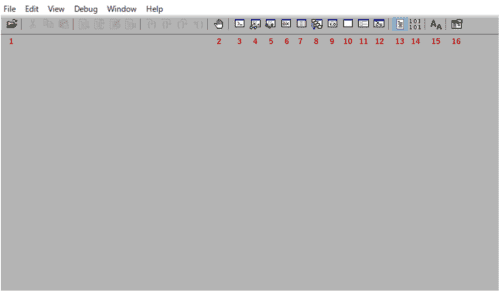
Each button has the following function.
| Number | Function | Shortcut |
|---|---|---|
| 1 | Open Source File | Ctrl+O |
| 2 | Insert or remove breakpoint | F9 |
| 3 | Command | Alt+1 |
| 4 | Watch | Alt+2 |
| 5 | Locals | Alt+3 |
| 6 | Registers | Alt+4 |
| 7 | Memory Window | Alt+5 |
| 8 | Call Stack | Alt+6 |
| 9 | Disassembly | Alt+7 |
| 10 | Scratch Pad | Alt+8 |
| 11 | Processes and Threads | Alt+9 |
| 12 | Command Browser | Ctrl+N |
| 13 | Source mode ON | N/A |
| 14 | Source mode OFF | N/A |
| 15 | Font | N/A |
| 16 | Options | N/A |
If you are using the Windows app version of WinDbg, the icons and UI differ from the WinDbg (Classic) screen above, but except for a few cases the window names, functions, and default shortcut keys are the same, so there is no need to worry.
Open Source File ([Ctrl+O] key)
The leftmost button on the toolbar, button 1, is the Open Source File button.
Clicking this button opens an Explorer window, letting you open source files in WinDbg. (You cannot run a file or attach to a process from the Open Source File button.)
The shortcut key is [Ctrl+O].
When you open a source file, you can browse its source code in WinDbg. (This is read-only, and you cannot write to it.)
Source browsing is not a feature used in this book, but it is extremely helpful when debugging a program you developed yourself.
Insert or remove breakpoint ([F9] key)
Button 2 is Insert or remove breakpoint.
It is available only when the active window is the Source window or the Disassembly window.
Pressing this button while a location is selected lets you toggle a breakpoint at that location.
The shortcut key is [F9].
Because this book does not set breakpoints when analyzing dump files, we do not use this feature here.
Command ([Alt+1] key)
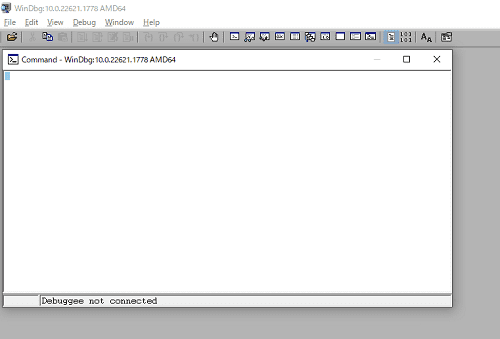
If the Command window is closed, clicking button 3 opens a new Command window.
The shortcut key is [Alt+1].
The Command window is one of the features you will use most often when analyzing dump files, so it is convenient to remember this shortcut.
Watch ([Alt+2] key)
Clicking button 4 opens the Watch window.
The shortcut key is [Alt+2].
The Watch window is not used in this book, but it can be useful in some debugging scenarios.
For details on how to use it, please refer to the official documentation below.
Using the Watch window:
https://learn.microsoft.com/ja-jp/windows-hardware/drivers/debugger/watch-window
Locals ([Alt+3] key)
Clicking button 5 opens the Locals window.
The shortcut key is [Alt+3].
This window is also not used in this book, so I will omit a detailed introduction.
Registers ([Alt+4] key)
Clicking button 6 opens the Registers window.
The shortcut key is [Alt+4].
For how to display and edit registers using the Registers window, please refer to the documentation below.
The Registers window is not used as often for dump file analysis as it is during live debugging.
However, it is a very useful feature because it lets you quickly inspect register information in a list.
Displaying and editing registers in WinDbg:
https://learn.microsoft.com/ja-jp/windows-hardware/drivers/debugger/registers-window
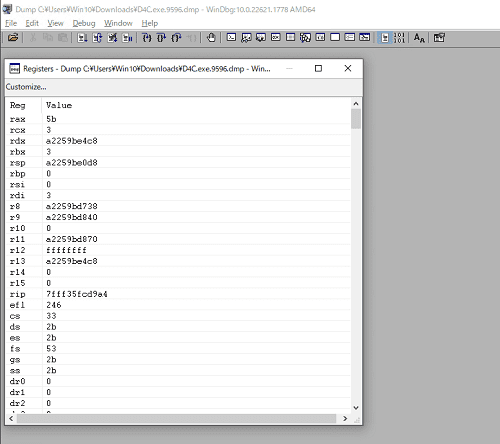
When you open the Registers window while analyzing a dump file, you can view and edit each register value as shown below.
Memory ([Alt+5] key)
Clicking button 7 opens the Memory window.
The shortcut key is [Alt+5].
For details on the Memory window, please refer to the documentation below.
Displaying and editing memory in WinDbg:
https://learn.microsoft.com/ja-jp/windows-hardware/drivers/debugger/memory-window
Call Stack ([Alt+6] key)
Clicking button 8 opens the Call Stack window.
The shortcut key is [Alt+6].
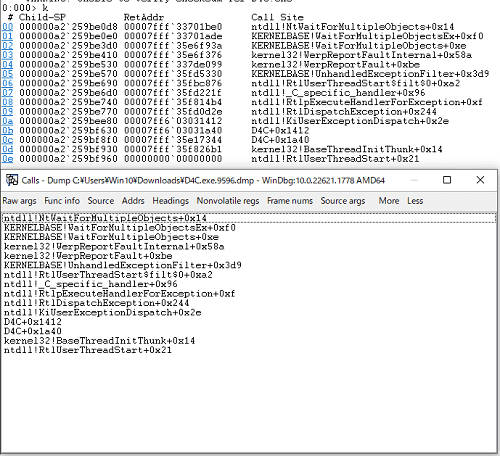
The Call Stack window displays call history information from the stack.
This is the same information as the stack trace displayed when you run the k command in the Command window.
Disassembly ([Alt+7] key)
Clicking button 9 opens the Disassembly window.
The shortcut key is [Alt+7].
The Disassembly window can display the assembly code of the debug target.
It is especially helpful when you are analyzing something without using symbol files.
Scratch Pad ([Alt+8] key)
Clicking button 10 opens the Scratch Pad window.
The shortcut key is [Alt+8].
The Scratch Pad is a clipboard where you can type text and save it.
It is easy to dismiss it as just a simple notepad, but once you become somewhat comfortable with analysis, it becomes a handy feature that you will use often.
Processes and Threads ([Alt+9] key)
Clicking button 11 opens the Processes and Threads window.
The shortcut key is [Alt+9].
This window lets you inspect a list of all processes being debugged.
We do not use it in this book, but the official documentation below covers it in detail.
Controlling processes and threads in WinDbg:
https://docs.microsoft.com/ja-jp/windows-hardware/drivers/debugger/processes-and-threads-window
Other items
I omit the other windows in this book.
I have summarized the various windows, including the ones above, in the public blog post below.
That article also introduces the windows omitted from this book, so please refer to it if you are interested.
A summary of each WinDbg window (Kaeru no Himitsukichi):
https://kashiwaba-yuki.com/windows-windbg-003-ui
Changing workspace settings
By default, WinDbg (Classic) starts in a state where no windows are displayed, as shown below.
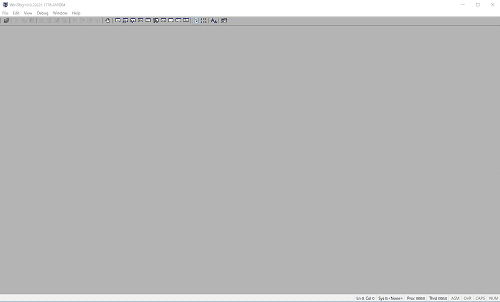
Because it is a little tedious to open all required windows every time you analyze a dump, let’s configure the WinDbg workspace.
First, with some of the windows you want to use for analysis already open, drag each window with the mouse into the main WinDbg window.
If you drag them to the edge or center of a window just right, you will see that the windows can be arranged in vertical or horizontal splits.
You can also place two or more windows on top of one another so that they are grouped together as tabs in one place.
For example, in the screen below, the Command window is placed on the right, the Disassembly window and Memory window are stacked in the upper-left half, and the Scratch Pad is placed in the lower-left half.
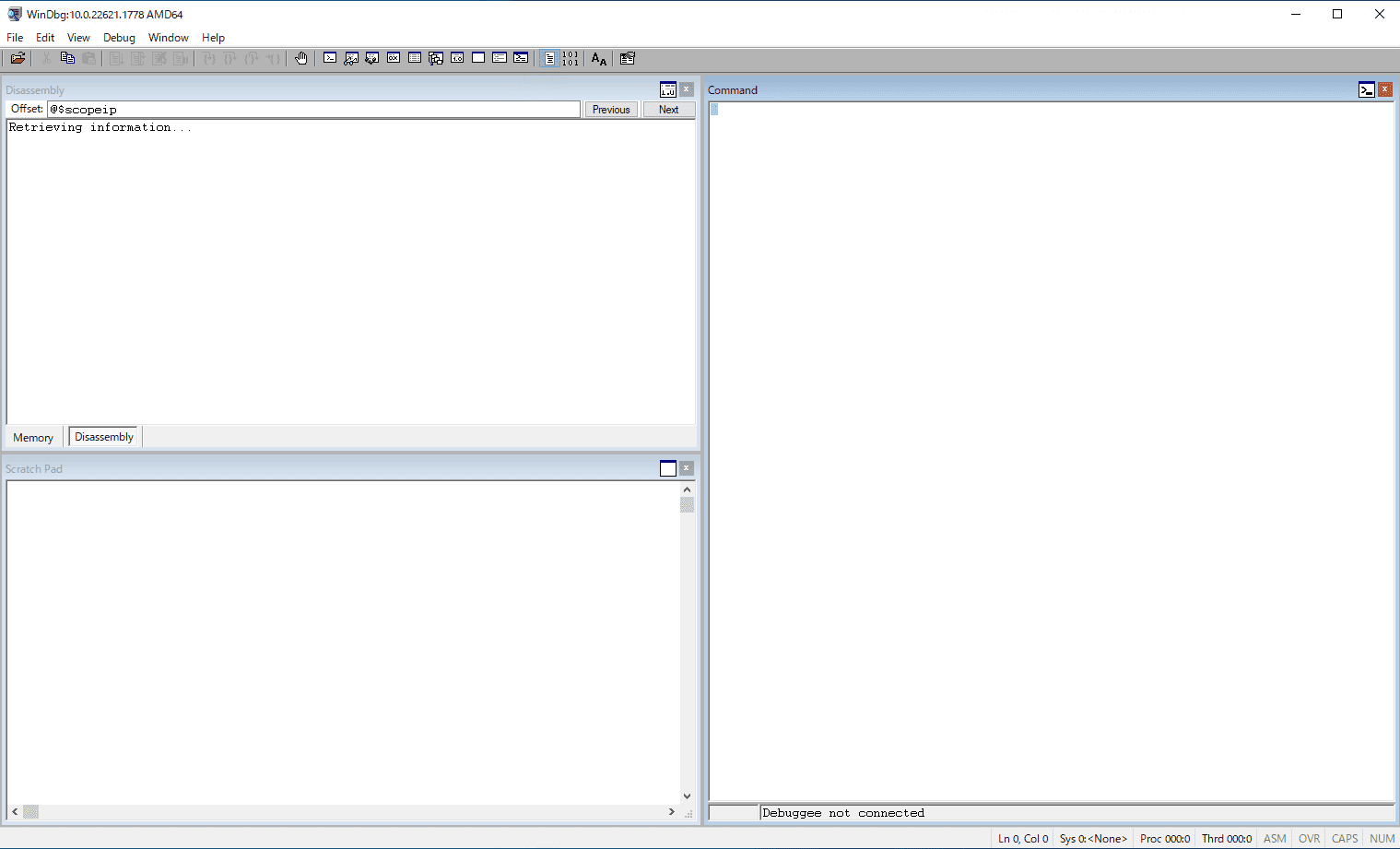
This completes the layout of the analysis windows, but if you restart WinDbg now, all of the windows will be reset.
So, to preserve the configuration after restarting, save the current settings to the default workspace.
In the WinDbg window, click [Save Workspace] under [File] at the upper right to save the current settings to the default workspace.
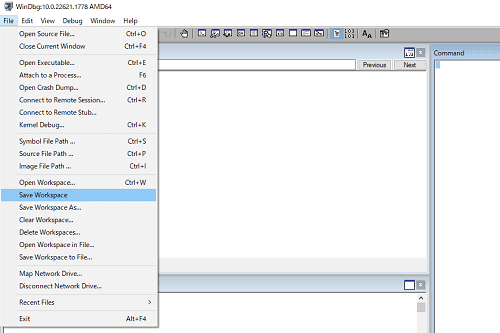
The saved settings are written to the registry at HKEY_CURRENT_USER\SOFTWARE\Microsoft\Windbg\Workspaces\Default, so the changed settings will be preserved even after WinDbg is restarted.
Although this book does not cover it, you can also save your changes as a new workspace.
You can also migrate WinDbg settings to another machine by importing an exported WEW file or by directly copying the registry values that store WinDbg’s configuration.
Using WinDbg commands
As noted in the preface, this book is not intended to be a comprehensive introductory book on Windows dump analysis, so it does not explain WinDbg commands in detail either.
The official documentation below and the help included with WinDbg provide extremely thorough coverage of WinDbg commands.
So when analyzing dump files, I recommend keeping the following documentation and help available for reference at all times.
WinDbg commands:
https://learn.microsoft.com/ja-jp/windows-hardware/drivers/debugger/commands
You can open WinDbg Help by clicking [Windows] under [Help] on the top menu bar, or by pressing the [F1] key.
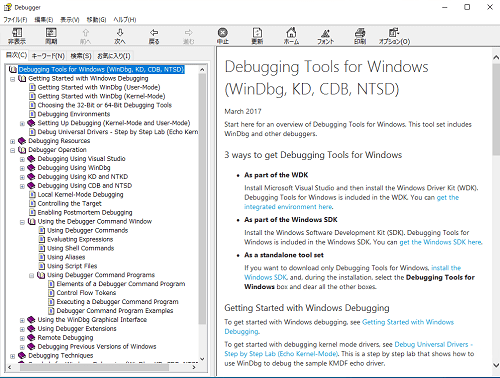
The contents of WinDbg Help are basically the same as the command reference in the official documentation.
WinDbg Help is available only in English, but personally I find it easier to search than the official documentation, so I use it frequently when I want to look something up quickly.
There is also unofficial information, such as cheat sheets published by individuals on the internet, that can be useful for working with WinDbg commands.
As one example, below is the URL of a cheat sheet that I personally created and use.
Cheat sheet for dump analysis and live debugging with WinDbg:
https://kashiwaba-yuki.com/windbg-basics-001
Summary of Chapter 2
In this chapter, I introduced the basic features and UI operations of WinDbg, the tool used in this book to analyze Windows dump files.
In particular, the Disassembly, Registers, and Memory windows are extremely helpful for reducing stress while analyzing when you are not yet comfortable using debugger commands.
Once you become somewhat used to debugger commands, you may find yourself using windows other than the Command window and Scratch Pad less often, but I hope you will still try out WinDbg’s handy features.
Links to each chapter
- Preface
- Chapter 1: Environment Setup
- Chapter 2: Basic WinDbg Operations
- Chapter 3: Prerequisites for Analysis
- Chapter 4: Analyzing Application Crash Dumps
- Chapter 5: Analyzing Full Memory Dumps from System Crashes
- Chapter 6: Investigating User-Mode Application Memory Leaks from Process Dumps
- Chapter 7: Investigating User-Mode Memory Leaks from Full Memory Dumps
- Appendix A: WinDbg Tips
- Appendix B: Analyzing Crash Dumps with Volatility 3