This page has been machine-translated from the original page.
In Chapter 7, the final chapter of this book, we will analyze the same user-mode memory leak issue covered in Chapter 6, this time from a full system memory dump.
Since the method of investigating the memory leak itself is the same as in Chapter 6, Chapter 7 focuses more on introducing techniques for extracting various kinds of information from a full memory dump.
However, when analyzing a full memory dump that includes kernel-mode memory information, the available commands and their output differ from those used in user-mode process dump analysis, so I think you will be able to enjoy a different style of analysis here as well.
Table of contents
- Obtaining a full system memory dump
- Loading the full memory dump into WinDbg
- Collecting hardware information about the machine
- Collecting system information
- Exploring the system registry
- Investigating memory resource usage
- Investigating information about running processes
- Investigating the stack backtrace of a specific process
- Investigating heap information for a user-mode process
- Summary of Chapter 7
- Links to each chapter
Obtaining a full system memory dump
To obtain the full memory dump for analysis, just as in Chapter 6, start D4C.exe, choose menu item 2, and reproduce the application’s memory leak issue.
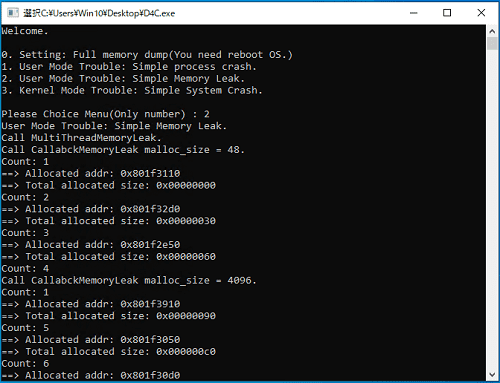
Once you have confirmed with a tool such as Process Explorer that the virtual memory region used by the D4C.exe process has ballooned, obtain a full memory dump by causing a system crash with a keyboard operation.
A keyboard-triggered system crash can be caused using the same steps as in Chapter 1: while holding down the right Ctrl key, tap the Space key twice in quick succession.
If the keyboard-crash settings configured in Chapter 1 are in effect, performing the above key sequence will crash the system and display a blue screen.
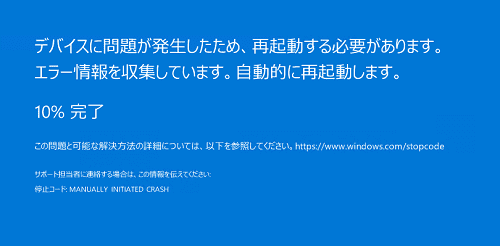
After the system reboots, a FULL_MEMORY.DMP file roughly the same size as the virtual machine’s physical memory will be created directly under the C:\Windows folder.
In this chapter, we will use this full memory dump to investigate the application’s memory leak issue.
Incidentally, as mentioned in Chapter 1, the keyboard-crash configuration described in this book does not work when you are connected over RDP.
If you can use a physical keyboard, you need to sign in directly to the local machine and cause the system crash by pressing the right Ctrl key while tapping the Space key twice.
If you are using a Hyper-V virtual machine, you can also trigger the keyboard crash by signing in with Enhanced Session Mode disabled and then pressing the right Ctrl key while tapping the Space key twice.
If you are using another kind of virtual machine, try using a software keyboard.
If your environment does not allow you to perform a keyboard crash, you can also intentionally reproduce a system crash by using notmyfault.exe included in the SysinternalsSuite downloaded in Installing the Sysinternals utilities.
Loading the full memory dump into WinDbg
Once you have obtained the dump file for analysis, let’s load it right away into WinDbg running with administrator privileges.
As in the previous chapters, when we run the !analyze -v command and inspect the Bug Check information contained in the dump file, it is displayed as MANUALLY_INITIATED_CRASH (e2)1, as shown below.
0: kd> !analyze -v

MANUALLY_INITIATED_CRASH (e2)
The user manually initiated this crash dump.
Arguments:
Arg1: 0000000000000000
Arg2: 0000000000000000
Arg3: 0000000000000000
Arg4: 0000000000000000
This is the value recorded when a user intentionally causes a system crash through a kernel debugger or a keyboard operation.
In other words, just like the process dump that was generated manually in Chapter 6, the exception context stored in this full memory dump is not useful for analyzing the memory leak issue.
Therefore, when investigating problems other than crashes from a full memory dump, you first need to narrow down the appropriate analysis target and set the debugger context accordingly.
So, in the following sections, we will comprehensively collect information from the full memory dump to identify the proper analysis target.
A full memory dump contains information about every page currently held in the system’s physical memory, and by fully using the capabilities of WinDbg as a powerful debugger, you can retrieve virtually any information in the system from that full memory dump.
Depending on the command you run, the output can be enormous, so it is a good idea to use the .logopen command to write the results to a file as needed.
Collecting hardware information about the machine
To begin with, let’s use the !sysinfo extension command2 to collect hardware information recorded in the dump file.
The !sysinfo extension command has several options, but in this book we use !sysinfo cpuinfo to display CPU information and !sysinfo machineid to display machine information.
# Display CPU information
0: kd> !sysinfo cpuinfo
[CPU Information]
~MHz = REG_DWORD 1992
Component Information = REG_BINARY 0,0,0,0,0,0,0,0,0,0,0,0,0,0,0,0
Configuration Data = REG_FULL_RESOURCE_DESCRIPTOR ff,ff,ff,ff,ff,ff,ff,ff,0,0,0,0,0,0,0,0
Identifier = REG_SZ Intel64 Family 6 Model 142 Stepping 10
ProcessorNameString = REG_SZ Intel(R) Core(TM) i7-8550U CPU @ 1.80GHz
Update Status = REG_DWORD 7
VendorIdentifier = REG_SZ GenuineIntel
MSR8B = REG_QWORD ea00000000

# Display machine information
0: kd> !sysinfo machineid
Machine ID Information [From Smbios 3.0, DMIVersion 0, Size=3046]
BiosMajorRelease = 1
BiosMinorRelease = 43
FirmwareMajorRelease = 1
FirmwareMinorRelease = 10
BiosVendor = LENOVO
BiosVersion = N20ET58W (1.43 )
BiosReleaseDate = 07/26/2021
SystemManufacturer = LENOVO
SystemProductName = 20KES0KB00
SystemFamily = ThinkPad X280
SystemVersion = ThinkPad X280
SystemSKU = LENOVO_MT_20KE_BU_Think_FM_ThinkPad X280
BaseBoardManufacturer = LENOVO
BaseBoardProduct = 20KES0KB00
BaseBoardVersion = Not Defined
By running these commands, we were able to confirm, as shown above, that the machine on which the system crash occurred was a ThinkPad X280 equipped with an Intel i7-8550U.
If you want to display even more detailed CPU information, you can use the !cpuinfo extension command3.
When you run !cpuinfo without any options, information for all processors is displayed.
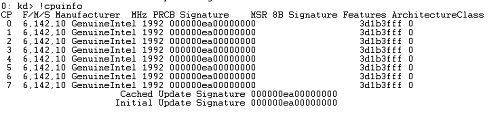
Because the Intel i7-8550U is a 4-core, 8-thread CPU, the output of !cpuinfo also has 8 lines.
The values from 0 to 7 in the CP column represent each processor, and the MHz column represents the clock frequency.
Collecting system information
Next, we will collect OS system information from the full memory dump.
Regarding OS system information, if you set the context to a process the user is running and execute the !peb command, you can refer to it through the user’s environment variable information contained in the PEB.
In fact, from the full memory dump analyzed this time as well, we were able to retrieve information such as the computer name, the number of CPUs, the PATH environment variable, and the username, as shown below.
0: kd> !peb
{{ omitted }}
Environment:  000001d5a58027f0
  ...
  COMPUTERNAME=THINKPAD-X280
  ...
  NUMBER_OF_PROCESSORS=8
  OS=Windows_NT
  Path=C:\Program Files\Common Files\Oracle\Java\javapath;C:\WINDOWS\system32;C:\WINDOWS;C:\WINDOWS\System32\Wbem;C:\WINDOWS\System32\WindowsPowerShell\v1.0\;C:\WINDOWS\System32\OpenSSH\;C:\Program Files\Intel\WiFi\bin\;C:\Program Files\Common Files\Intel\WirelessCommon\;C:\WINDOWS\ServiceProfiles\NetworkService\AppData\Local\Microsoft\WindowsApps
  ...
  PROCESSOR_ARCHITECTURE=AMD64
  PROCESSOR_IDENTIFIER=Intel64 Family 6 Model 142 Stepping 10, GenuineIntel
  ...
  USERDOMAIN=THINKPAD-X280
  USERDOMAIN_ROAMINGPROFILE=THINKPAD-X280
  USERNAME=Win10
  USERPROFILE=C:\Users\Win10
In addition, you can also collect OS information and the computer name by using the !mex.ver and !mex.computername commands provided by the MEX extension4, which is introduced in “Appendix A: WinDbg Tips” in this book.
# Check OS version information with the MEX extension
0: kd> !mex.ver
Platform ID: 2
Major Version: 10
Minor Version: 0
WinXP: False
Win2K3: False
Win2k3SP1OrNewer: True
Vista: False
VistaOrNewer: True
Win7: False
Win8: False
Blue: False
19041.1.amd64fre.vb_release.191206-1406
Build Number: 19041
Kernel Start Address: ffff800000000000
System Version Build String: 19041.1.amd64fre.vb_release.191206-1406

# Check the computer name with the MEX extension
0: kd> !mex.computername
Computer Name: THINKPAD-X280
Exploring the system registry
On Windows systems, OS settings, application settings, and various other kinds of information are stored in the registry.
Therefore, by analyzing a full memory dump and exploring the registry hives, you can access most information related to the system and its configuration.
To search the registry from a full memory dump in WinDbg, use the !reg extension command4a.
For example, by executing commands in the following steps, you can use the !reg extension command to search a specified registry value in a full memory dump.
- Use the
!reg hivelistcommand to obtain the addresses of the registry hives in the system. - Use the
!reg openkeys <hive address>command to obtain the exact hive name and the address of the key control block (KCB). - Use the
!reg querykey <hive name>command to obtain address information for the subkeys. - Use the
!reg keyinfo <hive address> <subkey address>command to obtain the keys and registry values inside the subkey.
Using these commands, let’s actually retrieve some registry information from the full memory dump that is the target of this analysis.
First, enumerate the registry hive information in the system with the !reg hivelist command.
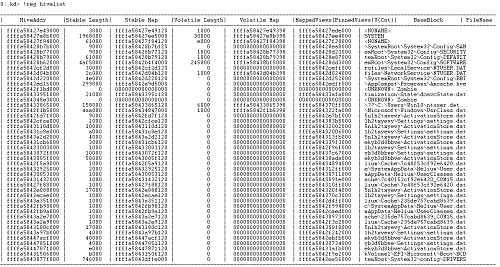
Although it may be difficult to read at this image scale, the seventh line of the output shows information for a hive whose FileName is emRoot\System32\Config\SOFTWARE. (Because of the character limit, the FileName column shows only the last 32 characters of the path.)
This matches the default path of the SOFTWARE hive, %SystemRoot%\System32\Config\SOFTWARE.5
In other words, when exploring the registry corresponding to HKEY_LOCAL_MACHINE\SOFTWARE, we can see that we should use the address 0xffffa58428b62000 shown in the HiveAddr column on the seventh line.
Next, use the SOFTWARE hive address we obtained and run the !reg openkeys ffffa58428b62000 command.
The !reg openkeys command can also be run without arguments, but because the output becomes very large, we specify the address of the hive we want to analyze.
0: kd> !reg openkeys ffffa58428b62000

Hive: \REGISTRY\MACHINE\SOFTWARE
===========================================================================================
Index 0:  00000000 kcb=ffffa5842b2d1d50 cell=00000020 f=002c0000 \REGISTRY\MACHINE\SOFTWARE
Index 1:  f386608f kcb=ffffa584316e1d00 cell=017c4288 f=00200000 \REGISTRY\MACHINE\SOFTWARE\SYNAPTICS\SYNTPENH\ZONECONFIG\DEFAULTS\PALMCHECK GROUP\2FVSCROLL ZONE
 8a10ced9 kcb=ffffa5842d346350 cell=80008f90 f=00200000 \REGISTRY\MACHINE\SOFTWARE\MICROSOFT\WINDOWS\CURRENTVERSION\APPMODEL\STATEREPOSITORY\CACHE\PACKAGEEXTERNALLOCATION
Index 2:  5c8055db kcb=ffffa58433820390 cell=002a8cf8 f=00200000 \REGISTRY\MACHINE\SOFTWARE\CLASSES\CLSID\{896664F7-12E1-490F-8782-C0835AFD98FC}\INSTANCE
{{ omitted }}
When you actually run this command, you can confirm, as shown above, that the first line of the output displays Hive: \REGISTRY\MACHINE\SOFTWARE.
Therefore, use this result to run the !reg querykey \REGISTRY\MACHINE\SOFTWARE command. (If you are already comfortable with this kind of analysis, there is no problem running this command from the start.)
The output of this command was as follows.
At this point, you can see that the hive address 0xffffa58428b62000 identified so far, the key control block (KCB) address, and a list of subkeys together with their SubKeyAddr values are all displayed.
0: kd> !reg querykey \REGISTRY\MACHINE\SOFTWARE

Found KCB = ffffa5842b2d1d50 :: \REGISTRY\MACHINE\SOFTWARE

Hive         ffffa58428b62000
KeyNode      0000022eaab61024

[SubKeyAddr]         [SubKeyName]
22eaab61174          Classes
22eab25daec          Clients
22eab5b2184          CVSM
22eab5b244c          DefaultUserEnvironment
22eab5b2624          Dolby
22eab5b297c          Fortemedia
22eab5b2b0c          Google
22eab5b2dec          InstalledOptions
22eab5b2e4c          Intel
22eab5b7af4          JavaSoft
22eab5b7b4c          Lenovo
22eab5b8524          Microsoft
22eac3103ac          Mozilla
22eac310614          Nuance
22eac31066c          ODBC
22eac3106c4          OEM
22eac310894          OpenSSH
22eac31097c          Oracle
22eac3109d4          Partner
22eac310a2c          Policies
22eac313854          Realtek
22eac313d34          RegisteredApplications
22eac3144bc          SRS Labs
22eac31467c          Synaptics
22eac32d2c4          Windows
22eac32d31c          WOW6432Node

 Use '!reg keyinfo ffffa58428b62000 <SubKeyAddr>' to dump the subkey details

[ValueType]         [ValueName]                   [ValueData]
 Key has no Values
Now that we have the necessary information, use the !reg keyinfo <hive address> <subkey address> command to retrieve the keys and registry values inside a subkey.
For example, to explore the Microsoft subkey whose SubKeyAddr is 0x22eab5b8524 inside the SOFTWARE hive, the command is !reg keyinfo ffffa58428b62000 22eab5b8524.
When you actually run this command, the list of subkeys under HKEY_LOCAL_MACHINE\SOFTWARE\Microsoft and their SubKeyAddr values are displayed as follows.
0: kd> !reg keyinfo ffffa58428b62000 22eab5b8524

KeyPath \REGISTRY\MACHINE\SOFTWARE\Microsoft

[SubKeyAddr]         [SubKeyName]
22eab5b8694          .NETFramework
22eab5fc13c          AccountsControl
22eab5fc19c          Active Setup
22eab5ff7dc          ActiveSync
22eab6009ac          ADs
22eab600a04          Advanced INF Setup
22eab600a6c          ALG
22eab600ce4          AllUserInstallAgent
22eab600e94          AMSI

22eab79a0ec          Windows
22eac107024          Windows Advanced Threat Protection
22eac1073ac          Windows Defender
22eac10bcf4          Windows Defender Security Center
If you want to explore registry information at a deeper level, specify one of the SubKeyAddr values obtained above and issue the !reg keyinfo command again.
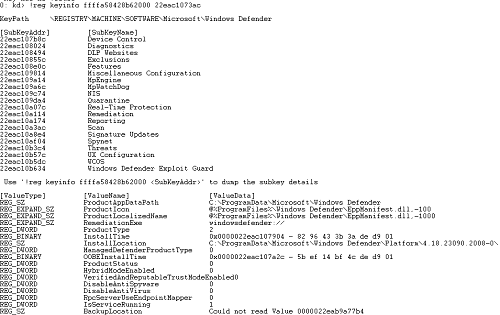
For example, to retrieve information for the Windows Defender subkey whose SubKeyAddr is 0x22eac1073ac, run !reg keyinfo ffffa58428b62000 22eac1073ac.
When you actually run this command, the upper part of the output shows the list of subkeys under HKEY_LOCAL_MACHINE\SOFTWARE\Microsoft\Windows Defender, and the lower part shows the list of values present in this registry key.
With that, we have finished exploring registry information inside the system from the full memory dump.
Investigating memory resource usage
In the sections so far, we have collected hardware information and OS configuration information.
Next, we will investigate memory resource usage at the time the full memory dump was captured (that is, when the system crash occurred).
This kind of information is especially useful when investigating performance-related problems such as the memory leak issue in this chapter.
First, use the !vm extension command6, which can investigate virtual memory usage in the system.
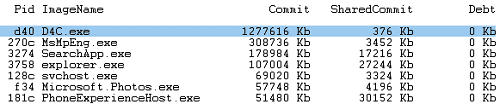
When you run !vm without any option arguments, you can obtain system-wide statistical information about virtual memory usage as well as information about the commit size of each process.
By loading the full memory dump that is the target of this analysis and running the !vm command, we can identify that the D4C.exe process is consuming the largest amount of virtual memory in the system and is therefore highly likely to be experiencing a user-mode memory leak.
Now that we have confirmed virtual memory resource consumption, let’s next investigate physical memory resource consumption.
To investigate physical memory resource consumption, you can use the !memusage extension command7.
The !memusage extension command outputs physical memory statistics by using information from the page frame number (PFN) database that Windows uses to manage physical memory.
Because the output of the !memusage command is extremely large, this time we run !memusage 0x08, which displays only summary information.
0: kd> !memusage 0x08
loading PFN database
loading (100% complete)
Compiling memory usage data (99% Complete).
          Zeroed:   319761 ( 1279044 kb)
            Free:      460 (    1840 kb)
         Standby:  1669387 ( 6677548 kb)
        Modified:    50530 (  202120 kb)
 ModifiedNoWrite:        7 (      28 kb)
    Active/Valid:  1118305 ( 4473220 kb)
      Transition:  1002519 ( 4010076 kb)
      SLIST/Temp:     6687 (   26748 kb)
             Bad:        0 (       0 kb)
         Unknown:        0 (       0 kb)
           TOTAL:  4167656 (16670624 kb)

Dangling Yes Commit:      169 (     676 kb)
 Dangling No Commit:    50768 (  203072 kb)
By running this command, you can obtain statistical information about the system’s physical memory usage as shown above.
Each item in the output corresponds to information about the state of physical pages contained in the PFN database.
A summary of some frequently referenced items is given below.8
- Zeroed: free pages that are initialized to zero, or pages that are already known to be zero
- Free: free pages that have not been initialized to zero
- Standby: pages that were previously registered in a working set but are now on the standby page list
- Active or Valid: pages that are part of a working set, or nonpaged kernel pages
- Transition: temporary pages that are not in a working set or any other page list (for example, when I/O is being performed on that page)
- Bad: pages that cannot be read because of a hardware error
If you want to learn more about the PFN database, I recommend Windows Internals, 7th Edition, Part 1, which is listed in the references.
Investigating information about running processes
Next, we will collect information about processes running in the system.
Information about running processes is used in a variety of situations, such as setting the appropriate process context and investigating problems like spikes in CPU usage.
There are multiple ways to collect process information, but in this book I will introduce only some of them.
First, let’s use the !process extension command9.
When memory information from kernel space that includes EPROCESS structure data—such as a full system memory dump—is loaded into WinDbg, you can enumerate summary information for all processes in the system by running !process 0 0.
The output of this command includes the addresses of EPROCESS structures and the process names, as shown below.
Therefore, by using the EPROCESS structure address obtained from this command, you can change the process context or retrieve more detailed information about the target process.
0: kd> !process 0 0

**** NT ACTIVE PROCESS DUMP ****
PROCESS ffffcb0c8a6bf080
    SessionId: none  Cid: 0004    Peb: 00000000  ParentCid: 0000
    DirBase: 001ad002  ObjectTable: ffffa58427e2e600  HandleCount: 3952.
    Image: System

PROCESS ffffcb0c8a71f080
    SessionId: none  Cid: 007c    Peb: 00000000  ParentCid: 0004
    DirBase: 007dc002  ObjectTable: ffffa58427e5c5c0  HandleCount:   0.
    Image: Registry

{{ omitted }}
Also, if you have already identified the name of the process to investigate, you can search for the address of a specific process object (EPROCESS) by using !process 0 0 <process name>.
When we actually specify D4C.exe and run the !process 0 0 D4C.exe command, we can identify that the process object for D4C.exe exists at address 0xffffcb0c950ea0c0. (We will use this address later.)
0: kd> !process 0 0 D4C.exe

PROCESS ffffcb0c950ea0c0
    SessionId: 3  Cid: 0d40    Peb: 13c75e4000  ParentCid: 3758
    DirBase: 27cd1f002  ObjectTable: ffffa5843cdd8c00  HandleCount:  51.
    Image: D4C.exe
Incidentally, you can also output information about a specific process by giving the address of its process object as the first argument to the !process command. (If 0 is specified, information about all active processes is displayed.)
The second argument, meanwhile, is a flag that controls how much information is displayed, and when 0 is specified only minimal information is output.
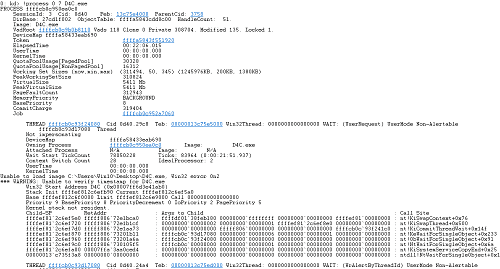
If you specify 7 for the second argument, on the other hand, you can display detailed information including threads associated with the process and their stack backtraces.
Therefore, if you have already identified the name of the target process, you can collect more detailed information by running a command such as !process 0 7 D4C.exe.
The !for_each_process extension command10, when run with no option arguments, also outputs information equivalent to !process 0 0.
However, unlike the !process extension command, it can issue arbitrary debugger commands to all active processes in the system.
For example, if you run the !for_each_process ".echo @#Process" command, you can print the addresses of all process objects. (Inside the command string for !for_each_process, @#Process is automatically replaced with the process object address.)
Therefore, a command such as !for_each_process ".process /r /p @#Process; lm" lets you change the process context to each active process and then execute the lm command.
As a more advanced application, you can use a command such as !for_each_process ".process @#Process; dt ntdll!_EPROCESS @#Process Peb->ProcessParameters->CommandLine".
This retrieves the PEB information from the EPROCESS structure of every process obtained by !for_each_process and enumerates the command-line information.
In this way, !for_each_process can issue very flexible commands when enumerating processes.
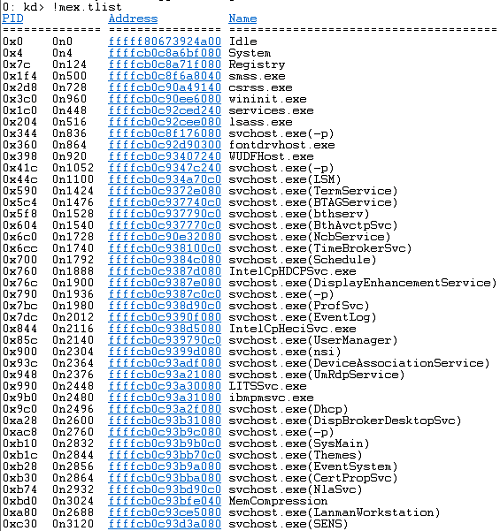
Also, when enumerating processes in the system, !mex.tlist, which is included in the MEX extension, is very convenient as well.
When you run the !mex.tlist command, it can format and output the PID, the address of the process object, and the process name as shown below.
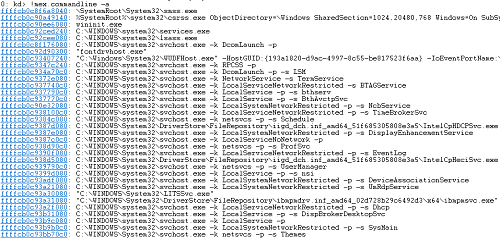
Another very convenient command included in the MEX extension is !mex.commandline -a.
This command can enumerate the command lines of all active processes in the system.
By running this command, you can output the addresses of all processes and their command-line information, as shown below.
There are other ways to obtain a list of processes in WinDbg, but in practice, using any of the above should be sufficient.
Next, after changing the process context to a specific process, we will refer to more detailed information.
You can change the process context with .process /r /p <process object address>.
To change the context to the D4C.exe process identified earlier, run the .process /r /p 0xffffcb0c950ea0c0 command.
To check whether the process context change succeeded, you can try running commands such as !peb and lm.
Because these commands output information based on the debugger’s process context, if information about D4C.exe is displayed, you can determine that the process context was changed successfully.
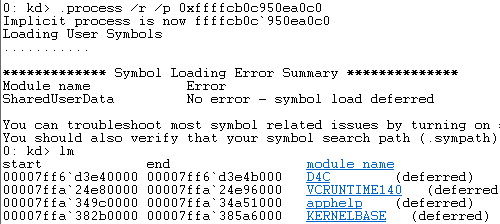
As mentioned above, by changing the process context, you can investigate detailed information about the process with commands such as !peb and lm, just as when analyzing a user-mode process dump.
Investigating the stack backtrace of a specific process
Now that we can enumerate system process information and change the debugger’s process context, next we will obtain stack backtrace information for a specific process.
We already confirmed in the previous section that the !process 0 7 D4C.exe command can output stack backtraces for all threads in the process, but here we intentionally obtain the information using the k command.
However, even if you set the debugger’s process context to D4C.exe by following the steps in the previous section, the k command, which outputs the stack backtrace for the current thread, does not output information about D4C.exe.
This is because the k command depends on the debugger’s register context.11
Therefore, we first change the debugger’s register context by using the .thread command12.
To change the register context with the .thread command, you need to specify the address of the thread to switch to.
There are several ways to find the threads of a process from a full system memory dump, but the method using the !process extension command introduced in the previous section is simple.
To display thread information with the !process extension command, specify 2 for the optional Flag argument. (You can also use 7, which outputs all available information.)
To retrieve thread information for the D4C.exe process with the !process extension command, run the !process 0 2 D4C.exe command.
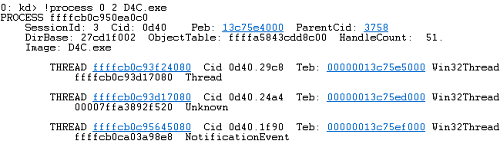
This lets us identify that the three thread addresses associated with the D4C.exe process are 0xffffcb0c93f24080, 0xffffcb0c93d17080, and 0xffffcb0c95645080.
Now, by setting the thread context with these three addresses, we can use the k command to inspect stack backtrace information for D4C.exe’s threads.
# Set the first thread context and print the stack backtrace
0: kd> .thread 0xffffcb0c93f24080; k
Implicit thread is now ffffcb0c`93f24080
  *** Stack trace for last set context - .thread/.cxr resets it
 # Child-SP          RetAddr               Call Site
00 ffffef81`2c6ef5e0 fffff806`72e1bca0     nt!KiSwapContext+0x76
01 ffffef81`2c6ef720 fffff806`72e1b1cf     nt!KiSwapThread+0x500
02 ffffef81`2c6ef7d0 fffff806`72e1aa73     nt!KiCommitThreadWait+0x14f
03 ffffef81`2c6ef870 fffff806`73201b11     nt!KeWaitForSingleObject+0x233
04 ffffef81`2c6ef960 fffff806`73201a6a     nt!ObWaitForSingleObject+0x91
{{ omitted }}

# Set the second thread context and print the stack backtrace
0: kd> .thread 0xffffcb0c93d17080; k
Implicit thread is now ffffcb0c`93d17080
  *** Stack trace for last set context - .thread/.cxr resets it
 # Child-SP          RetAddr               Call Site
00 ffffef81`2c7476e0 fffff806`72e1bca0     nt!KiSwapContext+0x76
01 ffffef81`2c747820 fffff806`72e1b1cf     nt!KiSwapThread+0x500
02 ffffef81`2c7478d0 fffff806`72ef51a4     nt!KiCommitThreadWait+0x14f
03 ffffef81`2c747970 fffff806`732b1d20     nt!KeWaitForAlertByThreadId+0xc4
04 ffffef81`2c7479d0 fffff806`730105f5     nt!NtWaitForAlertByThreadId+0x30
{{ omitted }}

# Set the third thread context and print the stack backtrace
0: kd> .thread 0xffffcb0c95645080; k
Implicit thread is now ffffcb0c`95645080
  *** Stack trace for last set context - .thread/.cxr resets it
 # Child-SP          RetAddr               Call Site
00 ffffef81`2c847310 fffff806`72e1bca0     nt!KiSwapContext+0x76
01 ffffef81`2c847450 fffff806`72e1b1cf     nt!KiSwapThread+0x500
02 ffffef81`2c847500 fffff806`72e1aa73     nt!KiCommitThreadWait+0x14f
03 ffffef81`2c8475a0 fffff806`72ff1494     nt!KeWaitForSingleObject+0x233
04 ffffef81`2c847690 fffff806`732011ab     nt!IopWaitForSynchronousIoEvent+0x50
{{ omitted }}
Furthermore, by passing a thread object’s address as an argument to the !thread extension command13, you can display the target thread’s execution time and stack backtrace together without changing the thread context.
Below is the output of running the !thread 0xffffcb0c93d17080 command.
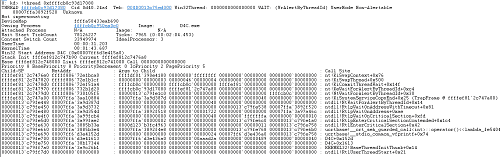
Incidentally, as mentioned in Chapter 3, Windows threads are represented by the ETHREAD structure, and the TEB (Thread Environment Block) is contained within the KTHREAD structure, which is its first member.
In other words, by using the thread object address obtained here and running the dt ntdll!_ETHREAD <thread object address> Tcb->Teb command, you can easily refer to the TEB address of a specific thread object.
By passing the TEB address you obtained as an argument to the !teb extension command, you can display information about the target TEB in the debugger.
0: kd> dt ntdll!_ETHREAD 0xffffcb0c93f24080 Tcb->Teb
   +0x000 Tcb      :
      +0x0f0 Teb      : 0x00000013`c75e5000 Void

0: kd> !teb 0x00000013c75e5000
TEB at 00000013c75e5000
  ExceptionList:        0000000000000000
  StackBase:            00000013c7360000
  StackLimit:           00000013c735c000
  SubSystemTib:         0000000000000000
  FiberData:            0000000000001e00
  ArbitraryUserPointer: 0000000000000000
  Self:                 00000013c75e5000
  EnvironmentPointer:   0000000000000000
  ClientId:             0000000000000d40 . 00000000000029c8
  RpcHandle:            0000000000000000
  Tls Storage:          000001244e6d33c0
  PEB Address:          00000013c75e4000
  LastErrorValue:       0
  LastStatusValue:      c0000034
  Count Owned Locks:    0
  HardErrorMode:        0
Investigating heap information for a user-mode process
Even when the analysis target is a full system memory dump, once the debugger’s process context is set appropriately, you can also inspect process heap information with the !heap extension command.
0: kd> .process /r /p 0xffffcb0c950ea0c0

0: kd> !heap
Heap Address      NT/Segment Heap
 1244e6d0000       NT Heap
 1244e500000       NT Heap
 1244e950000       NT Heap

0: kd> !heap -a
HEAPEXT: Unable to get address of ntdll!RtlpHeapInvalidBadAddress.
Index   Address  Name      Debugging options enabled
  1:   1244e6d0000
    Segment at 000001244e6d0000 to 000001244e7cf000 (000ef000 bytes committed)
    Segment at 000001244e810000 to 000001244e90f000 (000f8000 bytes committed)
    Segment at 000001244e960000 to 000001244eb5f000 (001f8000 bytes committed)
    Segment at 000001244eb60000 to 000001244ef5f000 (003f7000 bytes committed)
{{ omitted }}
The method for investigating user-mode heaps with the !heap command is the same as in Chapter 6, so I will omit it here.
If, as in Chapter 6, you dump a few heap entries in an arbitrary heap segment, you can confirm that strings beginning with ==> Allocated addr: have been written there, as shown below.
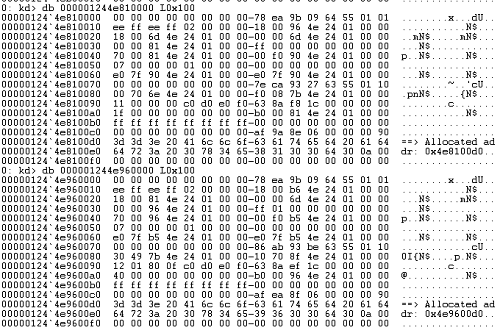
From here, by using the Ghidra decompiler just as in Chapter 6 to investigate the code that writes to the heap, you can identify the location that caused the user-mode memory leak.
Incidentally, although this book does not use them, when you investigate kernel-mode memory leak issues rather than user-mode ones, you inspect paged pool and nonpaged pool information with commands such as the !pool extension command14 and the !poolused extension command15.
Summary of Chapter 7
In Chapters 6 and 7, we analyzed memory leak issues in user-mode applications as examples of investigating the causes of problems that do not involve a crash from dump files.
Unlike process dump analysis, when troubleshooting a specific process from a full system memory dump, you need to set the appropriate process context and register context in the debugger.
I think this point can easily become a hurdle for people who are analyzing dump files for the first time, so I hope you will read this chapter while comparing it with the analysis in Chapter 6.
Although this book dealt with memory leaks in user applications as a non-crash problem, there are many other kinds of problems like this.
For example, spikes in CPU usage, process hangs, application deadlocks, handle leaks, and even depletion of the system’s memory pools can all be investigated by analyzing dump files.
When you investigate these problems, you can enjoy dump file analysis with approaches that differ yet again from those used for crashes and memory leaks.
Unfortunately, Vol.1 cannot cover these analysis methods, but if you want to learn Windows dump file analysis more deeply, I recommend reproducing various troubles with tools such as Crash Me from “Welcome to WinDbg.info” and NotMyFault, then obtaining and analyzing dump files.
Crash Me:
Links to each chapter
- Preface
- Chapter 1: Environment Setup
- Chapter 2: Basic WinDbg Operations
- Chapter 3: Prerequisites for Analysis
- Chapter 4: Analyzing an Application Crash Dump
- Chapter 5: Analyzing a Full Memory Dump from a System Crash
- Chapter 6: Investigating a User-Mode Application Memory Leak from a Process Dump
- Chapter 7: Investigating a User-Mode Memory Leak from a Full Memory Dump
- Appendix A: WinDbg Tips
- Appendix B: Analyzing Crash Dumps with Volatility 3
-
Bug Check
↩0xE2:MANUALLY_INITIATED_CRASHhttps://learn.microsoft.com/ja-jp/windows-hardware/drivers/debugger/bug-check-0xe2—manually-initiated-crash -
↩!sysinfoextension command https://learn.microsoft.com/ja-jp/windows-hardware/drivers/debugger/-sysinfo -
↩!cpuinfoextension command https://learn.microsoft.com/ja-jp/windows-hardware/drivers/debugger/-cpuinfo -
MEX extension https://www.microsoft.com/en-us/download/details.aspx?id=53304
↩ -
↩!regextension command https://learn.microsoft.com/ja-jp/windows-hardware/drivers/debugger/-reg -
Advanced Windows registry information for power users https://learn.microsoft.com/ja-jp/troubleshoot/windows-server/performance/windows-registry-advanced-users
↩ -
↩!vmextension command https://learn.microsoft.com/ja-jp/windows-hardware/drivers/debugger/-vm -
↩!memusageextension command https://learn.microsoft.com/ja-jp/windows-hardware/drivers/debugger/-memusage -
Windows Internals, 7th Edition, Part 1, p.471 (by Pavel Yosifovich, Alex Ionescu, Mark E. Russinovich, David A. Solomon / translated by 山内 和朗 / 日系 BP 社 / 2018)
↩ -
↩!processextension command https://learn.microsoft.com/ja-jp/windows-hardware/drivers/debugger/-process -
↩!for_each_processextension command https://learn.microsoft.com/ja-jp/windows-hardware/drivers/debugger/-for-each-process -
Displaying a stack backtrace with k, kb, kc, kd, kp, kP, and kv https://learn.microsoft.com/ja-jp/windows-hardware/drivers/debugger/k—kb—kc—kd—kp—kp—kv—display-stack-backtrace-
↩ -
Setting register context with
↩.threadhttps://learn.microsoft.com/ja-jp/windows-hardware/drivers/debugger/-thread—set-register-context- -
↩!threadextension command https://learn.microsoft.com/ja-jp/windows-hardware/drivers/debugger/-thread -
↩!poolextension command https://learn.microsoft.com/ja-jp/windows-hardware/drivers/debugger/-pool -
↩!poolusedextension command https://learn.microsoft.com/ja-jp/windows-hardware/drivers/debugger/-poolused